Deploy the PDP on GCP Cloud Run
Deploy the Permit.io policy decision point (PDP) to Google Cloud Run. This page is for operators who run workloads on Google Cloud Platform (GCP) and want a PDP their services can call.
The public PDP image, permitio/pdp-v2 on Docker Hub, runs on Cloud Run without changes. You can deploy the image in two ways:
- Deploy with a service YAML file and gcloud. Recommended: the file sets every required option in one place, and you can keep it in version control.
- Deploy in the Cloud Run console.
Settings the PDP needs on Cloud Run
Both deployment paths set these options. Missing one of them is the most common cause of a failing PDP on Cloud Run.
| Setting | Value | Why |
|---|---|---|
| Container port | 7000 | The PDP API listens on port 7000 inside the container. |
PDP_API_KEY | Your environment API key | The PDP uses the key to fetch its configuration and policy. |
CPU throttling (run.googleapis.com/cpu-throttling) | "false" (CPU always allocated) | The PDP keeps a background connection to Permit for policy updates. With CPU allocated only during requests, Cloud Run can terminate the PDP container with signal 6 (SIGABRT). |
Minimum instances (autoscaling.knative.dev/minScale) | "1" | Keeps one PDP running. Without it, the first permission check after an idle period waits for a cold start, and checks can fail or time out. |
For how Cloud Run allocates CPU, see Cloud Run CPU allocation.
Deploy with a service YAML file and gcloud
The following configuration is known to work on Cloud Run. It sets autoscaling, CPU throttling, a startup probe, and the API key from Secret Manager. An older variant of the file, with the API key as a plain environment value instead of a secret, is in the permit-pdp-deployments-examples repository.
Prerequisites
- The gcloud CLI, installed and signed in to your GCP project.
- Your environment API key. See Get your API key.
Use an environment API key. This configuration sets only PDP_API_KEY. An organization or project API key also needs the PDP_ACTIVE_* variables described in Run the PDP with an organization or project API key.
1. Enable the Cloud Run and Secret Manager APIs
gcloud services enable secretmanager.googleapis.com
gcloud services enable run.googleapis.com
2. Store the API key in Secret Manager
Replace YOUR_PERMIT_API_KEY with your environment API key. The command creates a secret named permit-pdp-api-key.
echo -n "YOUR_PERMIT_API_KEY" | gcloud secrets create permit-pdp-api-key \
  --data-file=- \
  --replication-policy=automatic
3. Grant the service account access to the secret
The commands find the default Compute Engine service account and let it read the permit-pdp-api-key secret. Cloud Run runs the PDP as this service account.
# Get the service account email
SERVICE_ACCOUNT=$(gcloud iam service-accounts list --format="value(email)" | grep compute)

# Grant secret access
gcloud secrets add-iam-policy-binding permit-pdp-api-key \
  --member="serviceAccount:${SERVICE_ACCOUNT}" \
  --role="roles/secretmanager.secretAccessor"
Run echo $SERVICE_ACCOUNT and copy the email address for the next step.
4. Create the Cloud Run service YAML file
Create a file named permit-pdp-service.yaml:
apiVersion: serving.knative.dev/v1
kind: Service
metadata:
  name: permit-pdp
  labels:
    cloud.googleapis.com/location: us-central1
  annotations:
    run.googleapis.com/client-name: cloud-console
    run.googleapis.com/ingress: all
    run.googleapis.com/ingress-status: all
spec:
  template:
    metadata:
      labels:
        run.googleapis.com/startupProbeType: Default
      annotations:
        run.googleapis.com/cpu-throttling: "false"
        run.googleapis.com/client-name: cloud-console
        autoscaling.knative.dev/minScale: "1"
        autoscaling.knative.dev/maxScale: "10"
    spec:
      containerConcurrency: 80
      timeoutSeconds: 300
      serviceAccountName: YOUR_SERVICE_ACCOUNT_EMAIL
      containers:
        - image: permitio/pdp-v2:latest
          ports:
            - name: http1
              containerPort: 7000
          env:
            - name: PDP_API_KEY
              valueFrom:
                secretKeyRef:
                  key: latest
                  name: permit-pdp-api-key
          resources:
            limits:
              cpu: 1000m
              memory: 512Mi
          startupProbe:
            timeoutSeconds: 240
            periodSeconds: 240
            failureThreshold: 1
            tcpSocket:
              port: 7000
  traffic:
    - percent: 100
      latestRevision: true
Replace YOUR_SERVICE_ACCOUNT_EMAIL with the service account email from step 3 (the value of $SERVICE_ACCOUNT). The file deploys to the us-central1 region. To use another region, change the cloud.googleapis.com/location label and the --region flag in the commands below.
The settings that matter for the PDP:
| Setting | Value | Purpose |
|---|---|---|
run.googleapis.com/cpu-throttling | "false" | Keeps CPU allocated between requests, which prevents SIGABRT terminations |
autoscaling.knative.dev/minScale | "1" | Keeps one instance running, which avoids cold starts that make checks fail |
autoscaling.knative.dev/maxScale | "10" | Caps the number of PDP instances |
containerPort | 7000 | The PDP API port |
secretKeyRef | permit-pdp-api-key, version latest | Reads PDP_API_KEY from Secret Manager |
startupProbe.timeoutSeconds | 240 | Gives the PDP time for its first policy sync |
5. Deploy the service
gcloud run services replace permit-pdp-service.yaml --region=us-central1
The command creates or updates the permit-pdp service.
6. Optional: allow unauthenticated access
A PDP that allows unauthenticated invocation answers permission checks for anyone on the internet who has the service URL. Use this setting only for development or testing. In production, require Cloud Run IAM authentication, or reach the PDP privately through a VPC connector.
To let callers without Google credentials invoke the PDP, grant the invoker role to allUsers:
gcloud run services add-iam-policy-binding permit-pdp \
  --region=us-central1 \
  --member="allUsers" \
  --role="roles/run.invoker"
7. Verify the deployment
Get the service URL and call the PDP's health endpoint. If you skipped step 6, the request needs a Google identity token, for example an Authorization: Bearer $(gcloud auth print-identity-token) header.
# Get the service URL
SERVICE_URL=$(gcloud run services describe permit-pdp --region=us-central1 --format="value(status.url)")

# Check health
curl ${SERVICE_URL}/health
A healthy PDP returns HTTP 200 and a response like this:
{
  "components": {
    "horizon": {
      "details": {
        "direct_check": "success",
        "watchdog": "error"
      },
      "error": null,
      "status": "ok"
    },
    "opa": {
      "error": null,
      "status": "ok"
    }
  },
  "status": "ok"
}
The top-level "status" is the result that matters. "watchdog": "error" under horizon.details doesn't change the result: the PDP reports the horizon component as ok when its direct check succeeds. When the PDP is not healthy, the endpoint returns HTTP 503 with "status": "error".
PDP endpoints on Cloud Run
| Endpoint | Purpose |
|---|---|
https://YOUR_SERVICE_URL/health | Health check. See Verify the PDP is healthy. |
https://YOUR_SERVICE_URL/allowed | Permission checks. Set https://YOUR_SERVICE_URL as the PDP URL in your SDK. |
Replace YOUR_SERVICE_URL with the host name from $SERVICE_URL. Cloud Run serves the PDP over HTTPS on the default port, so the URL has no port number.
Deploy in the Cloud Run console
Use the console to try the PDP on Cloud Run without the CLI. The steps set the same options as the YAML file, except CPU throttling. Set CPU to always allocated in the service's CPU allocation settings, as described in Settings the PDP needs on Cloud Run.
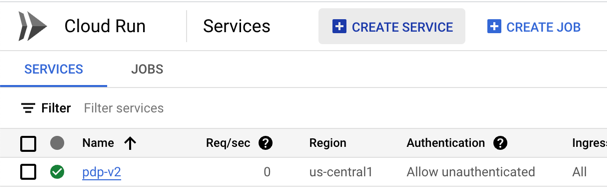
1. Create a Cloud Run service
In the Cloud Run dashboard, click Create Service.
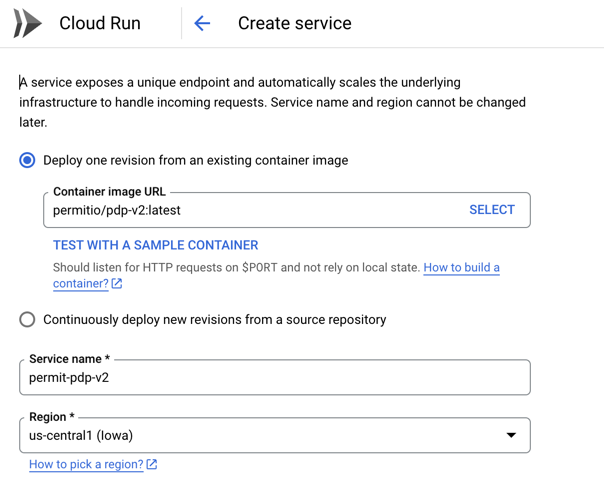
2. Set the image and service name
In Container Image URL, enter permitio/pdp-v2:latest. Enter a service name, and choose a region.
3. Set the minimum number of instances
In the Auto Scaling section, set Minimum number of instances to 1. One PDP instance then stays running, and permission checks don't wait for a cold start.

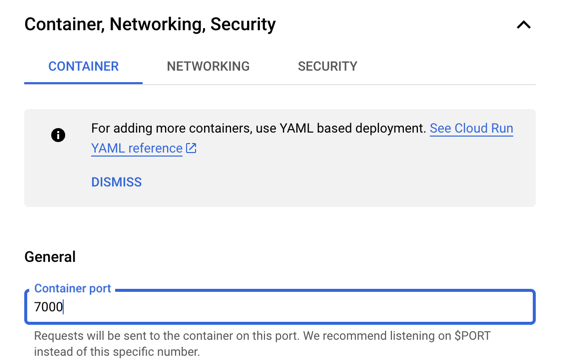
4. Set the container port
Set the container port to 7000, the port the PDP API listens on.
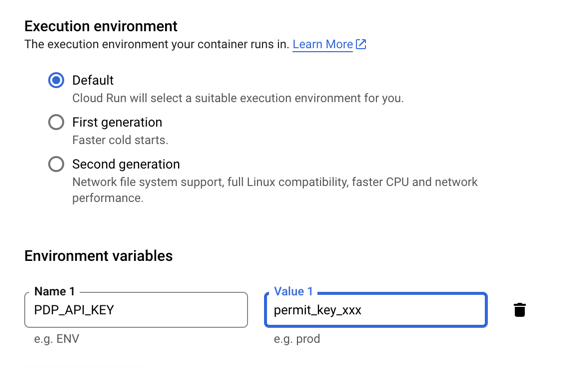
5. Set the API key environment variable
Add the environment variable PDP_API_KEY with your environment API key as the value. PDP_API_KEY is the only required variable. See Get your API key.
For anything beyond a test, reference the key from Secret Manager instead of typing the value. A typed value is visible to anyone who can view the service configuration.
Use an environment API key. An organization or project API key also needs the PDP_ACTIVE_* variables.
6. Create and check the service
Click Create. Cloud Run shows the deployment progress in the Logs tab. When the deployment succeeds, the service URL appears at the top of the service page.

To confirm the PDP is healthy, send a GET request to <SERVICE_URL>/health, as in Verify the deployment.
Troubleshoot the PDP on Cloud Run
| Symptom | Cause | Fix |
|---|---|---|
| Container terminated with signal 6 (SIGABRT) | CPU is allocated only during requests | Set run.googleapis.com/cpu-throttling: "false" in the template annotations, or set CPU to always allocated in the console. |
| Permission checks fail or time out after idle periods | Cold starts with zero instances | Set autoscaling.knative.dev/minScale: "1". |
| Quota errors when the service scales | CPU or memory quota limits in the region | Lower autoscaling.knative.dev/maxScale, or request more quota. |