Configure a JWKS in your Permit environment
Add your identity provider's JSON Web Key Set (JWKS) to a Permit environment. Permit uses the public keys in the JWKS to verify the JSON Web Tokens (JWTs) that your frontend sends to Permit, for example when users sign in to Permit Elements with your own identity provider. This page is for developers who set up frontend authentication to Permit.
Prerequisites
- A Permit.io account with access to the environment you configure
- The JWKS object or the JWKS URL of your identity provider (Fetch a JWKS from your identity provider)
A JWKS belongs to one environment. Repeat these steps for each environment your frontend uses.
1. Open Settings in the Permit dashboard
In the Permit dashboard, click Settings in the left navigation panel.
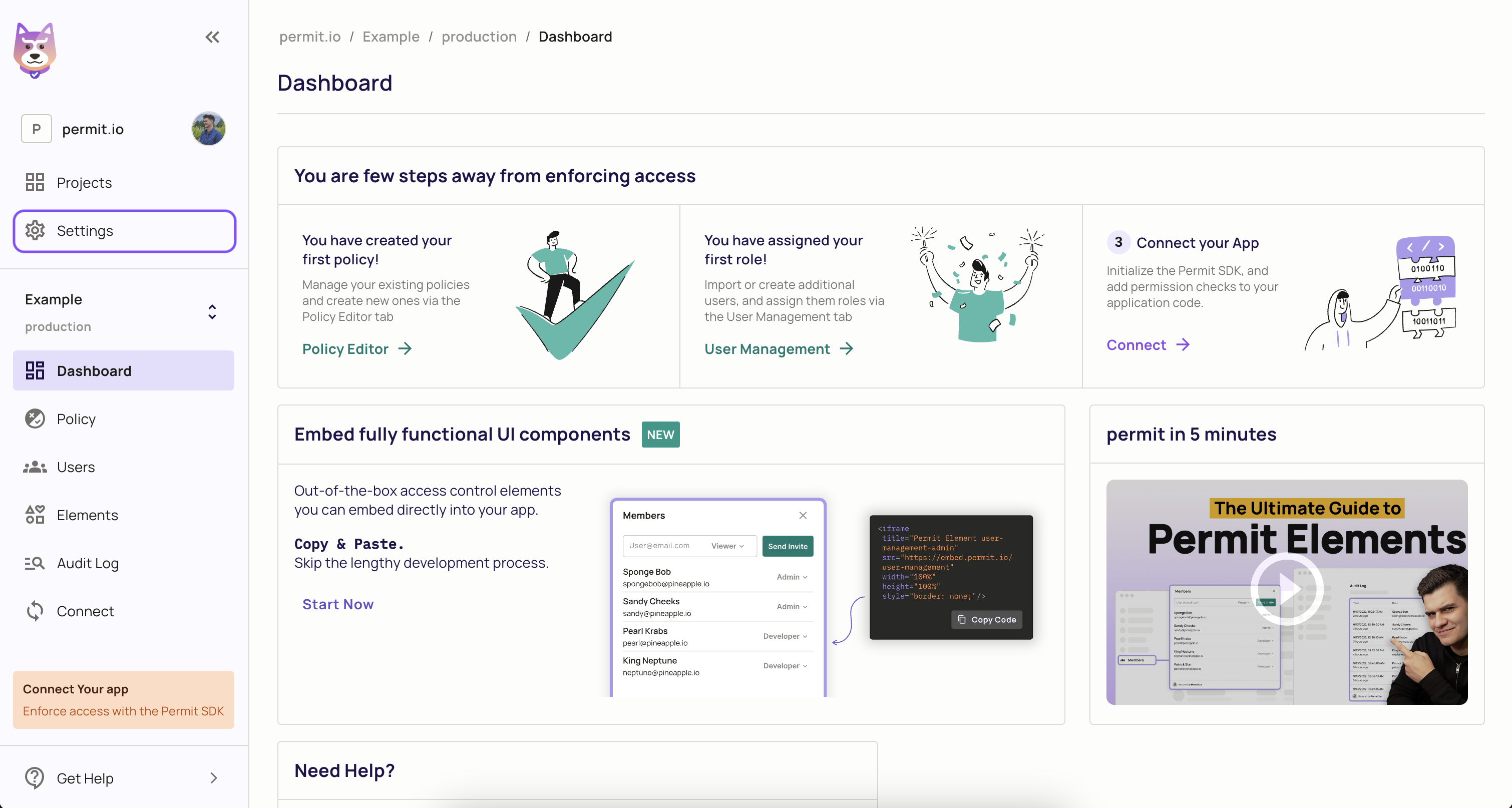
2. Open JWKS Config
Click JWKS Config.
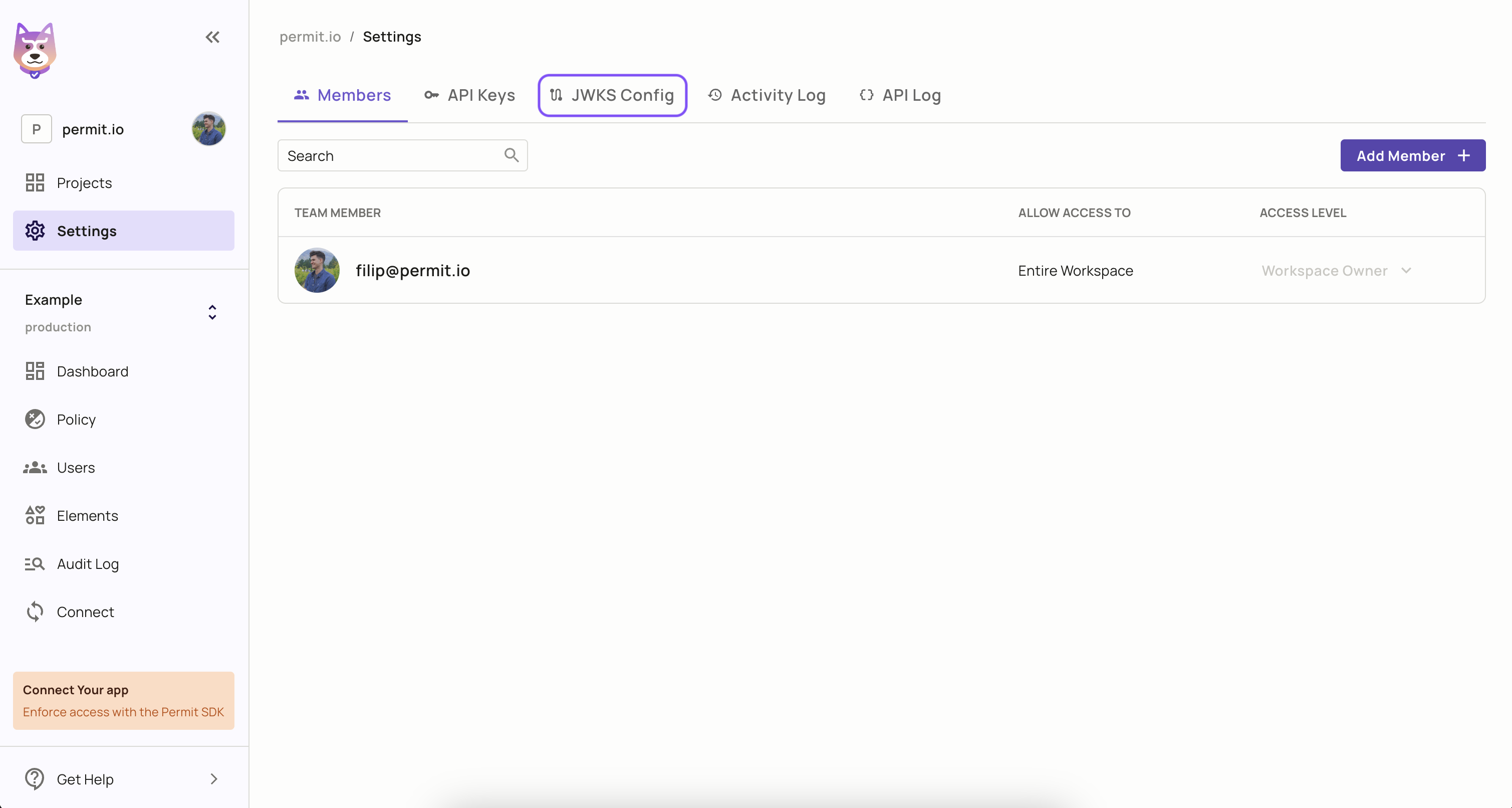
3. Select the environment
Select the environment to configure.
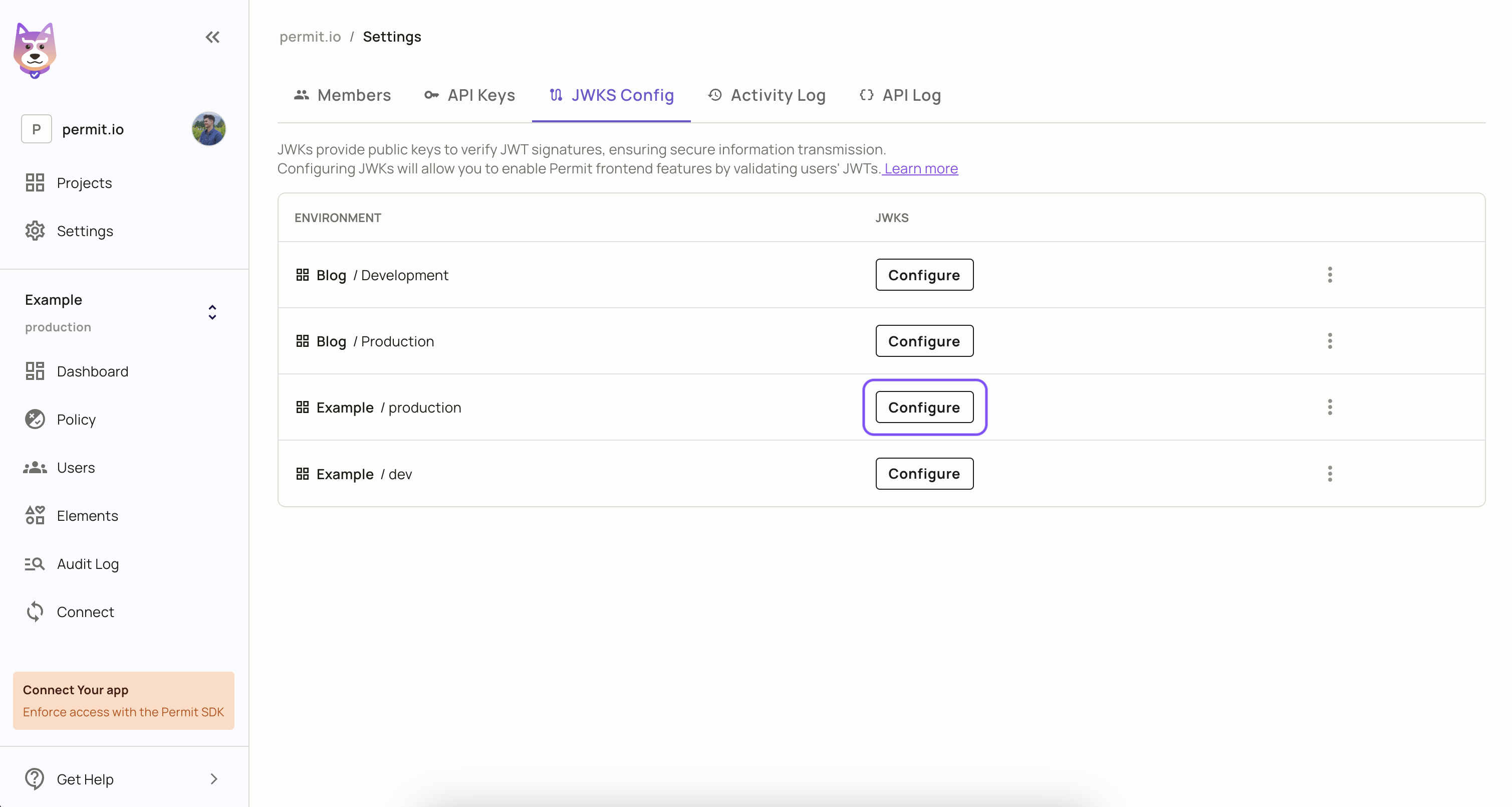
4. Add the JWKS object or the JWKS URL
Add the JWKS in one of two ways:
- JWKS object. Paste the whole JWKS object into the JSON editor. The root of the object is the
keysarray. - JWKS URL. Enter an
httpsURL that returns a valid JWKS object withkeysat the root. Use a URL when your identity provider rotates signing keys, so Permit fetches the current keys instead of a copy that goes stale.
Then click Save.
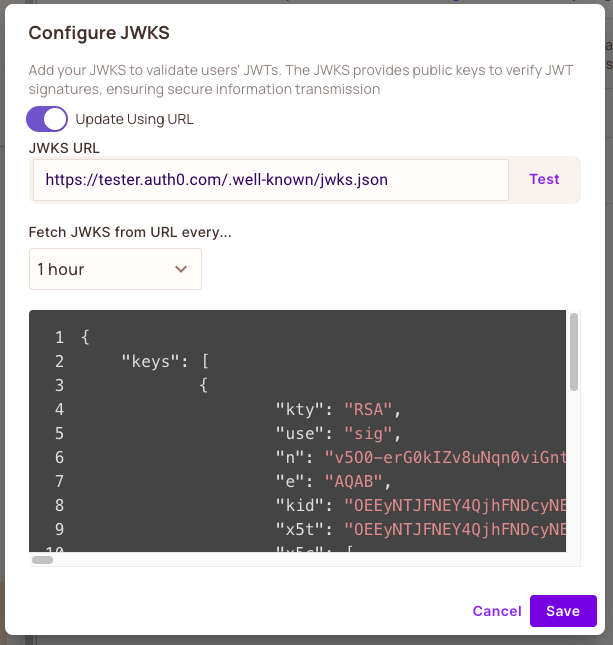
Each key in keys describes one public key. The kid value is the unique identifier of the key and matches the kid in the header of the JWTs the key signs. The following example shows the fields of an RS256 key, with the key values masked:
{
    "keys": [
        {
            "alg": "RS256",
            "kty": "RSA",
            "use": "sig",
            "n": "****",
            "e": "****",
            "kid": "****",
            "x5t": "****",
            "x5c": [
                "****"
            ]
        }
    ]
}
Verify the JWKS configuration
To confirm that Permit stored the JWKS, request the environment with GET /v2/projects/{proj_id}/envs/{env_id} and check the jwks field of the response. To test a JWKS URL, call POST /v2/projects/{proj_id}/envs/{env_id}/test_jwks with the URL in the url query parameter.
To confirm that the JWKS contains the key for your tokens, compare the kid in the header of one of your JWTs with the kid values in keys.
Configure a JWKS with the Permit API
To configure a JWKS without the dashboard, update the environment with PATCH /v2/projects/{proj_id}/envs/{env_id} and set the jwks field. The jwks field accepts a jwks object with a keys array, or a url, and an optional ttl: the time in seconds Permit caches the JWKS (default 600). See the Environments API reference.