Plan your User Sync Strategy
Decide where and how your application keeps Permit.io's list of users current. This page is for developers and architects who design the user sync before they write it. It explains the handoff point after sign-in, the choice between a bulk import and incremental sync, and when SCIM fits. For the steps and parameters of a sync call, see Sync users.
Users and members
Permit has two kinds of identities. You sync users. You invite members.
Users
Users are the identities, human or automated, whose access to your application you control. A user can belong to several tenants and hold different roles in each one.
For example, Sarah uses your app and belongs to the Marketing tenant. To create content, Sarah needs the Editor role in the Marketing tenant.
Members
Members are your team members who work in the Permit dashboard. Permit's own access control governs what members can do (AuthZ for AuthZ). By default, only members can access Permit and create or edit policies.
When to sync users
Sync a user during sign-up or sign-in, right after your authentication provider verifies the user's identity. At that point, map the user's organizational role (for example Head of Marketing, Customer, Consultant, or Patient) and the relevant claims in the JSON Web Token (JWT) to application-level roles, attributes, and relationships.
When you sync at sign-in, the user has the right roles in Permit before the application makes its first permission check for that user.
The handoff point
The handoff point is the middleware step that runs after authentication succeeds and before your application serves the user.
The handoff point runs four steps in order:
| Step | What happens |
|---|---|
| Authentication confirmation | The authentication provider verifies the user's identity. |
| Session and JWT issuance | The application creates a session, and the provider issues a JWT with the user's unique identifier. |
| User synchronization | Your middleware syncs the user from the JWT into Permit, with the identifier as the user key. |
| Role assignment | Your middleware assigns the user's roles in Permit, based on the claims and your application's rules. |
For middleware code per authentication provider, see Connect your authentication provider.
Sync methods
You can add users to Permit in three ways. Sync users has the steps for each one.
| Method | Fits |
|---|---|
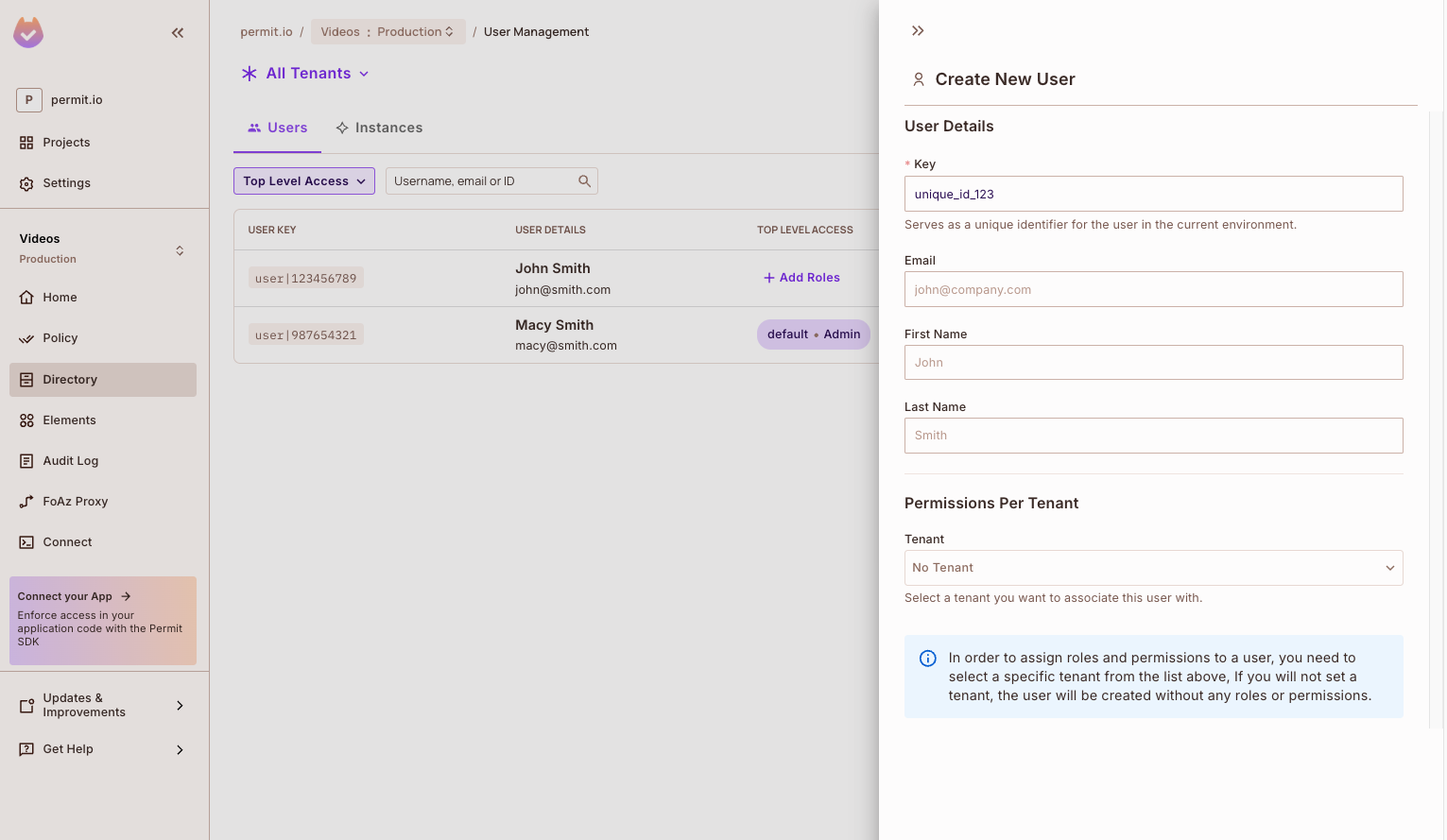
| Permit dashboard (Directory screen) | Adding a few users by hand, for example test users. |
SDK (permit.api.users.sync()) | Syncing users from your backend at sign-up, sign-in, or profile updates. |
| Permit API | Syncing users from a backend process or a language without an SDK. |
The SDK call and the equivalent API request look like this. Replace {proj_id} and {env_id} with your project and environment IDs, and YOUR_API_KEY with your environment API key:
- Node.js
- cURL
import { Permit } from "permitio";

const permit = new Permit({
  token: process.env.PERMIT_API_KEY,
  pdp: "https://cloudpdp.api.permit.io",
});

const { user, created } = await permit.api.users.sync({
  key: "user|123456789",
  email: "john@permit.io",
  first_name: "John",
  last_name: "Smith",
});
console.log("User synced:", user.key, "created:", created);
curl 'https://api.permit.io/v2/facts/{proj_id}/{env_id}/users/user%7C123456789' \
  --request PUT \
  --header 'Authorization: Bearer YOUR_API_KEY' \
  --header 'Content-Type: application/json' \
  --data '{
  "key": "user|123456789",
  "email": "john@permit.io",
  "first_name": "John",
  "last_name": "Smith"
}'
permit.api.users.sync() creates the user when the key is new and replaces the user when the key exists. The Node.js sample prints User synced: user|123456789 created: true the first time you run it, and created: false after that.
In the dashboard, you add a user from the Directory screen:
Move existing users into Permit
If your application already has users, choose how they reach Permit.
| Approach | How it works | Tradeoffs |
|---|---|---|
| Bulk import script | A script reads your user database and sends every user to Permit with the API or SDK. | Every user exists in Permit right away. You write and run the script, and you handle errors and data mismatches. |
| Incremental sync at sign-in (recommended) | The handoff point syncs each user the next time the user signs in. | No import script to maintain. Only active users are synced. A user who hasn't signed in yet isn't in Permit. |
Bulk import script
Write a script that iterates over your users and sends them to Permit. The API has bulk endpoints that create, replace, or delete many users in one request. See Sync users in bulk. For an example with Auth0 users, see Sync Auth0 users and roles.
Incremental sync at sign-in (recommended)
Sync each user at the handoff point, during sign-in, after the user's identity is verified. You don't load the whole user database up front. As users sign in over time, your active users end up in Permit, and inactive or outdated accounts stay out.
If your application needs to check permissions for a user who hasn't signed in, for example to list who can access a document, sync those users with a bulk import first.
Sync users with SCIM
System for Cross-domain Identity Management (SCIM) is a standard protocol that sends user changes from an identity provider (IdP), such as Okta or Microsoft Entra ID, to a service provider such as Permit.
When to use SCIM
Use SCIM when your IdP is the source of truth for users, for example for workforce or business-to-business (B2B) applications where an administrator manages accounts in the IdP. With SCIM, you don't write sync code: the IdP pushes user provisioning, updates, and deprovisioning to Permit.
How SCIM works with Permit
When a user is created, changed, or deactivated in the IdP, the IdP sends the change to Permit's SCIM endpoint.
For example, Lisa joins your company. HR creates her profile in Okta with her name, email address, and the Marketing Specialist role. Okta sends Lisa's profile to Permit, and Permit creates the user. When Lisa first signs in to your application, she already exists in Permit. If her account changes or is deactivated in Okta, Okta sends that change too.
To set up SCIM, see SCIM integration with Okta or SCIM integration with Microsoft Entra ID. The Okta guide maps Okta groups to Permit roles.
Summary
| Question | Answer |
|---|---|
| Who do you sync? | Users of your application. Members are your team in the Permit dashboard. |
| When do you sync? | At sign-up or sign-in, right after authentication. |
| How do you load existing users? | Sync incrementally at sign-in, or run a bulk import when you need every user in Permit up front. |
| When do you use SCIM? | When an IdP such as Okta or Entra ID is the source of truth for users. |