Sync Auth0 Users and Roles
Import your existing Auth0 users and their Auth0 roles into Permit.io in one run. You export the users from Auth0 as a CSV file, then run a Python script from the permitio/admin-scripts repository. This guide is for developers who add Permit to an Auth0 app that already has users. To sync users as they sign in, see Auth0 and Permit integration.
What the script does
The auth0/auth0_sync_users_with_permit.py script:
- Reads the roles from your Auth0 tenant and compares them with the role keys in your Permit environment.
- If Auth0 roles are missing in Permit, asks whether to create them. After it creates the roles, the script exits. Run it again to sync users.
- For each row in the CSV file, reads the user's roles from the Auth0 Management API, syncs the user to Permit with the Auth0
user_idas the user key, and assigns each Auth0 role in the tenant you choose.
Prerequisites
- An Auth0 account with permission to use the Auth0 Management API.
- A Permit.io account and your environment API key. See Get your API key.
- Python 3 with
pip, and Git. curl, to run the Auth0 export requests.
1. Get an Auth0 Management API token
- In the Auth0 dashboard, open Applications.
- Open the Auth0 Management API application.
- On the API Explorer tab, copy the Token value. To run the script more than once, set a longer Token Expiration before you copy the token.
The Management API token can read and change every user in your Auth0 tenant. Keep it out of source control, and delete the .env file after the sync.
2. Export users from Auth0
You can export users with the Auth0 bulk user export guide, or with the requests below.
Start the export job
Send a request to start a user export job:
curl --location 'https://[your auth0 domain].auth0.com/api/v2/jobs/users-exports' \
--header 'authorization: Bearer [Auth0 management API Key]' \
--header 'Content-Type: application/json' \
--data '{
    "connection_id": "con_1234567890",
    "format": "csv",
    "limit": 999999,
    "fields": [
        {"name": "email"},
        {"name":"user_id"},
        {"name":"given_name"},
        {"name":"family_name"},
        {
            "name": "identities[0].connection",
            "export_as": "provider"
        }
    ]
}'
Replace these values:
| Placeholder | Value |
|---|---|
[your auth0 domain] | Your Auth0 tenant domain |
[Auth0 Management API Key] | The Management API token from step 1 |
con_1234567890 | The ID of the connection to export users from. In the Auth0 dashboard, go to Authentication > Database, open the connection, and copy the ID from the URL or from the Identifier field. |
The response includes the job ID, which looks like job_abcdefghijk.
Download the export file
Check the export job. Replace [your auth0 domain] and [Auth0 Management API Key] as before, and [job_id] with the job ID from the previous request:
curl --location 'https://[your auth0 domain].auth0.com/api/v2/jobs/users-exports/[job_id]' \
--header 'authorization: Bearer [Auth0 management API Key]'
When the job status is completed, the response includes a location link to the users CSV file, compressed as a .gz file:
"location": "https://peu2-auth0-export-users-eu-west-1.s3.eu-west-1.amazonaws.com/job_....
Download the file from that link and extract the CSV file.
3. Prepare the script environment
- Clone the admin-scripts repository:
git clone git@github.com:permitio/admin-scripts.git
-
Move the extracted CSV file into the
admin-scripts/auth0folder, and open that folder in your terminal. The script, itsrequirements.txt, and its.env.examplefile are in theauth0folder. -
Install the Python requirements:
cd admin-scripts/auth0
pip install -r requirements.txt
- Create a
.envfile in theauth0folder, based on.env.example, with these variables:
| Variable | Value |
|---|---|
PERMIT_SDK_TOKEN | Your Permit environment API key |
AUTH0_DOMAIN | Your Auth0 tenant domain |
AUTH0_MGMT_ACCESS_TOKEN | The Management API token from step 1 |
4. Run the sync script
Run the script from the auth0 folder:
python auth0_sync_users_with_permit.py
The script asks for two values:
| Prompt | What to enter |
|---|---|
All users export CSV file path | The name or path of the CSV file, for example users.csv |
Tenant key | The key of the Permit tenant to assign roles in. Press Enter to use default. |
If your Permit environment is missing any Auth0 roles, the script lists them and asks y/n. Enter y to create the roles, then run the script again to sync the users. Enter n to stop, create the roles in Permit yourself, and run the script again.
5. Verify the users in Permit
- Open Directory in the Permit dashboard and select the tenant you entered.
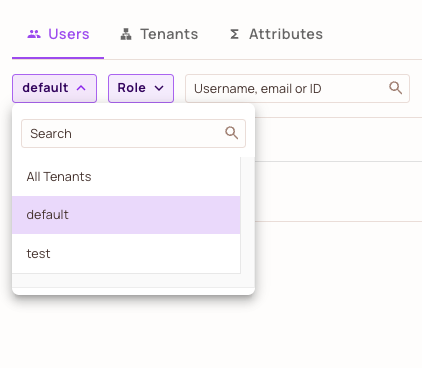
- Confirm that each exported Auth0 user appears with the Auth0
user_idas the user key, and with the roles the user has in Auth0.
Next steps
- Auth0 and Permit integration: sync new users and roles at each login.
- Bulk user operations: import users from other sources through the Permit API.
- Check permissions: enforce the synced roles in your application.