Check permissions with the Java SDK
Connect a Java application to Permit.io, sync a user, and call permit.check() to allow or deny a request. This quickstart is for backend developers who have a Permit.io policy and want to enforce the policy from Java code.
Prerequisites
- A Permit.io account with at least one policy. If you don't have a policy yet, complete the Quickstart.
- Docker, if you run the policy decision point (PDP) as a container. See Install Docker.
1. Get your environment API key
The SDK and the PDP authenticate with Permit using an environment API key. Each API key belongs to one environment.
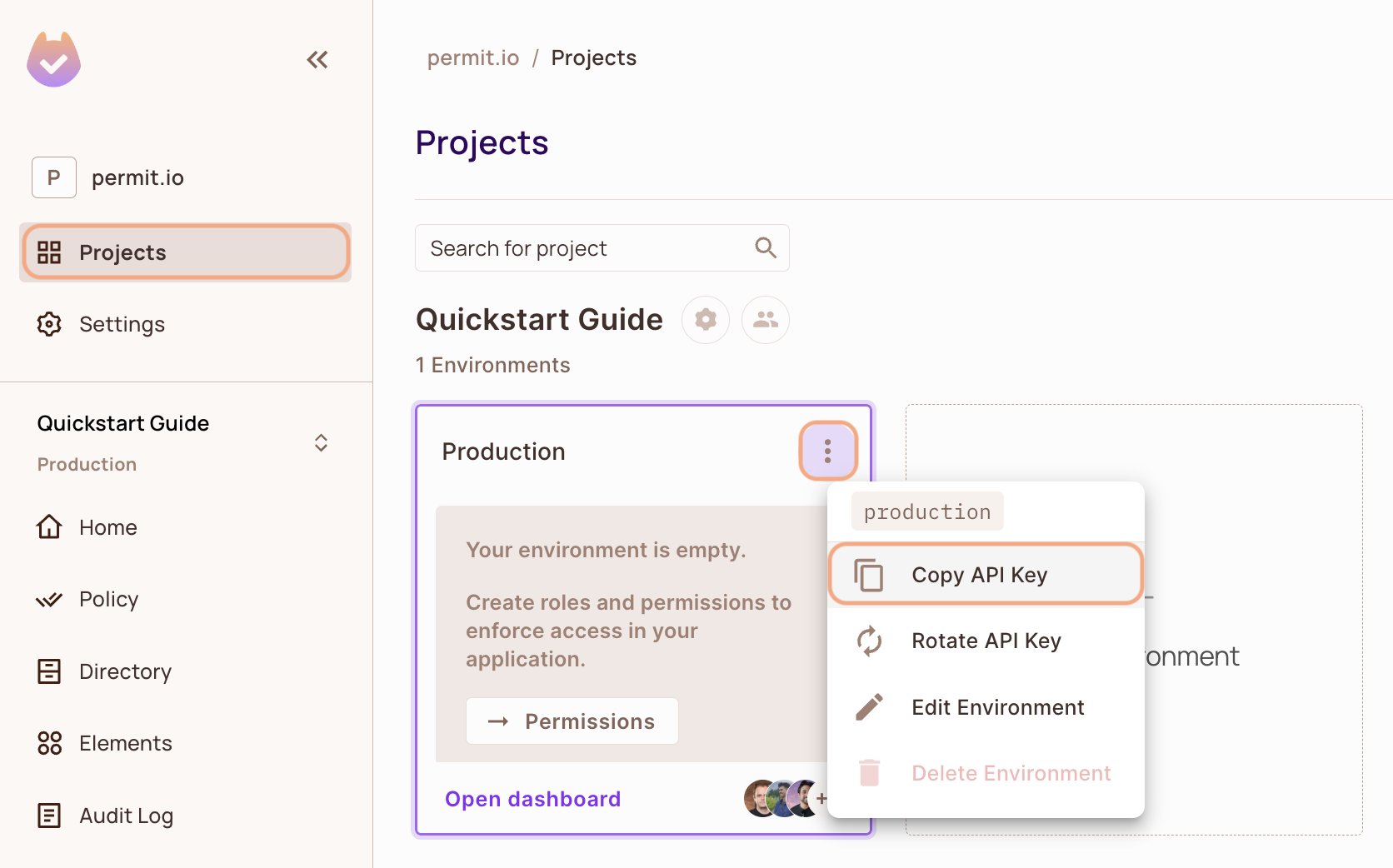
- In the Permit dashboard, open the Projects screen.
- Find the project and the environment you want to connect to.
- On the environment card, click the
 icon in the top-right corner.
 - Click Copy API Key.
You can also copy the API key of the active environment from User Menu > Copy Environment Key.
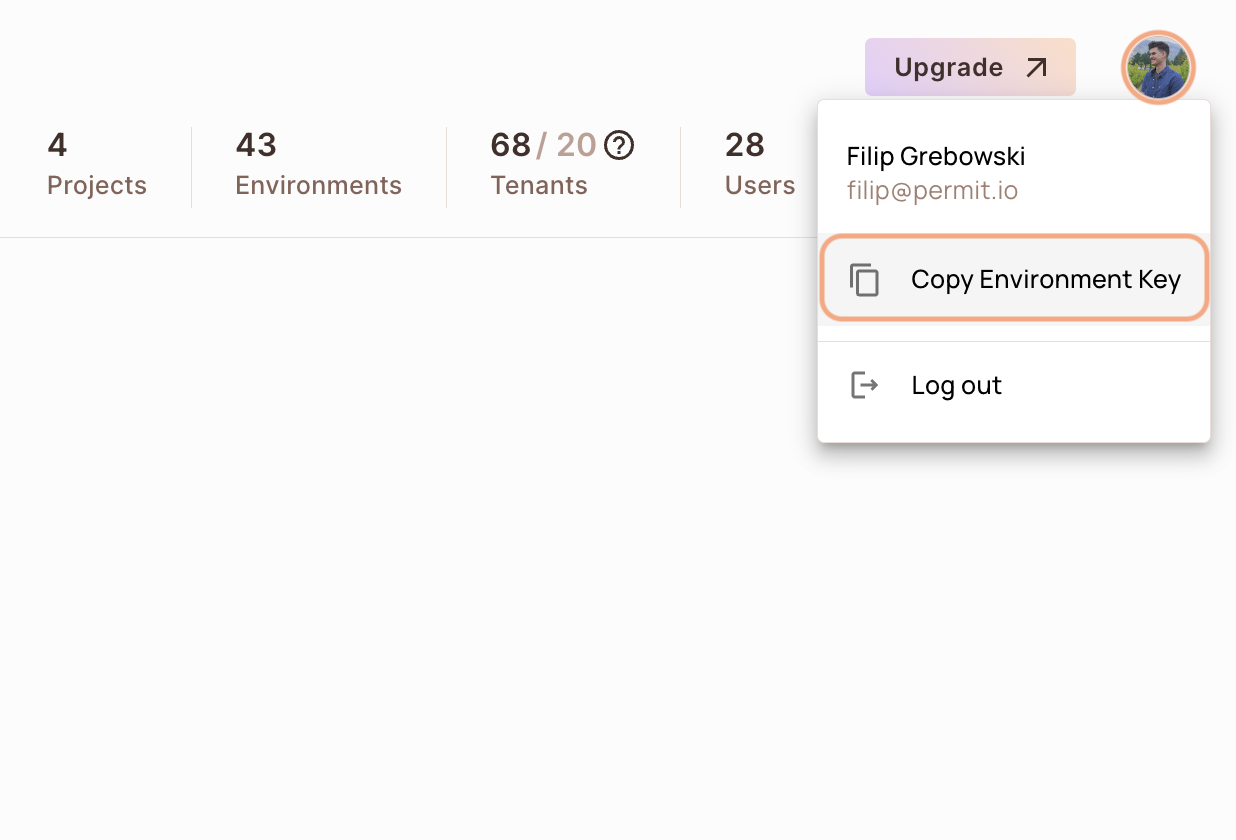
The API key you copy from the user menu belongs to the active environment in the sidebar. If you switch the active environment and click Copy Environment Key again, you copy a different API key: the key of the newly active environment.
Anyone with your environment API key can change that environment's policy and data through the Permit API. Load the API key from an environment variable or a secret store, and don't commit the API key to your repository.
2. Set up your policy decision point (PDP)
Your application sends each permission check to a policy decision point (PDP), the service that evaluates the check against your policy. Use the managed Cloud PDP that Permit.io runs, or run the PDP as a Docker container on your machine.
The SDK examples on this page connect to a container PDP at http://localhost:7766. To use the Cloud PDP, set the SDK's PDP URL to https://cloudpdp.api.permit.io instead.
- Cloud PDP
- Container PDP
The Cloud PDP needs no installation. Pass the Cloud PDP URL when you initialize the Permit SDK. The following Node.js example shows the shape. The SDK install step further down shows the same setting in this page's language. Replace [YOUR_API_KEY] with your environment API key:
// This line initializes the SDK and connects your app
// to the Permit.io Cloud PDP.

const permit = new Permit({
  pdp: "https://cloudpdp.api.permit.io",
  // your API Key
  token: "[YOUR_API_KEY]",
});
The Cloud PDP is a managed service that Permit.io runs. The Cloud PDP supports RBAC (role-based access control) and ReBAC (relationship-based access control) policies. The Cloud PDP does not support ABAC (attribute-based access control) policies, so the ABAC examples on this page need a container PDP.
For capabilities, limits, and when to choose each PDP type, see Cloud PDP capabilities.
Pull and run the permitio/pdp-v2 container image. Docker must be installed and running.
1. Pull the PDP container from Docker Hub
docker pull permitio/pdp-v2:latest
2. Run the PDP container
Replace <YOUR_API_KEY> with the environment API key you copied in 1. Get your environment API key, then run:
docker run -it -p 7766:7000 --env PDP_DEBUG=True --env PDP_API_KEY=<YOUR_API_KEY> permitio/pdp-v2:latest
| Option | Meaning |
|---|---|
-p 7766:7000 | Maps port 7766 on your machine to port 7000 inside the container. The SDK sends checks to http://localhost:7766. |
PDP_API_KEY | The environment API key. The PDP uses the API key to load that environment's policy and data from Permit. |
PDP_DEBUG=True | Turns on debug logging in the container output. |
To confirm the PDP container is running, run docker ps in a second terminal. The output lists a container from the permitio/pdp-v2:latest image with 0.0.0.0:7766->7000/tcp in the PORTS column.
For more PDP options, see Run the PDP.
3. Install the Java SDK and check permissions
Install and initialize the Java SDK
Add the io.permit:permit-sdk-java dependency, create a Permit client that connects to your PDP, and sync a user.
- Add the Permit.io Java SDK to your project. The examples pin version
2.0.0. To use a later version, check the permit-java releases.
- Maven
- Gradle
For Maven projects, add the dependency to your pom.xml:
<dependency>
  <groupId>io.permit</groupId>
  <artifactId>permit-sdk-java</artifactId>
  <version>2.0.0</version>
</dependency>
For Gradle projects, add permit-sdk-java as a dependency in your build.gradle:
dependencies {
  // ...

  implementation 'io.permit:permit-sdk-java:2.0.0'
}
- Create a
Permitclient. Replace[YOUR_API_KEY]with your environment API key, and pass the URL of your PDP towithPdpAddress():
import io.permit.sdk.Permit;
import io.permit.sdk.PermitConfig;

// This line initializes the SDK and connects your Java app
// to the Permit.io PDP container you've set up in the previous step.
Permit permit = new Permit(
    new PermitConfig.Builder("[YOUR_API_KEY]")
        // in production, you might need to change this url to fit your deployment
        .withPdpAddress("http://localhost:7766")
        // optionally, if you wish to get more debug messages to your log, set this to true
        .withDebugMode(false)
        .build()
    );
| Builder method | Description |
|---|---|
PermitConfig.Builder("[YOUR_API_KEY]") | Your environment API key. |
withPdpAddress() | The URL of the PDP that evaluates checks: http://localhost:7766 for the container PDP, or https://cloudpdp.api.permit.io for the Cloud PDP. |
withDebugMode() | Set to true to log more debug messages. |
- Sync the user to Permit. After your application authenticates a user, for example by validating the user's JWT access token, create or update the user in Permit with
permit.api.users.sync(). For role-based checks, the user must exist in Permit and have a role. Replace[A_UNIQUE_USER_ID]with the user's key.
import io.permit.sdk.api.models.CreateOrUpdateResult;
import io.permit.sdk.openapi.models.UserRead;
import io.permit.sdk.enforcement.User;
import java.util.HashMap;

// optional - save the user attributes in permit so that they are
// automatically available as ABAC attributes in permit.check()
HashMap<String, Object> userAttributes = new HashMap<>();
userAttributes.put("age", Integer.valueOf(20));
userAttributes.put("subscription", "pro");

// Syncing the user to the permission system
CreateOrUpdateResult<UserRead> response = permit.api.users.sync(
  (new User.Builder("[A_UNIQUE_USER_ID]"))
    .withEmail("john@smith.com") // optional
    .withFirstName("John") // optional
    .withLastName("Smith") // optional
    .withAttributes(userAttributes) // optional, used for ABAC permission checks
    .build()
);

// the response object contains the user, and whether or not the user was created or updated
UserRead user = response.getResult();
boolean wasCreated = response.wasCreated();

// assign the `admin` role to the user in the `default` tenant
permit.api.users.assignRole(user.key, "admin", "default");
permit.api.users.sync() returns a CreateOrUpdateResult<UserRead>. getResult() returns the user, and wasCreated() returns true if Permit created the user. permit.api.users.assignRole() takes the user key, the role key, and the tenant key.
Check permissions with the Java SDK
Call permit.check() with three arguments. permit.check() returns true when the policy allows the action, and false otherwise.
| Argument | Description |
|---|---|
user | A User. Create one from the user key with User.fromString("<user key>"). The user key is typically the user ID from your authentication provider. |
action | The action key, for example "create". |
resource | A Resource. Build one with new Resource.Builder("<resource key>"), and set the tenant key with withTenant(). |
This example checks whether a user can create a document in the default tenant. Replace [A_USER_ID] with the key of the user you synced:
import io.permit.sdk.enforcement.Resource;
import io.permit.sdk.enforcement.User;

// to run a permission check, use permit.check()
boolean permitted = permit.check(
  // the user you check permission on
  User.fromString("[A_USER_ID]"),
  // the action (key) the user want to perform
  "create",
  // the resource the user is trying to access
  new Resource.Builder("document").withTenant("default").build()
);

if (permitted) {
  System.out.println("User is PERMITTED to create a document");
} else {
  System.out.println("User is NOT PERMITTED to create a document");
}
If the user has a role in the default tenant that grants create on document, the example prints User is PERMITTED to create a document. Otherwise, the example prints User is NOT PERMITTED to create a document.
In a multi-tenant application, pass the tenant key to withTenant() on the resource. To look up the keys of your tenants, call the list tenants API.
permit.check() sends each check to the PDP URL you configure. A container PDP evaluates checks on your machine, using policy and data that the PDP loads from Permit. Users, roles, and attributes that you sync with permit.api.users.sync() are stored in the Permit control plane.
Check ABAC permissions with the Java SDK
An attribute-based access control (ABAC) policy grants permissions based on user and resource attributes, grouped into user sets and resource sets. See ABAC policy components. ABAC checks need a container PDP.
To check an ABAC policy, pass a User and a Resource that carry attributes, set with withAttributes(). Replace action and resource with an action key and a resource key from your environment:
// Creating a UserSet
HashMap<String, Object> userAttributes = new HashMap<>();
userAttributes.put("isAllowed", "True");

User userWithAttributes = (new User.Builder("John"))
	.withEmail("John@smith.com")
	.withFirstName("John")
	.withLastName("Smith")
	.withAttributes(userAttributes)
	.build();

// Creating a ResourceSet
HashMap<String, Object> resourceAttributes = new HashMap<>();
resourceAttributes.put("hasApproval", "true");
Resource resourceWithAttributes = new Resource.Builder("resource").withTenant("default").withAttributes(resourceAttributes).build();

// Checking the permissions
permit.check(userWithAttributes, "action", resourceWithAttributes);
For more check options, see Check permissions with permit.check().
Run a full Java example app (Spring Boot)
This single-file Spring Boot app syncs a user, assigns the user the admin role in the default tenant, and runs a permission check on each request to its root URL.
- Create a Spring Boot web project that includes the Permit.io Java SDK dependency.
- Save the following code as
DemoApplication.javain thecom.example.myprojectpackage. - Replace
[YOUR_API_KEY]with your environment API key, and both[A_USER_ID]placeholders with the same user key.
package com.example.myproject;

import io.permit.sdk.Permit;
import io.permit.sdk.PermitConfig;
import io.permit.sdk.api.PermitApiError;
import io.permit.sdk.api.PermitContextError;
import io.permit.sdk.enforcement.Resource;
import io.permit.sdk.enforcement.User;
import io.permit.sdk.openapi.models.UserCreate;
import io.permit.sdk.openapi.models.UserRead;
import org.springframework.boot.SpringApplication;
import org.springframework.boot.autoconfigure.SpringBootApplication;
import org.springframework.http.HttpStatus;
import org.springframework.http.ResponseEntity;
import org.springframework.web.bind.annotation.GetMapping;
import org.springframework.web.bind.annotation.RestController;

import java.io.IOException;

@RestController
@SpringBootApplication
public class DemoApplication {

	final Permit permit;
	final UserRead user;

	public DemoApplication() {
		// init the permit SDK
		this.permit = new Permit(
			new PermitConfig.Builder("[YOUR_API_KEY]")
				.withPdpAddress("http://localhost:7766")
				.withDebugMode(true)
				.build()
		);

		try {
			// typically you would sync a user to the permission system
			// and assign an initial role when the user signs up to the system
			this.user = permit.api.users.sync(
				// the user "key" is any id that identifies the user uniquely
				// but is typically taken straight from the user JWT `sub` claim
				new UserCreate("[A_USER_ID]")
					.withEmail("user@example.com")
					.withFirstName("Joe")
					.withLastName("Doe")
			).getResult();

			// assign the `admin` role to the user in the `default` tenant
			permit.api.users.assignRole(user.key, "admin", "default");
		} catch (IOException | PermitApiError | PermitContextError e) {
			throw new RuntimeException(e);
		}
	}

	@GetMapping("/")
	ResponseEntity<String> home() throws IOException, PermitApiError, PermitContextError {
		// is `user` allowed to do `action` on `resource`?
		User user = User.fromString("[A_USER_ID]"); // pass the user key to init a user from string
		String action = "create";
		Resource resource = new Resource.Builder("document")
			.withTenant("default")
			.build();

		// to run a permission check, use permit.check()
		boolean permitted = permit.check(user, action, resource);

		if (permitted) {
			return ResponseEntity.status(HttpStatus.OK).body(
				"Joe Doe is PERMITTED to create document!"
			);
		} else {
			return ResponseEntity.status(HttpStatus.FORBIDDEN).body(
				"Joe Doe is NOT PERMITTED to create document!"
			);
		}
	}

	public static void main(String[] args) {
		SpringApplication.run(DemoApplication.class, args);
	}
}
- Start the app, for example with
./mvnw spring-boot:runor./gradlew bootRun. - Open the app's root URL (
http://localhost:8080by default in Spring Boot) in a browser.
If the admin role grants create on document, the page returns HTTP 200 with Joe Doe is PERMITTED to create document!. Otherwise, the page returns HTTP 403 with Joe Doe is NOT PERMITTED to create document!.
Explore the Java example repository
The permit-java-example repository contains a blog application that uses the Permit.io Java SDK. The example covers:
- RBAC (role-based access control) policy
- ABAC policy
- ReBAC (relationship-based access control) policy
- Terraform setup
4. Confirm the check in the audit log
Open the Audit Log screen in the Permit dashboard. Each permission check from your application appears as an entry with the user, the action, the resource, and the decision.
If the check doesn't appear in the audit log, see Troubleshoot audit logs.
Next steps
- Sync users and assign roles so checks evaluate your real users.
- Check permissions with permit.check() with tenants, attributes, and relationships.
- Deploy the PDP to production.
- Compare SDK features by language.