Call the Permit API
Call the Permit.io REST API directly from curl, Postman, or any HTTP client. This page is for developers who automate Permit, for example to sync users or tenants from a script. Every action in the Permit dashboard calls the same API, so anything you do in the dashboard you can also do through the API.
Prerequisites
- A Permit.io account with a project and an environment. See Projects and environments.
- The keys or IDs of the project and environment you call. See Get the project and environment.
Get your API key
Every Permit API request needs an API key in the Authorization header.
-
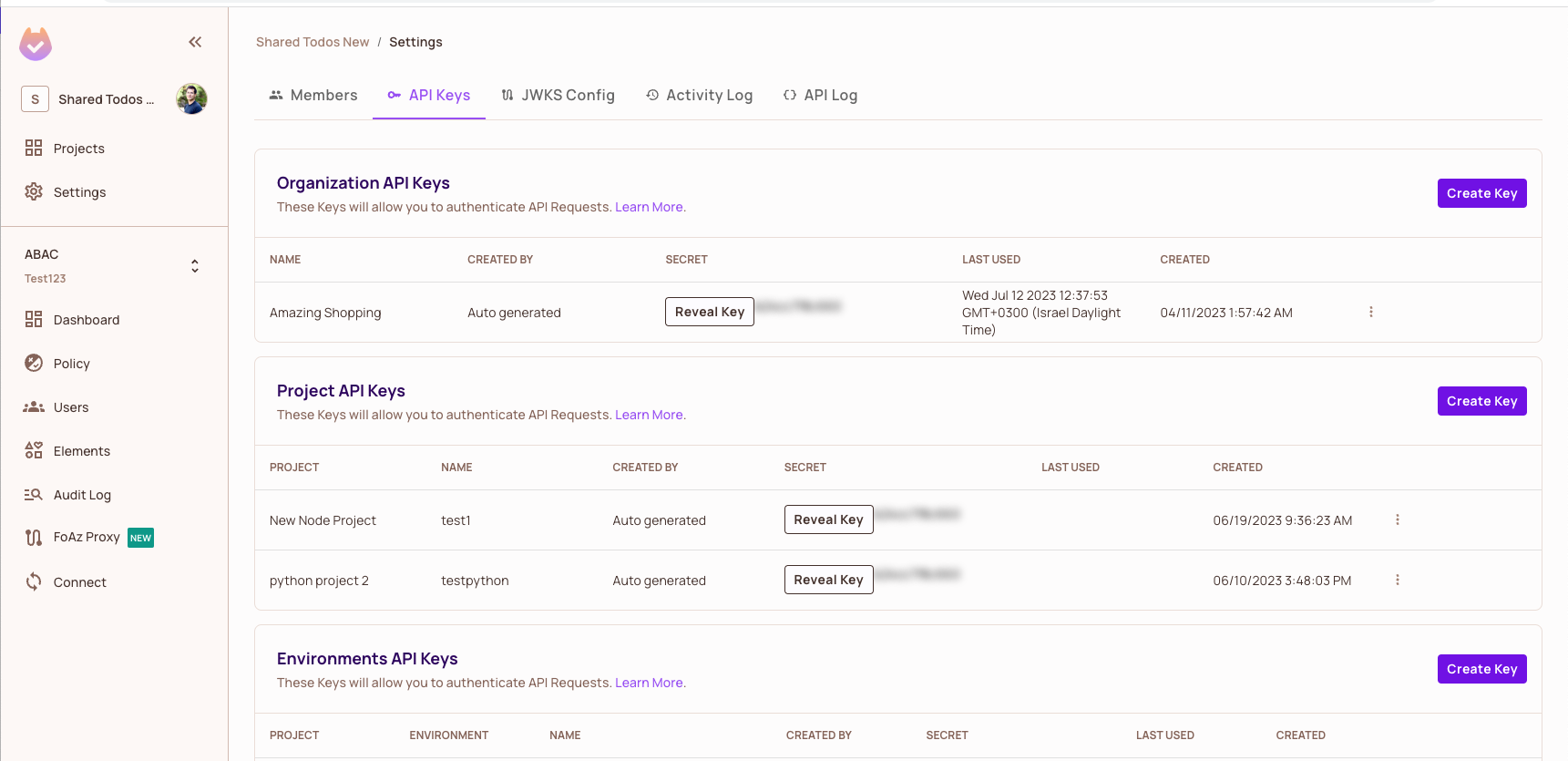
In the Permit dashboard, go to Settings > API Keys.
-
Reveal and copy an existing API key, or click Create Key to create one.
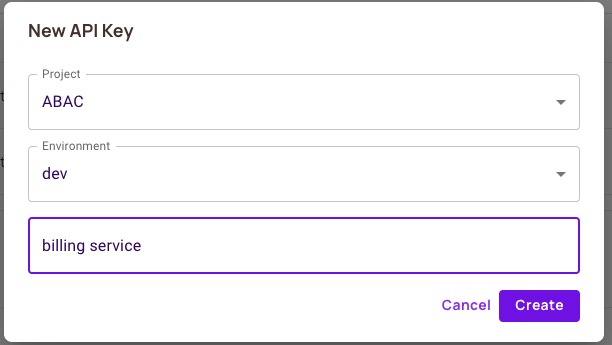
A key is scoped to one organization (your whole workspace), one project, or one environment, and a call fails when the key's scope doesn't cover the path it targets. Use an environment API key for the calls on this page, which all target one environment. For each level and when to use it, see API key levels. To copy the environment API key from the Projects screen instead, see Get your API key.
An environment API key can change that environment's policy, users, and tenants through the Permit API. Load the key from an environment variable, and don't commit it to source control.
Call the API with curl
Pass the API key as a bearer token in the Authorization header. In every command on this page, replace <YOUR_API_KEY> with your API key, {proj_id} with your project key or ID, and {env_id} with your environment key or ID.
List the users in an environment
This curl command lists the users in one environment:
curl -H "Authorization: Bearer <YOUR_API_KEY>" https://api.permit.io/v2/facts/{proj_id}/{env_id}/users
The API returns HTTP 200 and a JSON object with the users in data, the number of users in the environment in total_count, and the number of pages in page_count:
{
  "data": [
    {
      "key": "john@permit.io",
      "id": "ac9d4c0d-b5d0-4b0e-9d0f-8b2f1c5ae6f2",
      "organization_id": "1b5f0e5c-7a0a-4d0e-b2a6-8b1e2a9c7d31",
      "project_id": "405d8375-3514-403b-8c43-83ae74cfe0e9",
      "environment_id": "8d6b4b1b-9a5d-4f0e-9b0f-2c9a1d8e3f47",
      "first_name": "John",
      "last_name": "Doe",
      "email": "john@permit.io",
      "attributes": {},
      "associated_tenants": [],
      "created_at": "2026-01-14T09:12:44+00:00",
      "updated_at": "2026-01-14T09:12:44+00:00"
    }
  ],
  "total_count": 1,
  "page_count": 1
}
An HTTP 200 response with your users in data confirms that the API key works and that its scope covers the environment in the path.
An HTTP 401 response means the Authorization header is missing or the API key is invalid. An HTTP 403 response means the key is valid but its scope doesn't cover the project or environment in the path.
Add the page and per_page query parameters to page through a larger directory: per_page defaults to 30 and accepts up to 100.
List the tenants in an environment
This command lists the tenants in one environment:
curl -H "Authorization: Bearer <YOUR_API_KEY>" https://api.permit.io/v2/facts/{proj_id}/{env_id}/tenants
The tenants endpoint returns a plain JSON array of tenant objects. To get the paginated shape instead, with the tenants in data and the counts next to them, add include_total_count=true to the query string.
Call the API with Postman
-
Install Postman.
-
Create a request to a Permit API endpoint, for example
https://api.permit.io/v2/facts/{proj_id}/{env_id}/users. -
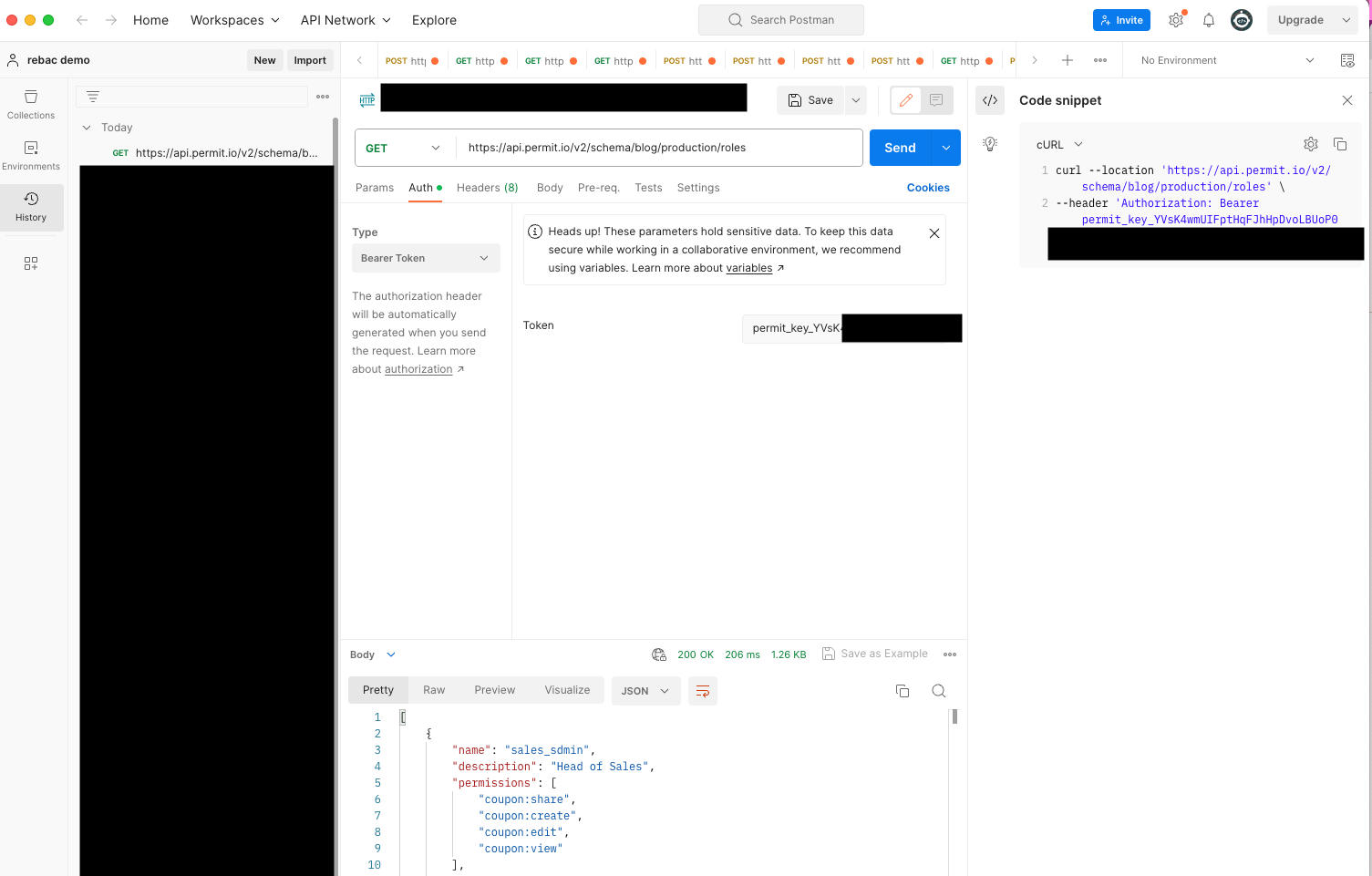
On the Authorization tab, select Bearer Token as the auth type, and paste your API key.
-
Send the request. Postman shows
200 OKand the same JSON body as the curl command in Call the API with curl.
To import every Permit endpoint into Postman at once, import the OpenAPI spec.
API endpoints and regions
The examples in the Permit docs use the api.permit.io endpoint. If your workspace is hosted in the EU region, replace api.permit.io with api.eu.permit.io in every API call. Which regions you can choose depends on your plan; see Permit pricing.
Set the region in the Node.js SDK
In the SDKs, set the API URL when you create the Permit client. In the Node.js SDK, set apiUrl:
const { Permit } = require("permitio");

const permit = new Permit({
  // the API key to the Permit environment you wish to connect to
  token: "<YOUR_API_KEY>",
  // the url in which the SDK can connect to the PDP container
  pdp: "http://localhost:7766",
  // use this to turn on sdk logs
  log: {
    level: "debug",
  },
  // the region in which the Permit environment is located
  apiUrl: "https://api.eu.permit.io",
});
Handle an HTTP 429 response
The Permit API rate-limits requests. When a client exceeds a rate limit, the API returns HTTP 429 Too Many Requests and rejects the call: the request has no effect, so a script that ignores the 429 skips the change it tried to make. Permit sets the limit values and can change them, so this page doesn't list them.
Handle a 429 in your client:
- Treat the 429 as a signal to slow down, not as a failure of the request itself. The same request succeeds once the client is back under the limit.
- Retry the same request after a delay, and double the delay on each further 429 response.
- Send many changes in fewer requests instead of one request per change. See Bulk operations.
Debug a failed call in the API log
Permit records every external API call, with its request payload and its response, in the API log of your organization. When a call fails and the error message isn't enough, open the API log to read what the endpoint received and returned. Filter the log by status code to find the failed call. For the steps, the filters, and the GET /v2/history endpoint that reads the same records, see API logs.
The API log covers calls to api.permit.io only. A permission check goes to a policy decision point (PDP) and appears in the audit log instead. See Audit log types and filtering.
API reference
For every endpoint, parameter, and response schema, see the Permit API reference. For the base URL, authentication, and object hierarchy on one page, see Cloud API reference.