Investigate agent activity with audit logs
Find, read, and investigate the tool calls that Permit MCP Gateway allowed or denied. This page is for gateway admins who monitor agents, debug denied calls, or collect activity for a compliance review.
The gateway checks every tool call with permit.check(), and Permit records each decision in the audit log of the Permit environment linked to the host. You don't add logging code.
Prerequisites
- An admin account on the Permit MCP Gateway dashboard with access to the host.
- Access to the Permit project and environment linked to the host in the Permit.io dashboard. See Create a host.
- At least one agent that has completed the consent flow and called a tool.
Where audit logs live
The same decisions appear in two dashboards:
| Location | What it shows | Use it for |
|---|---|---|
| Permit MCP Gateway dashboard (app.agent.security) | An Audit Logs tab on each agent, human, and MCP server detail page. The gateway dashboard reads the entries from the Permit audit logs API and scopes them to that page. | Day-to-day monitoring and lookups for one agent, human, or server. |
| Permit.io dashboard (app.permit.io) | The Audit Log screen of the linked environment, with the raw permit.check() parameters and the decision log for each entry. | Filtering by user, date, and decision, and reading the full reason for a decision. |
View activity in the gateway dashboard
Each detail page in the gateway dashboard has an Audit Logs tab that scopes the entries:
| Detail page | Entries shown |
|---|---|
| Agents > agent | Tool calls made by that agent (MCP client), filtered by the agent's user key agent|{client_id}. |
| Humans > human | Tool calls made by all agents that act on behalf of that human. |
| MCP Servers > server | Tool calls to that MCP server, from all agents and humans. |
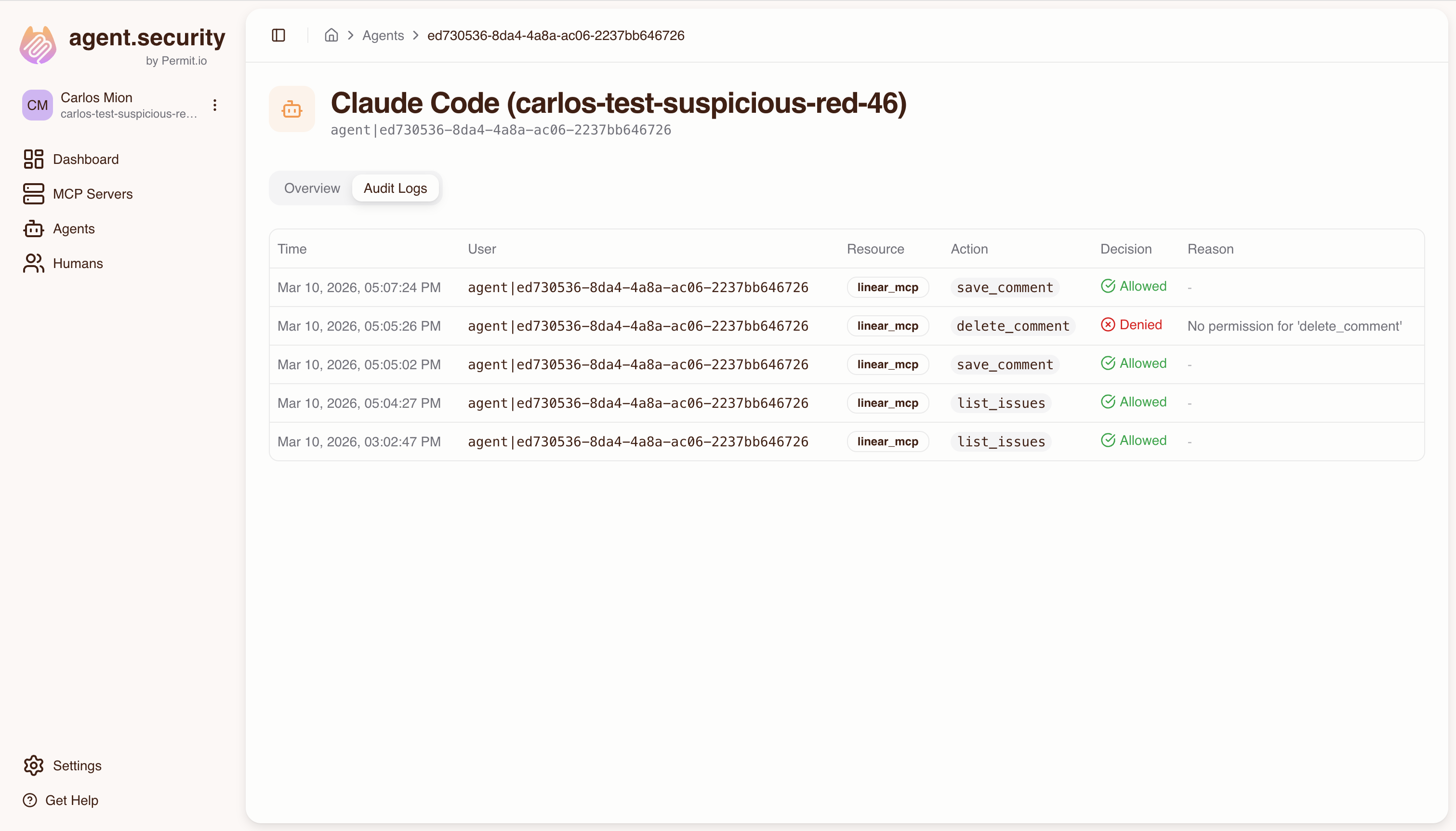
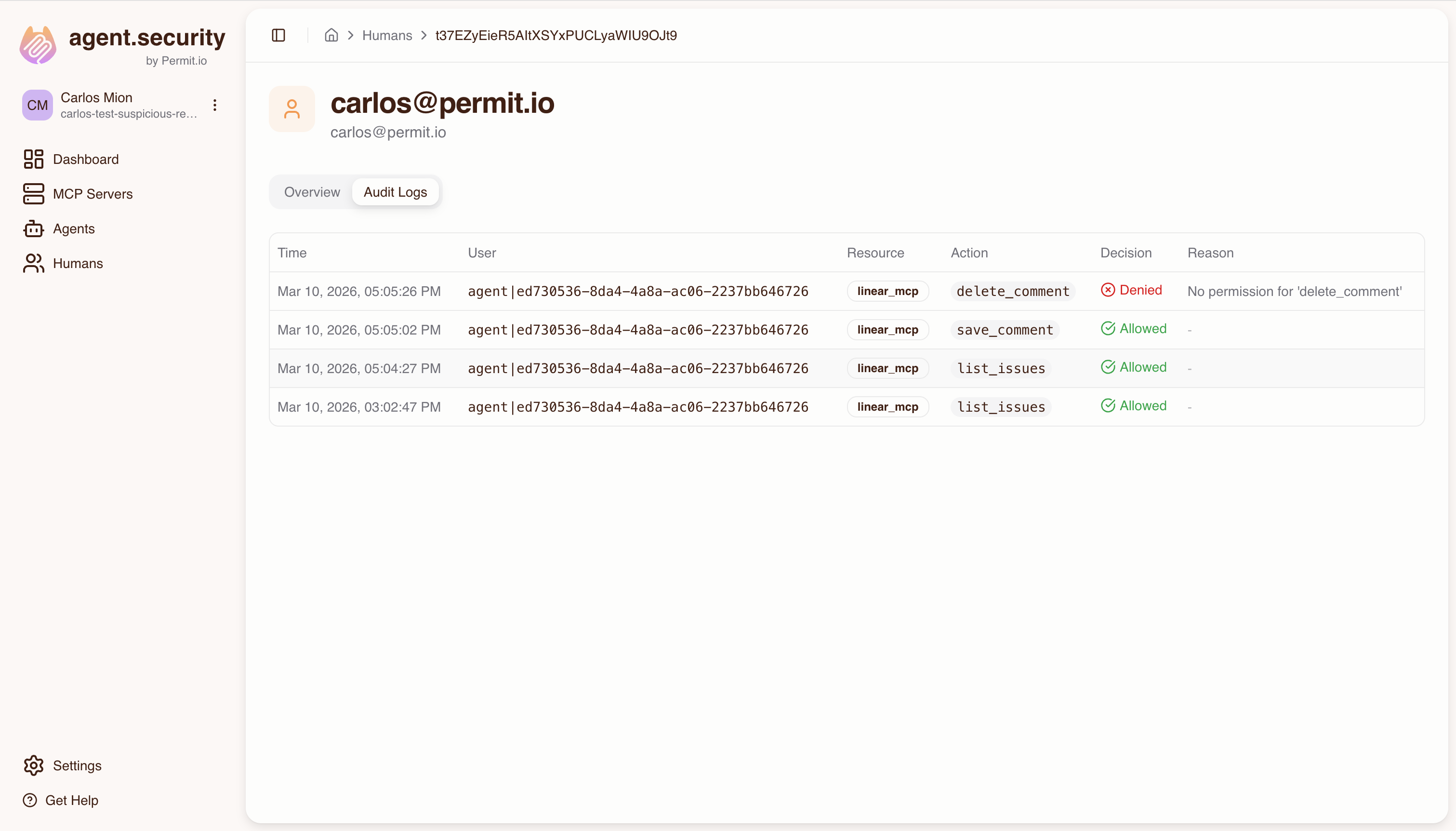
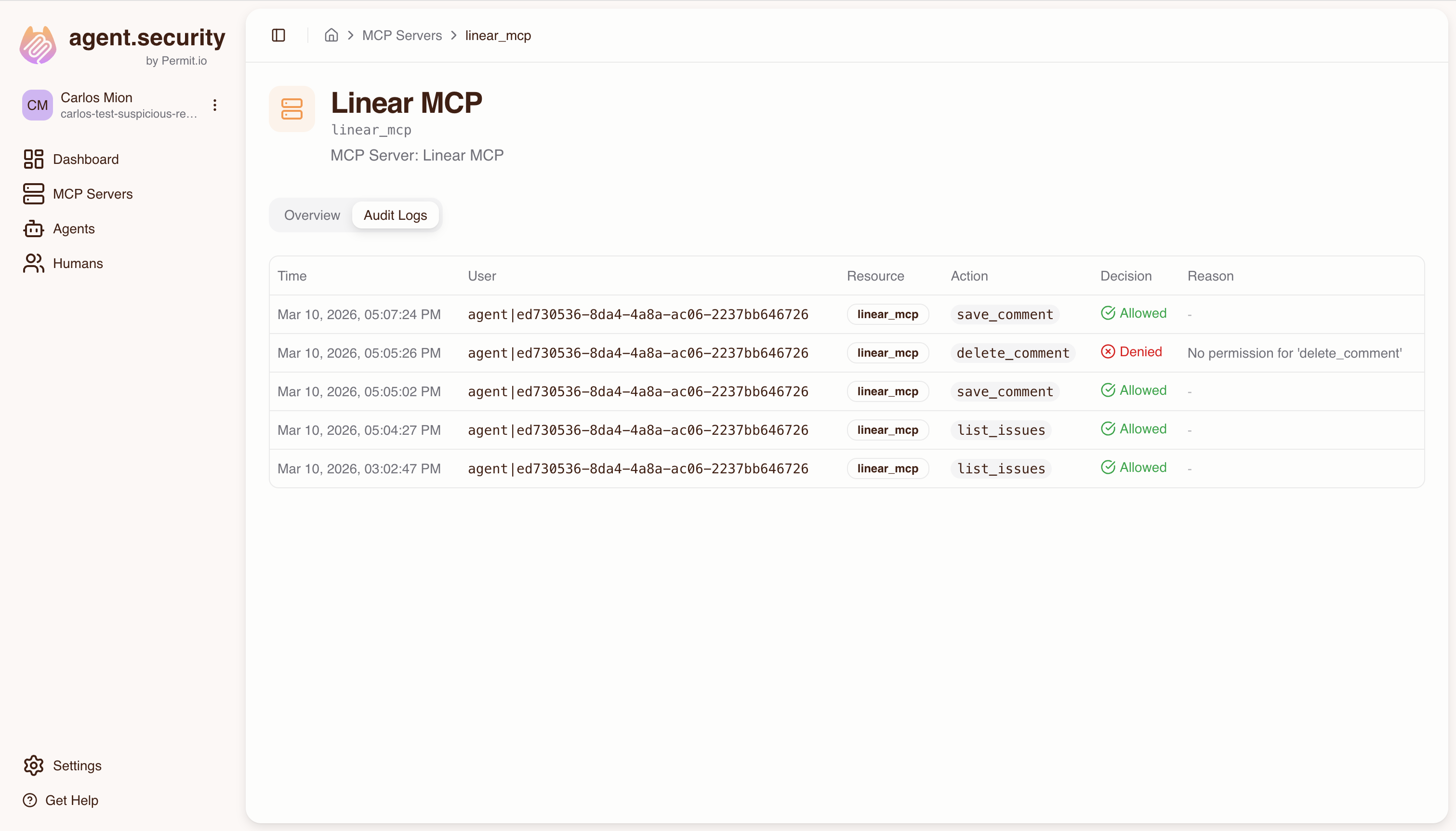
Each row shows the time, user, resource, action, decision (Allowed or Denied), and, for denied calls, a reason.
The human and agent views query at most 50 agent registrations. When a human has more than 50, the tab shows a Partial audit view notice, and activity from the other registrations is missing. Use the Permit.io dashboard to see all entries.
View the raw decision log in Permit
- Sign in to the Permit.io dashboard.
- Select the project and environment linked to your Permit MCP Gateway host.
- Open the Audit Log screen.
- Select an entry to open its decision log.
The decision log shows the check (user, action, resource, tenant) and the reason the policy decision point (PDP) allowed or denied it. On the Audit Log screen, you can filter entries by user, date, decision, and tenant. For details, see View and filter audit logs.
Read an audit log entry
Each entry is one permit.check() call that the gateway made when an agent called a tool:
| Field | Description | Example |
|---|---|---|
| Timestamp | When the gateway checked the call. | 2026-03-10T14:32:05Z |
| User key | The agent's identity in Permit. | agent|cursor_abc123 |
| Action | The tool name. | create_issue |
| Resource | The MCP server, as resource type and instance. | linear:linear |
| Decision | Whether Permit allowed or denied the call. | Allowed or Denied |
| Reason | For a denied call, why the check failed. | No permission for 'create_issue' |
Map an entry to the policy model
This check is behind a create_issue call from Cursor to the Linear MCP server:
permit.check("agent|cursor_abc123", "create_issue", "linear:linear")
Read the check against the Permit MCP Gateway policy model:
- User
agent|cursor_abc123: the MCP client (Cursor), identified by its OAuth client ID. - Action
create_issue: the tool. The tool's trust level (for example, medium) decides which roles grant the action. - Resource
linear:linear: the MCP server. The resource type and the instance share the same key. - Evaluation: Permit derives the agent's role on the server from the lower of two trust levels, the level the human consented to and the admin's max trust level. See The UserProfile indirection. Permit then checks whether that role grants the action.
Denial reasons
For a denied call, the gateway dashboard shortens Permit's reason when a role is missing. Other reasons appear as Permit reports them.
| Reason or denial code | What it means | What to check |
|---|---|---|
No permission for '<tool_name>' | The agent's effective trust level is lower than the tool's trust level. | The agent's trust level for the server and the human's max trust level. |
user_not_synced | Permit has no user with the agent's key. | Whether the human completed the consent flow for this agent. |
no_such_resource | The MCP server's resource type doesn't exist in the environment. | Whether an admin imported the MCP server in the gateway dashboard. |
For all denial codes, see Denial codes in decision logs.
Investigate common questions
Why was a tool call denied?
A developer reports that their agent can't create issues in Linear.
- In the gateway dashboard, go to Agents and open the developer's agent, for example Cursor.
- On the Audit Logs tab, find the denied
create_issueentry. - Read the Reason.
No permission for 'create_issue'means the agent's effective trust level is too low for the tool. In this example,create_issueneeds medium trust. - On Humans, open the developer and check the max trust level for Linear. If the max trust level is low, an admin raises it first. The consent screen doesn't allow a trust level above the max.
- Check the agent's trust level for Linear. If the agent has low trust, the developer runs the consent flow again and selects medium.
Result: after the trust level change, the next create_issue call shows Allowed on the Audit Logs tab.
Which human authorized an agent?
- In the gateway dashboard, go to Agents and open the agent.
- The agent detail page shows the human who completed the consent flow for the agent.
- On the agent's Audit Logs tab, review the agent's tool calls.
- On Humans, open that human to see the human's access grants and every agent acting on the human's behalf.
Result: each tool call traces back to one human: human, consent, agent, tool call.
Which calls reached a sensitive MCP server?
For example, a compliance team reviews all agent calls to an MCP server connected to a production database.
- In the gateway dashboard, go to MCP Servers and open the server.
- On the Audit Logs tab, review each entry: the agent, the tool, the time, and the decision. Allowed entries reached the server. Denied entries were blocked by the gateway.
- For each allowed call, open the agent to find the human who authorized it.
- To list only allowed or only denied calls, open the Audit Log screen in the Permit.io dashboard, filter by decision, and look for the server's resource key, for example
production-db.
How did an agent's access change over time?
- In the gateway dashboard, go to Agents and open the agent.
- On the Audit Logs tab, compare older and newer entries for the same tool:
- A tool that was allowed and is later denied points to a lower trust level or revoked access.
- A tool that was denied and is later allowed points to a higher trust level or a new consent.
- On Humans, open the authorizing human to check the current max trust level and access grants. Changes to the max trust level or access apply from the agent's next tool call.
Collect activity for a reporting period
- In the Permit.io dashboard, open the Audit Log screen for the environment linked to the host.
- Filter by the date range of the reporting period. Each entry shows the agent, the tool, the MCP server, the time, and the decision.
- To filter by resource or action, or to collect the entries in code, call the List audit logs endpoint.
- For a view per human, open the human on the Humans page of the gateway dashboard. The Audit Logs tab shows activity from all of the human's agents.
Permit deletes old audit logs periodically. For retention details, see View audit logs.
Next steps
- How Permit MCP Gateway works with Permit.io: the policy model behind each decision.
- Manage humans and agents: change trust levels and revoke access.
- Consent service: how humans set an agent's trust level.
- View and filter audit logs: Permit audit log features for all environments.