Human-in-the-Loop Approvals
This guide is for admins of Permit MCP Gateway. Human-in-the-loop (HITL) approvals pause a sensitive agent tool call, such as deleting records or changing production data, until an admin approves or rejects it. Tool calls that don't require approval run without a pause.
Human-in-the-loop approvals are available on Enterprise plans. To discuss access, schedule a demo.
Require approval for a tool
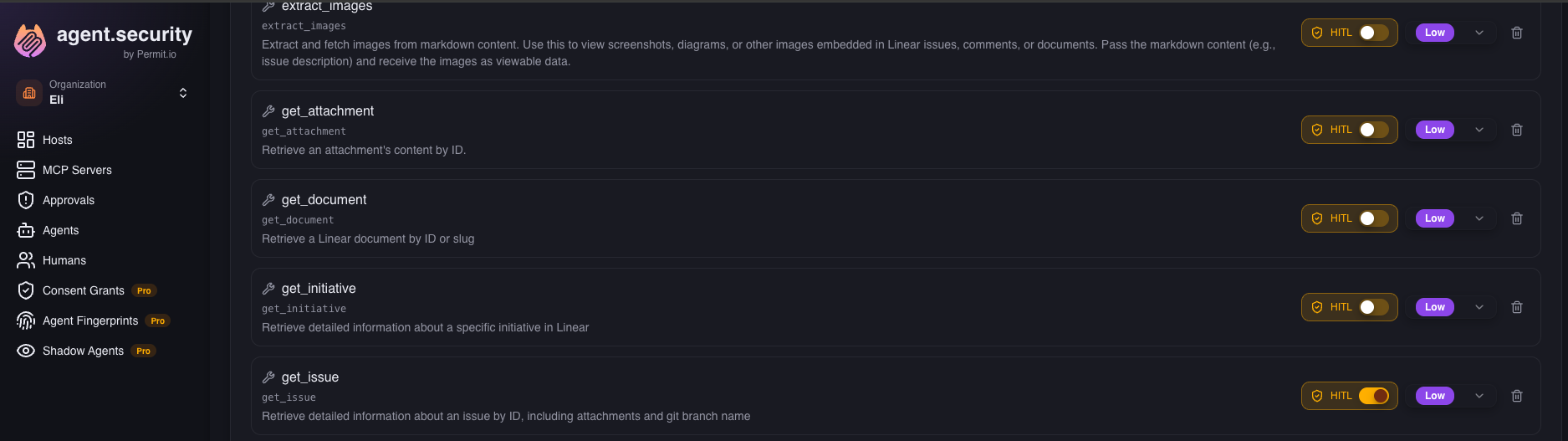
- In the admin dashboard, go to MCP Servers, select a server, and turn on the HITL toggle for a tool.
- From an MCP client, such as Cursor or Claude Desktop, ask the agent to call that tool.
- In the admin dashboard, open Approvals. The request appears on the Pending tab.
- Approve the request. The tool call runs and the agent receives the result.
How it works
- An agent calls a tool that requires approval, such as
delete_repo. - The gateway checks authorization with Permit, using the agent's trust level.
- If the tool requires approval, the gateway pauses the tool call and creates an approval request.
- The gateway notifies admins in the admin dashboard, and by email or Slack if you configured notifications.
- An admin approves or rejects the request.
- On approval, the gateway runs the tool call. On rejection or timeout, the gateway returns an error to the agent.
The MCP client waits for the response, so you don't change any client configuration. If no admin decides within the timeout (5 minutes by default), the gateway rejects the request.
Approval queue
Admins review requests on the Approvals page in the admin dashboard. The page has three tabs: Pending, History, and Notifications.
Pending approvals
Each pending approval card shows:
| Field | Contents |
|---|---|
| Tool name and server | The tool the agent wants to call and the MCP server that hosts it. |
| Trust-level badge | The tool's trust level (high, medium, or low). High-trust cards have a red left border, and medium-trust cards have a yellow left border. |
| Agent and user identity | The agent making the request and the user it acts for. |
| Tool arguments | The exact parameters of the call, such as the issue ID or repository. |
| Approval reason | When present, why the tool requires approval. |
| Countdown timer | Time left before the gateway rejects the request. |
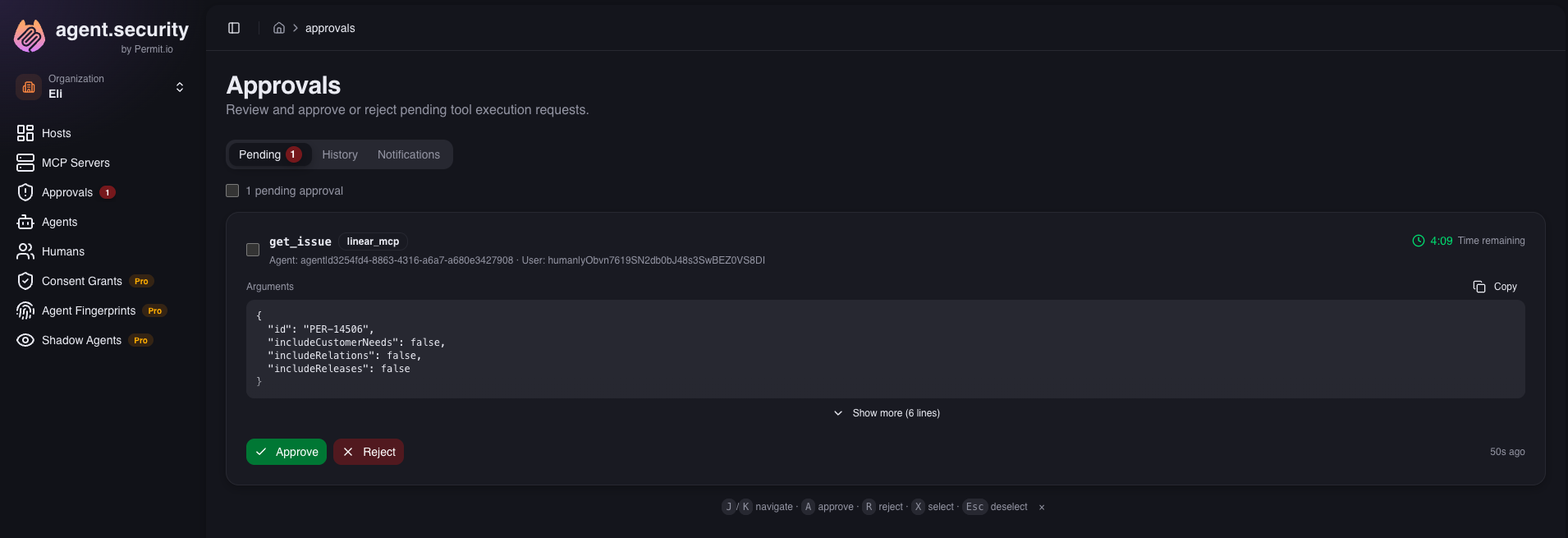
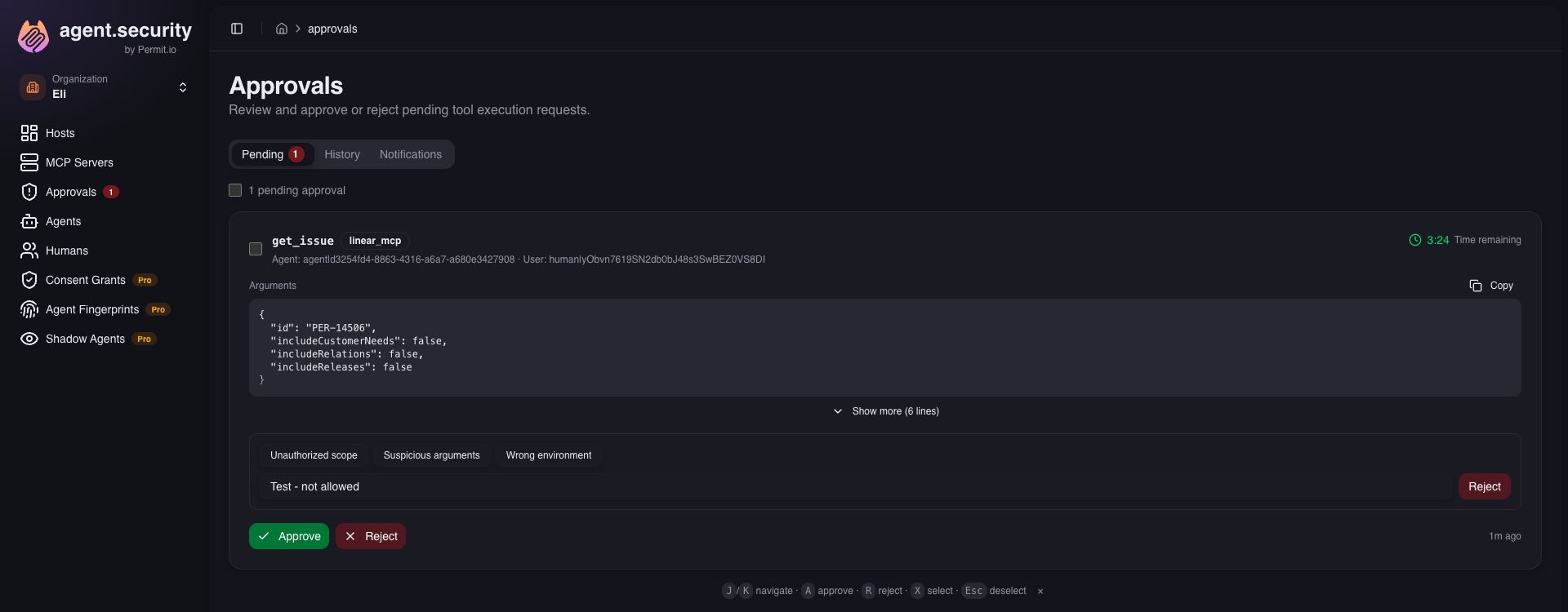
Click Approve or Reject on a card. When you reject, you can add a reason: a preset ("Unauthorized scope", "Suspicious arguments", "Wrong environment") or your own message.
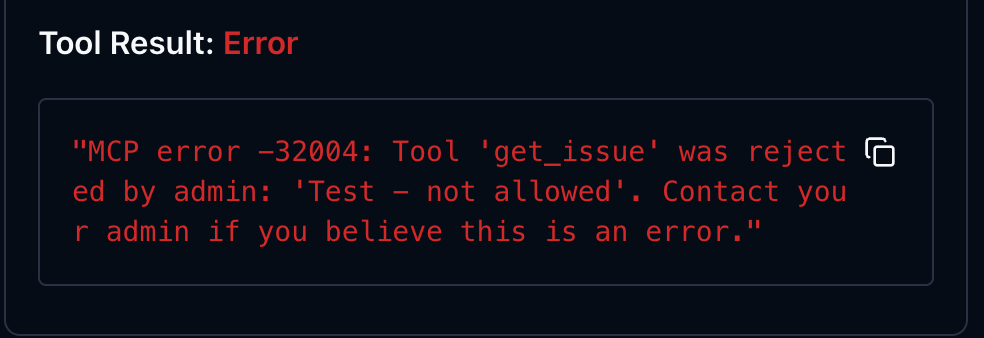
The gateway includes the rejection reason in the error it returns to the agent, so the user can see why the request was denied.
To act on several requests at once, select their cards with the checkboxes and use the batch action bar to approve or reject them.
J/K move between cards · A approve · R reject (opens the reason input) · X select · Esc deselect
You can turn off single-key shortcuts in the Approvals page. Esc works with the setting on or off.
Approval history
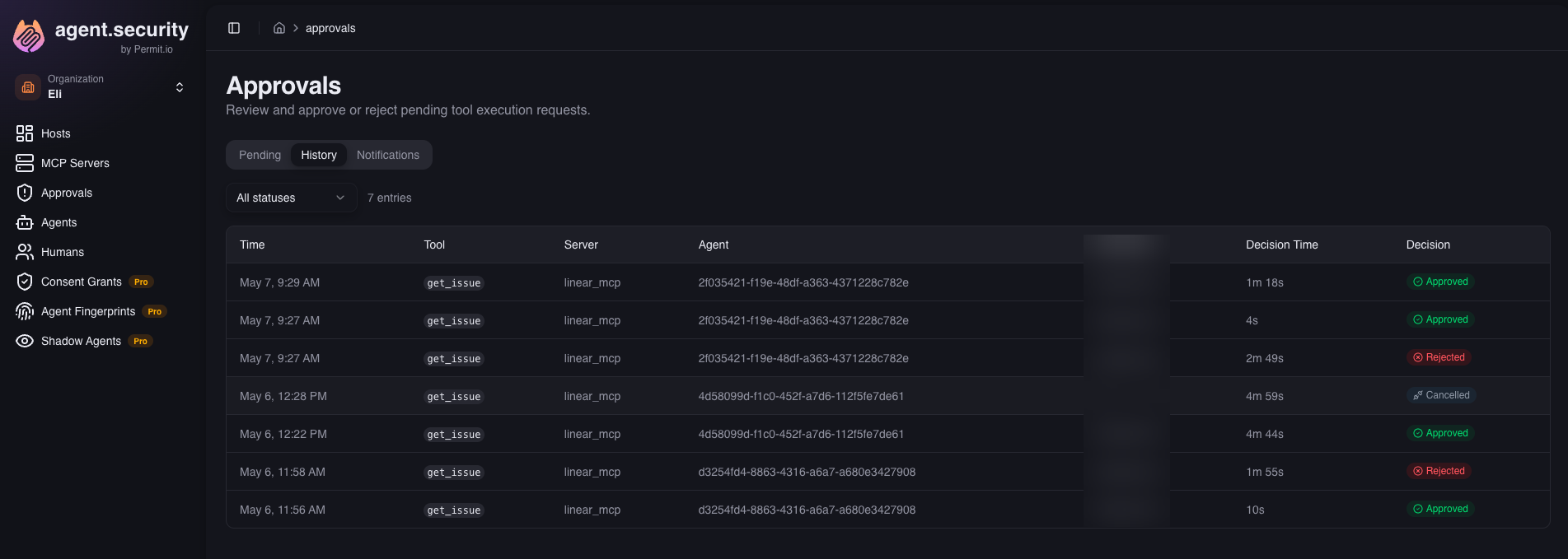
The History tab lists resolved approvals, with the admin who decided, the time the decision took, and the outcome: approved, rejected, timed out, or cancelled. Filter the list by outcome with the status filter.
Configuring approval policies
Per-tool approval
Each tool on an MCP server's detail page has a HITL toggle. Turn it on to require approval for that tool.
Server approval policy
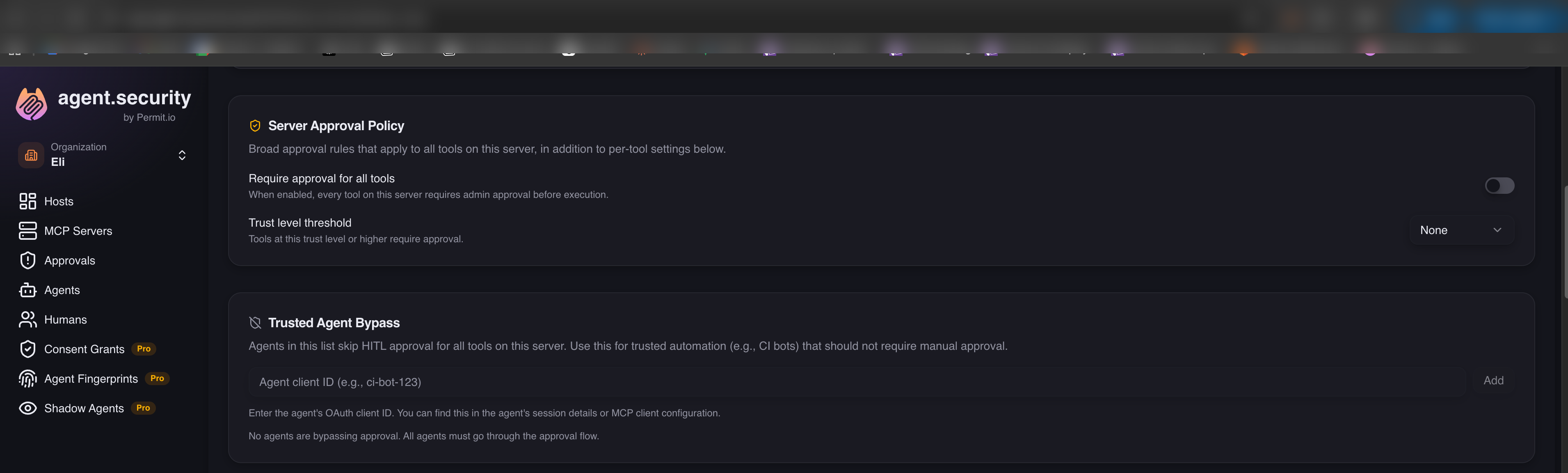
The Server Approval Policy card on the server detail page applies approval rules to more than one tool:
- Require approval for all tools: every tool on the server requires approval.
- Trust level threshold: tools at the selected trust level or higher require approval. Select High to require approval only for destructive tools, or Low to require approval for every tool.
Per-tool toggles, the all-tools setting, and the trust level threshold combine. If any of them requires approval, the gateway pauses the tool call.
Trusted agent bypass
The Trusted Agent Bypass card on the server detail page lists agents that never wait for approval, such as CI bots or scheduled pipelines. Add the agent's client ID to the list. A bypassed agent skips every approval rule on the server, including per-tool toggles.
To find an agent's client ID, open the Agents page in the admin dashboard.
Notifications
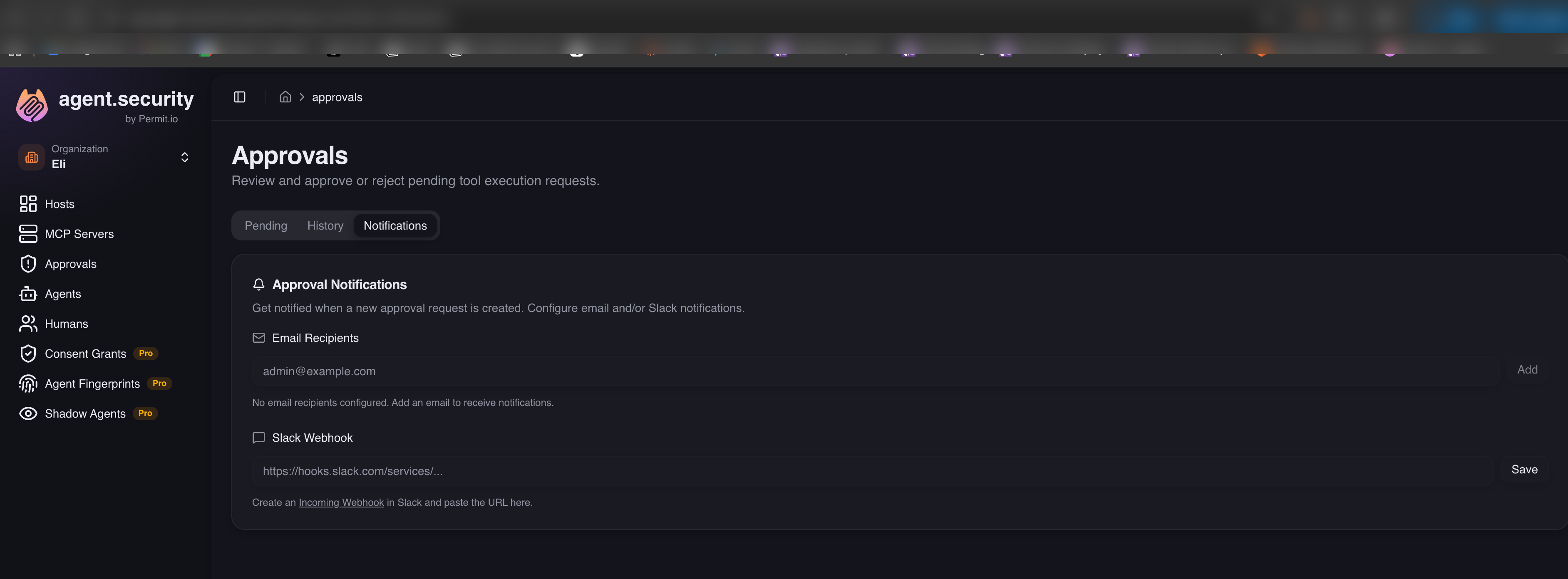
Configure notifications so admins know when a request is waiting. Go to Approvals > Notifications.
Email notifications
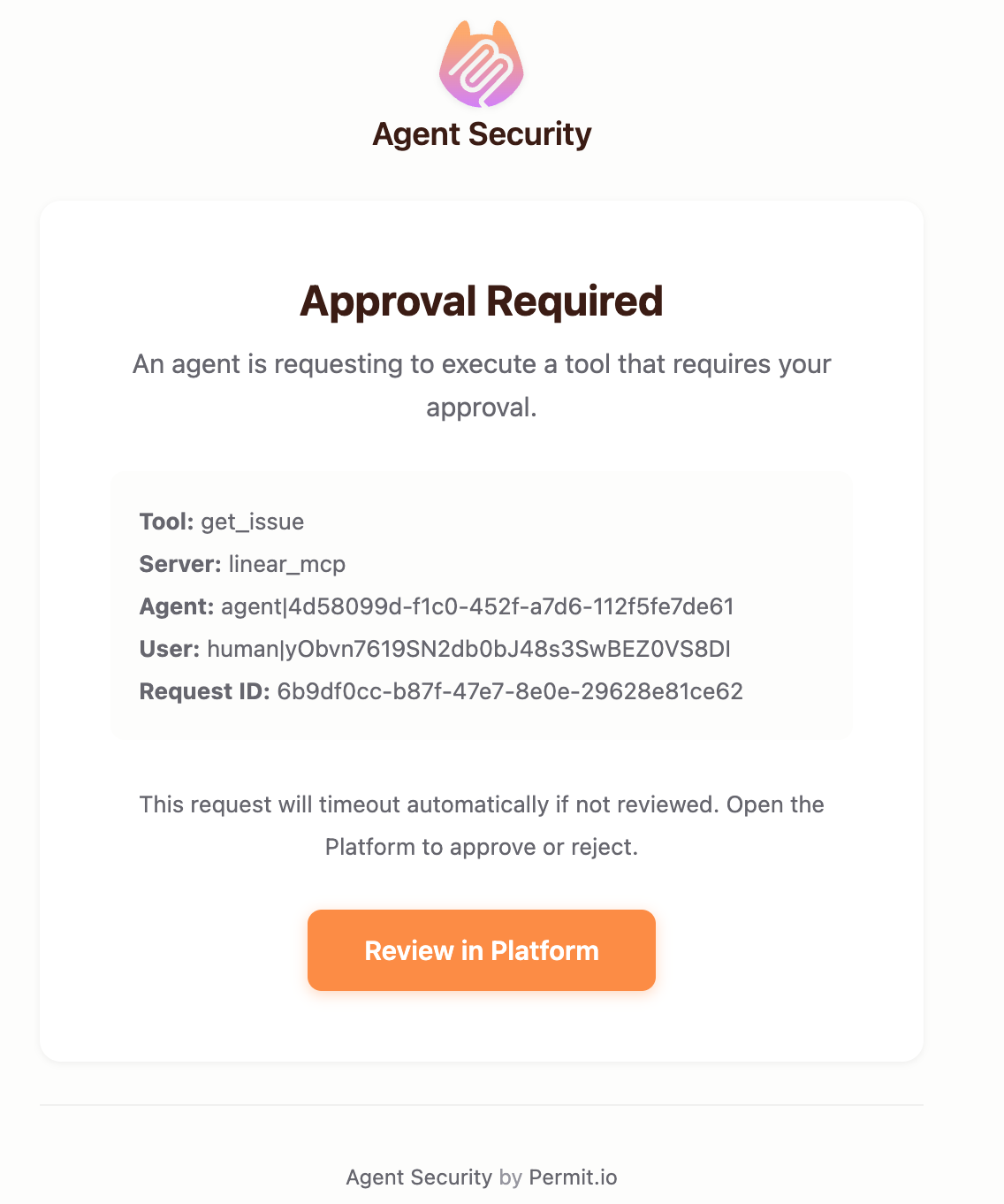
Add the email addresses that receive a message for each new approval request. The email includes the tool name, the server, the agent identity, and a link to the request in the admin dashboard.
Slack notifications
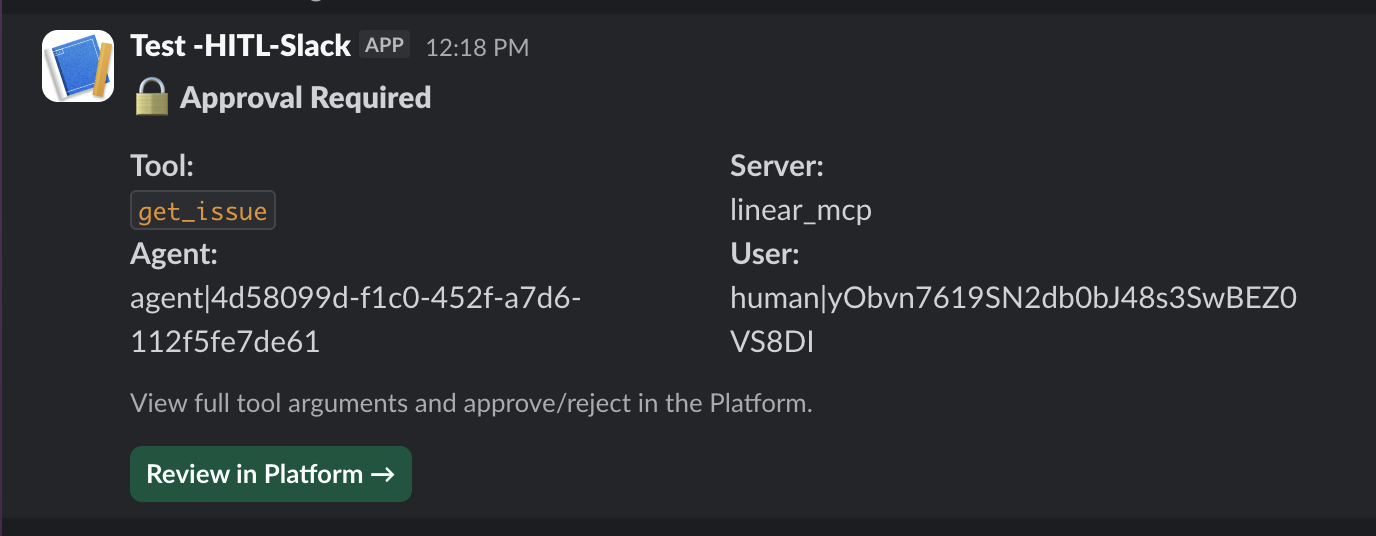
Paste a Slack incoming webhook URL to post notifications to a Slack channel. The message includes the approval context and a button that opens the admin dashboard. For security, Slack messages don't include tool arguments.
Browser notifications
To get desktop notifications while the admin dashboard is open in a background tab, click Enable desktop notifications on the Approvals page and allow the browser permission prompt. A desktop notification appears for each new approval request while the admin dashboard tab isn't in focus.
Timeouts
| Behavior | Details |
|---|---|
| Default timeout | 5 minutes. If no admin responds, the gateway rejects the request. |
| Extend | In the last 60 seconds before timeout, the card shows an Extend +5 min button that adds review time. |
| Timeout result | A timeout always rejects the request. It never approves it. |
| Agent disconnects | If the agent disconnects while waiting, the gateway cancels the request. |
What the agent user sees
When the gateway pauses a tool call for approval, the agent receives this message:
Tool 'delete_repo' requires admin approval before execution. Waiting for approval (timeout: 5 minutes)...
MCP clients such as Cursor, Claude Desktop, and Claude Code display the message, so the user knows the wait is expected. If an admin rejects the request, the error includes the admin's reason.
Next steps
- Manage humans and agents: set the trust levels that approval thresholds build on.
- Audit logs: review tool calls after approval.
- Advanced features: other Enterprise security controls.