Run your First Policy Check (Managed Cloud PDP)
Run your first permission check with permit.check() against the managed Cloud PDP, then change the policy in the Permit dashboard and see the same check return a different decision. This tutorial is for developers new to Permit.io who have configured a role-based access control (RBAC) policy.
The check goes to a policy decision point (PDP), the service that decides whether a user can perform an action on a resource. This tutorial uses the Cloud PDP, which Permit hosts at https://cloudpdp.api.permit.io, so you don't run any infrastructure.
The Cloud PDP does not support attribute-based access control (ABAC) policies. If you need ABAC, or you want checks to run inside your own network, follow Run Local Authorization Microservice. For the full comparison, see Cloud PDP capabilities.
Prerequisites
- An RBAC policy with an
Adminrole and aDocumentresource, and a user with theAdminrole in thedefaulttenant. See Configure your first RBAC policy. - The Node.js SDK (
permitio) installed, imported, and initialized with your environment API key and the Cloud PDP URL. See Use the Permit API and SDK.
Set up the starting state
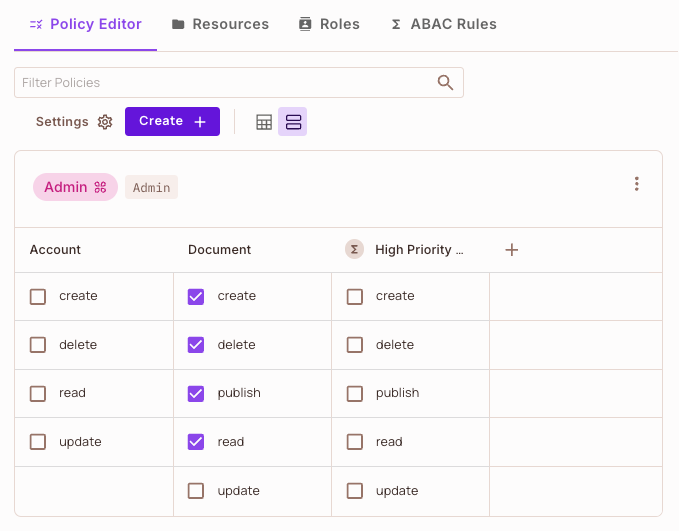
The tutorial starts from a policy that denies the check, so you can watch the decision change. In Policy > Policy Editor, make sure the Admin role's row for Document has the update action cleared. The other Document actions can stay as Configure your first RBAC policy left them.
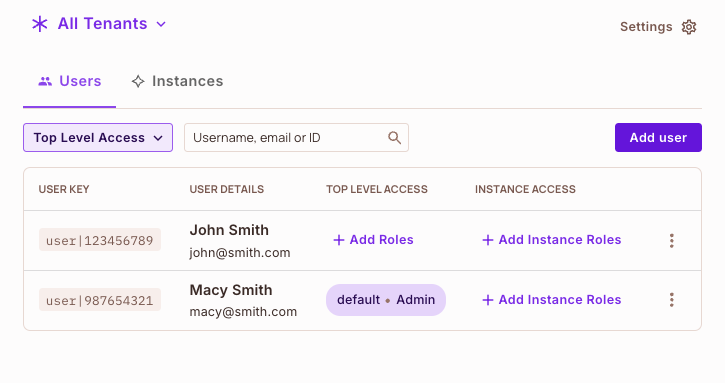
Then open Directory and copy the key of the user who has the Admin role in the default tenant. The samples below use <USER_KEY> for that key. The screenshots come from an environment where that user is Macy Smith, with the key user|987654321, and where the Admin role also has read on Document. Your own user key and action list differ, and the decisions the tutorial describes still hold as long as update starts out cleared.
Review the policy in the Policy Editor
In the Permit dashboard, open Policy > Policy Editor. In the example environment, the Admin role can create, delete, publish, and read a Document. The Admin role cannot update a Document.
Review the user role assignments
Open Directory. In the example environment there are two users. Macy Smith, with the user key user|987654321, has the Admin role in the default tenant. John Smith has no role. The checks in this tutorial use the key of the user who has the Admin role.
Add the permission check to your code
Add a check that asks whether the Admin user can update a document. Replace <USER_KEY> with the user key you copied from Directory:
const permitted = await permit.check("<USER_KEY>", "update", "document");
console.log("update allowed:", permitted);
The check passes three values to the Cloud PDP:
- The user key, for example
user|987654321 - The action,
update - The resource type,
document
permit.check() returns a promise, so await it. Without await, permitted holds the promise itself, and the promise is always truthy.
The PDP returns true if the policy allows the action and false if it does not.
Run the check and see it denied
Run your code. It prints update allowed: false, because the Admin role doesn't have the update permission on Document.
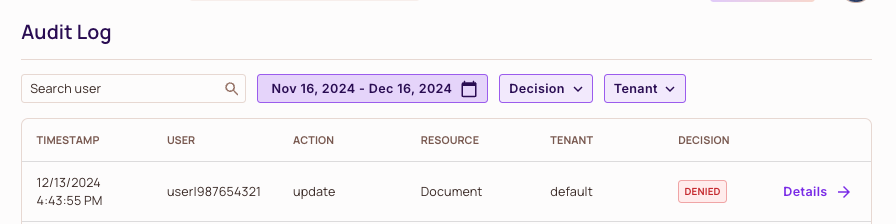
Open Audit Log in the Permit dashboard. The entry for your user key, action update, and resource Document shows the decision DENIED.
Allow the update action in the Policy Editor
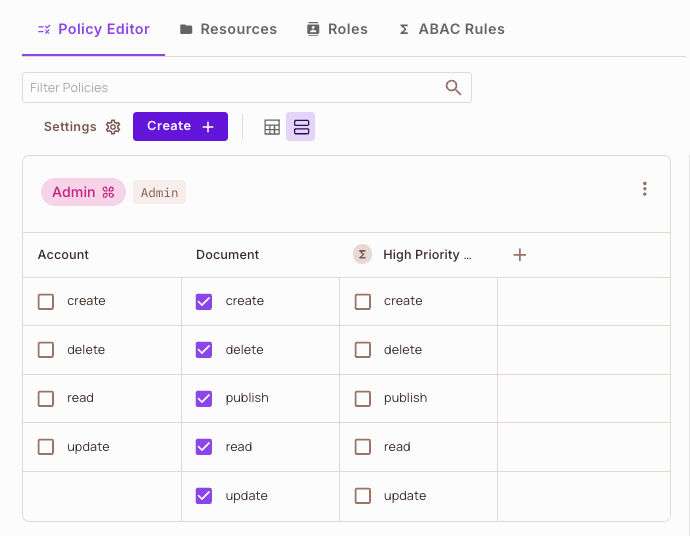
In the Policy Editor, select the update checkbox for Document in the Admin row, and save the change. Every user with the Admin role can update a Document.
Run the check again and see it allowed
Run the same check again, without changing your code:
const permitted = await permit.check("<USER_KEY>", "update", "document");
console.log("update allowed:", permitted);
It prints update allowed: true. In Audit Log, the latest entry for the same user, action, and resource shows the decision PERMITTED.
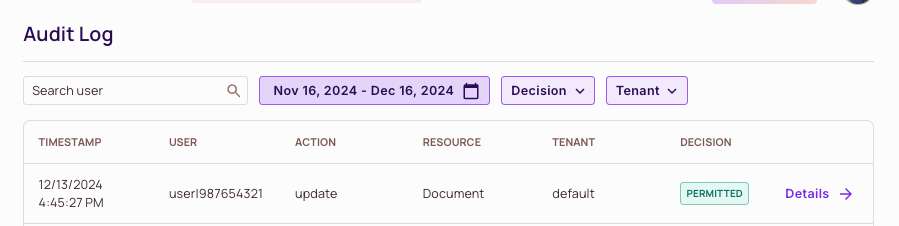
The decision changed because the policy changed. Your application code stayed the same.
If the second run still prints false, confirm that the update checkbox is saved in the Policy Editor, and that the user key in your check matches the user who holds the Admin role.
permit.check() arguments
permit.check() asks the PDP whether a user can perform an action on a resource, and returns a promise that resolves to true or false. Your code proceeds only when the result is true. Place the check at each point in your application that enforces the policy.
| Argument | Type | Description |
|---|---|---|
user | string or object | The key of the user performing the action, or an object with the key and user attributes. |
action | string | The action the user performs, such as read or update. |
resource | string or object | The resource type key, such as document, or an object with the resource type, instance key, tenant, and attributes. |
This example checks whether the user john@permit.io can read a document:
const permitted = await permit.check("john@permit.io", "read", "document");

if (permitted) {
  console.log("John is PERMITTED to read a document");
} else {
  console.log("John is NOT PERMITTED to read a document");
}
For tenants, attributes, relationships, and the context argument, see Check permissions with permit.check().
Next steps
Checks to the Cloud PDP travel over the internet to Permit. If your checks are latency-sensitive, run a PDP container next to your application, so checks don't make a network round trip to Permit.