Linear MCP Gateway Demo
In this tutorial, you put Permit MCP Gateway in front of the Linear MCP server and give two users different trust levels. A Developer with High trust can create Linear issues. A Project Manager with Medium trust can list issues, and the gateway denies issue creation. The tutorial is for admins who want to see trust levels enforced on a real MCP server before rolling out the gateway.
Why put a gateway in front of Linear
When several users or AI agents connect to Linear's MCP server, each one's agent can call every tool the user's Linear account allows. An intern's agent and a team lead's agent can both create issues, delete comments, and change projects. The Linear MCP server has no setting that limits which tools an agent can call.
Permit MCP Gateway sits between the MCP clients and the Linear MCP server and checks each tool call against the user's trust level.
| User | MCP client | Max trust level | Expected result |
|---|---|---|---|
| Developer | Claude Desktop | High | Can list and create issues |
| Project Manager | Claude Code | Medium | Can list issues; creating issues is denied |
Before you begin
- A Permit account.
- Access to the Permit MCP Gateway admin dashboard at app.agent.security, with your Permit organization connected. See Set up hosts for your organization.
- A Linear account you can sign in with.
- Claude Desktop for the Developer and Claude Code for the Project Manager. Any MCP client works; the tutorial uses these two.
1. Set up your host and the Linear MCP server
For details on each field, see Create a host and Import MCP servers.
-
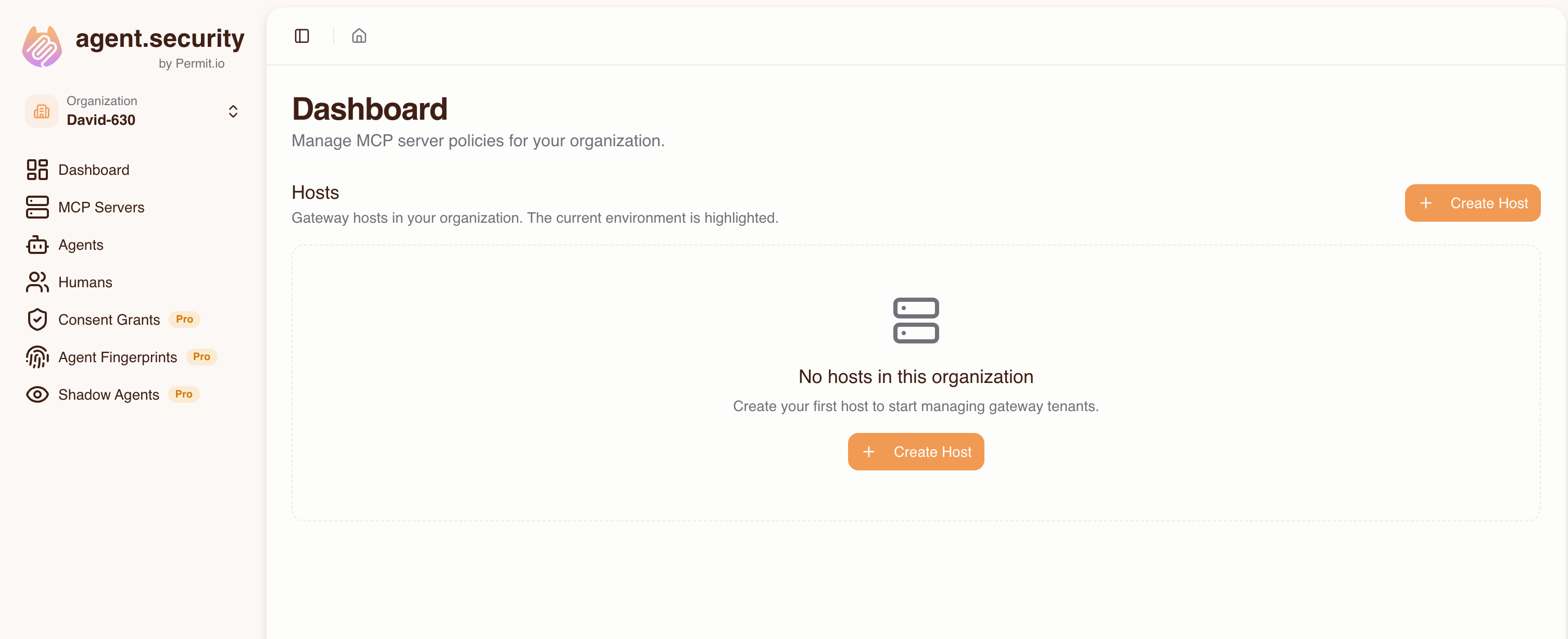
Go to the Dashboard, select Hosts, and click Create Host.
-
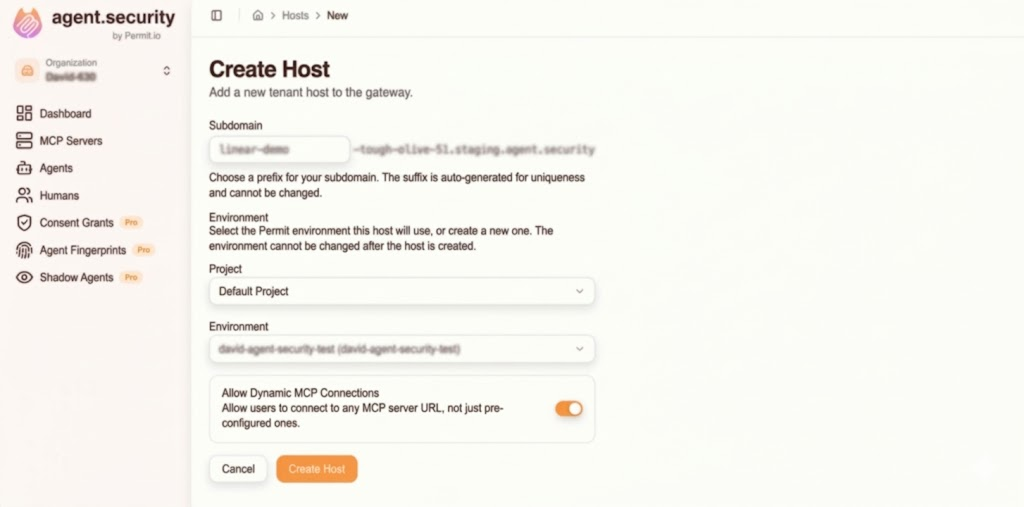
Fill in the fields:
- Subdomain: a prefix, such as
my-tenant. The dashboard adds a unique suffix. - Project: the Permit project that contains the environment you want to use.
- Environment: the Permit environment for this host. You can't change the environment after the host is created.
- Subdomain: a prefix, such as
-
Click Create Host.
-
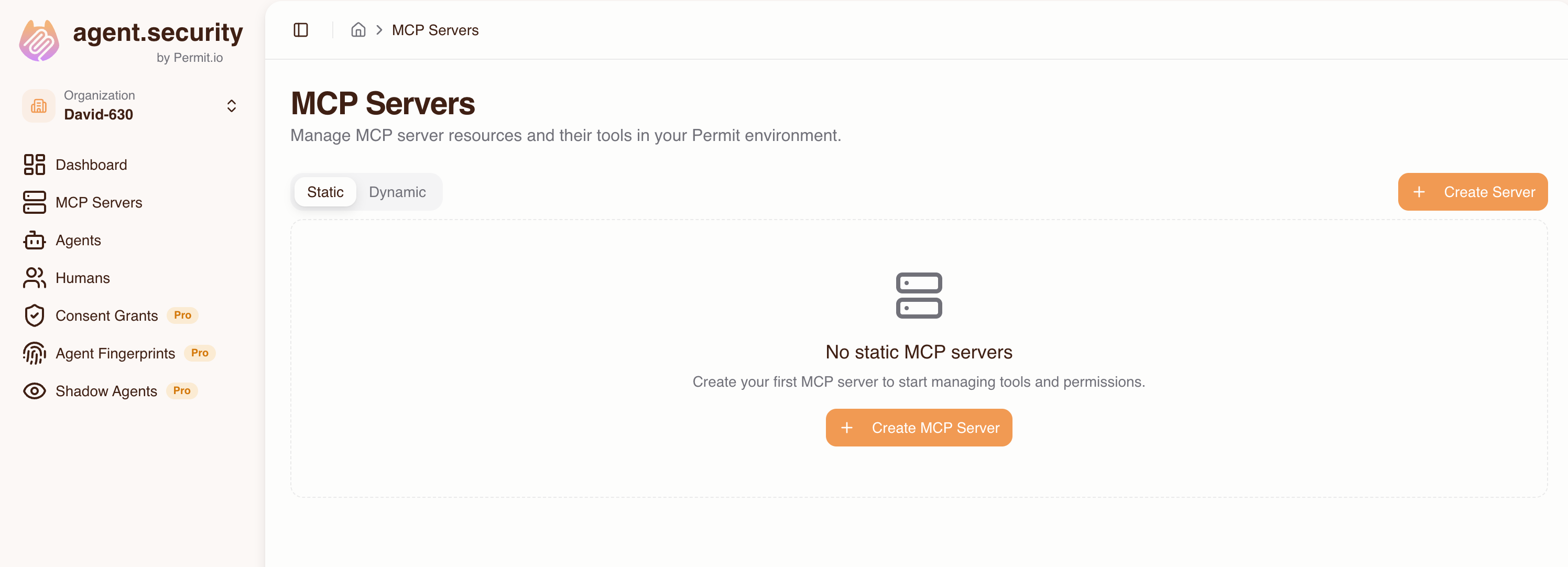
The host has no tools until you import an MCP server. Click MCP Servers to add one.
-
Enter the Linear MCP URL,
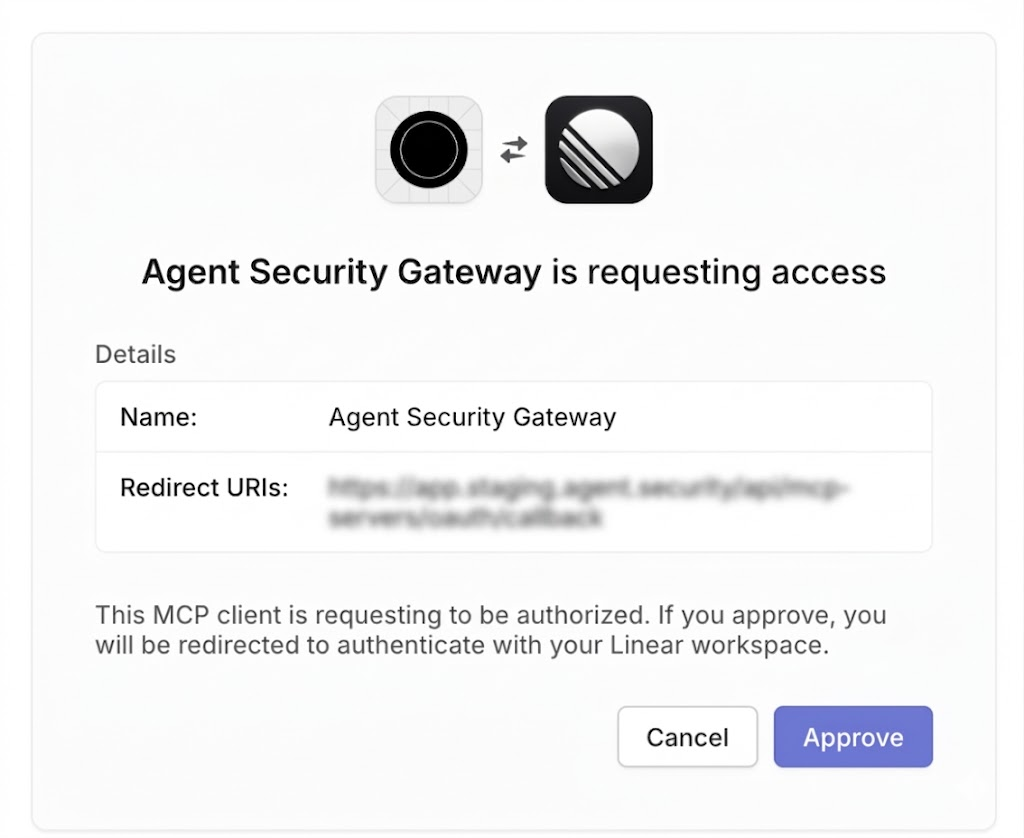
https://mcp.linear.app/mcp, and click Connect. Linear asks you to sign in.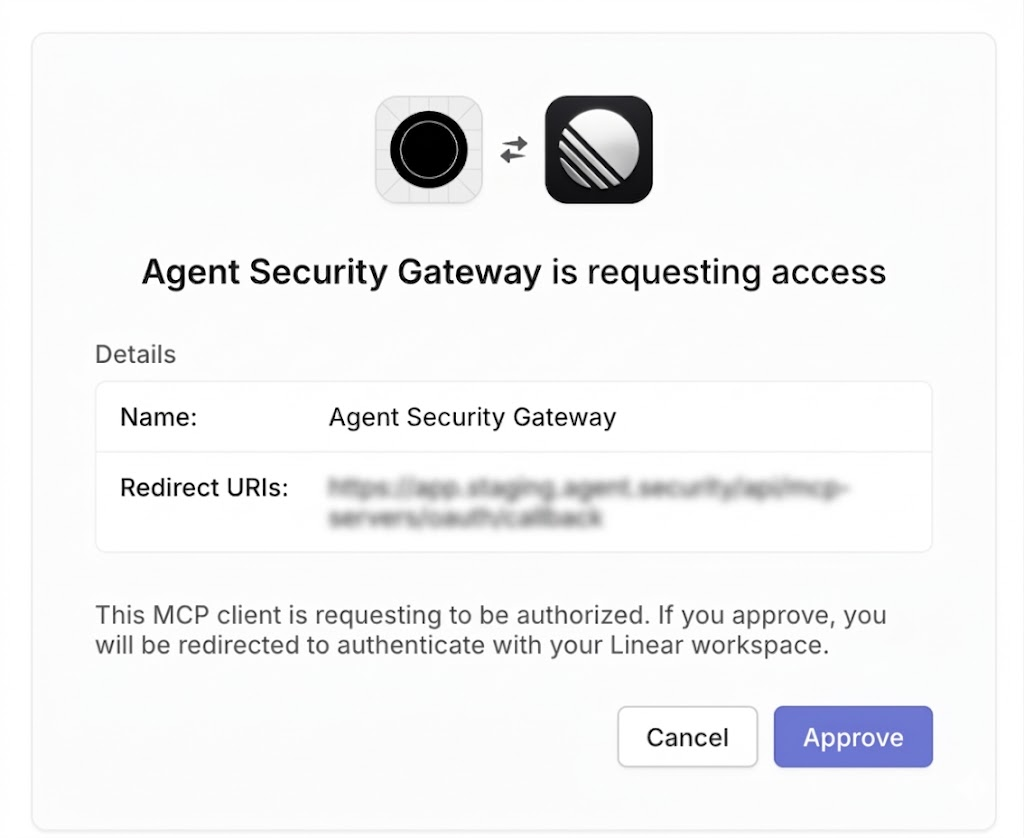
-
The import lists every Linear MCP tool. This tutorial uses two tools,
list_issuesandsave_issue. Setsave_issueto High trust andlist_issuesto Medium trust, then import. You can change tool trust levels later.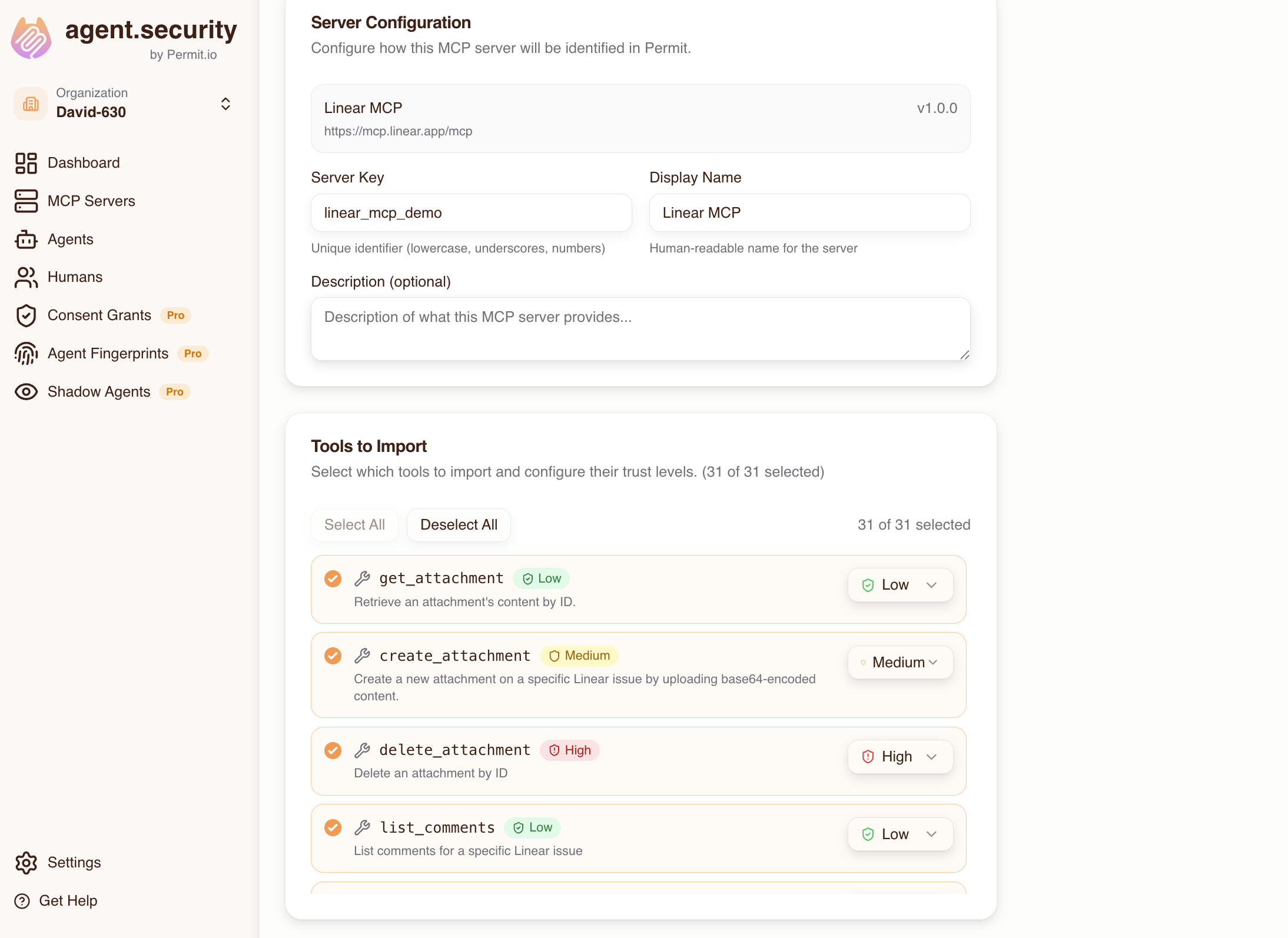
The host now proxies the Linear MCP server's tools.
2. Connect users and grant access
Each user connects an MCP client to the gateway MCP URL shown on the Dashboard tab.
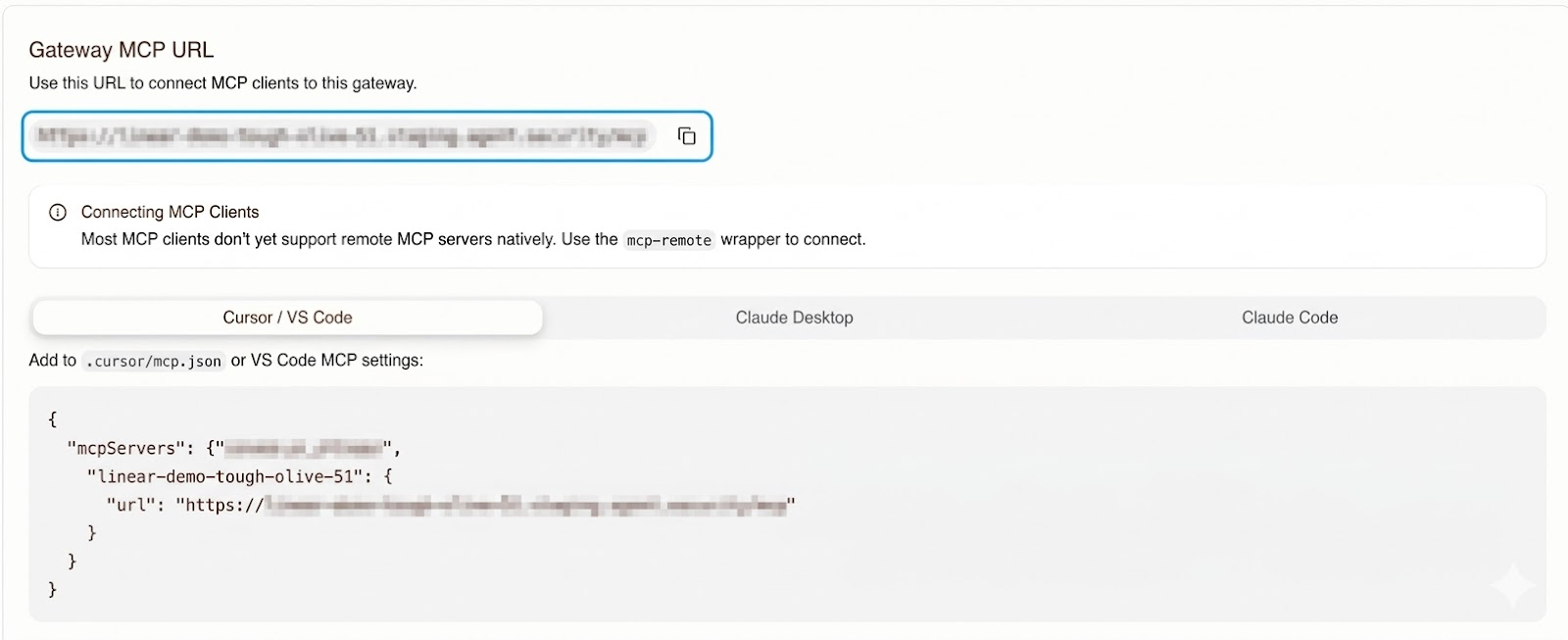
For client configuration snippets, see Share the host URL with your team.
Connect the Developer with Claude Desktop
-
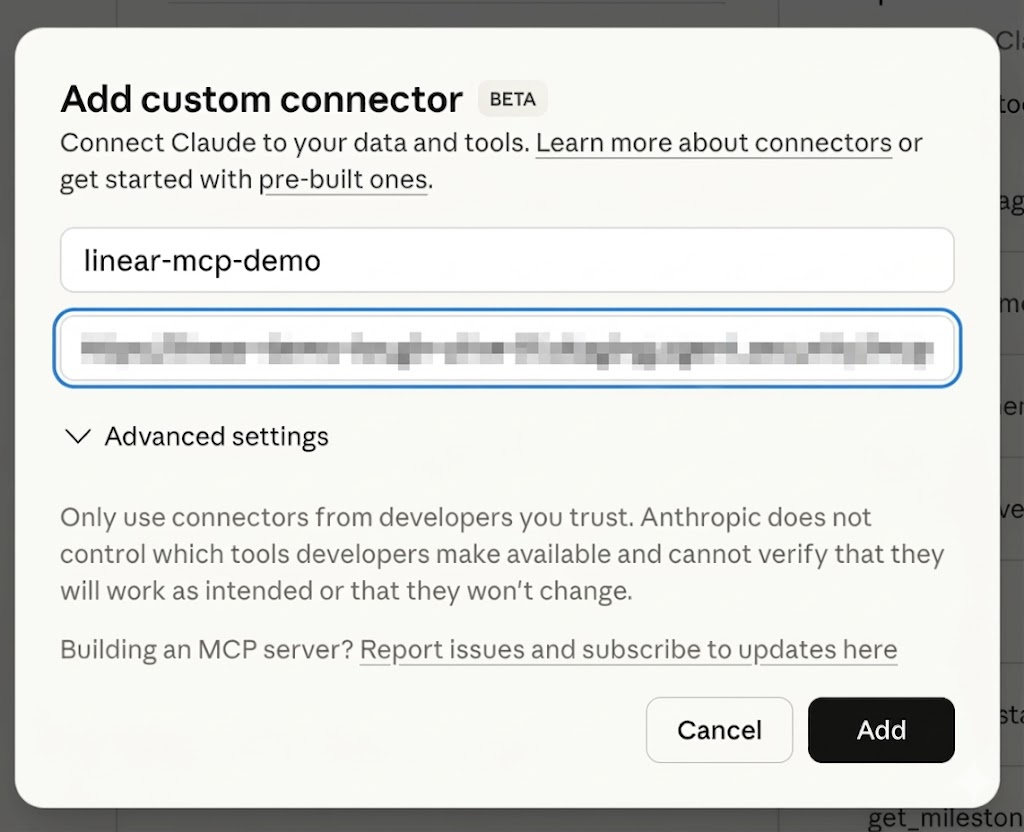
The Developer adds the gateway MCP configuration from the Dashboard to the Claude Desktop config file, or adds the gateway MCP URL in the Claude Desktop UI, and connects.
-
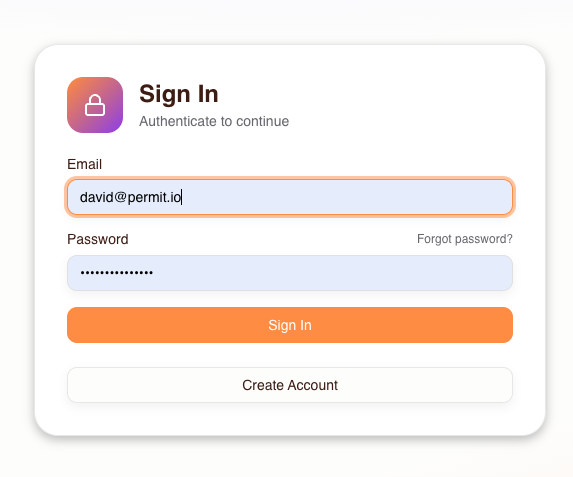
Claude Desktop opens the Consent Service, where the Developer signs in or registers.
-
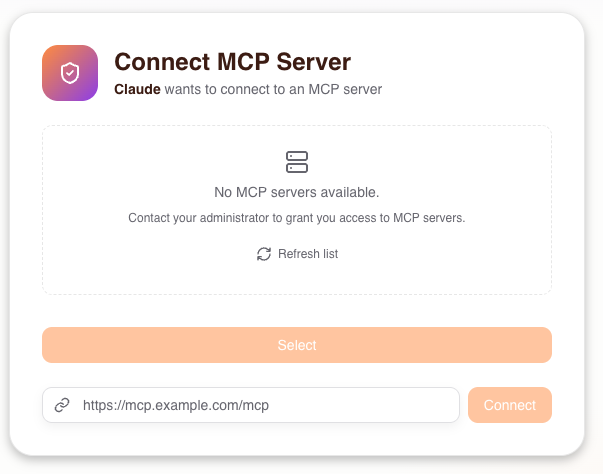
After signing in, the Developer sees no MCP servers, because no admin has granted access yet.
-
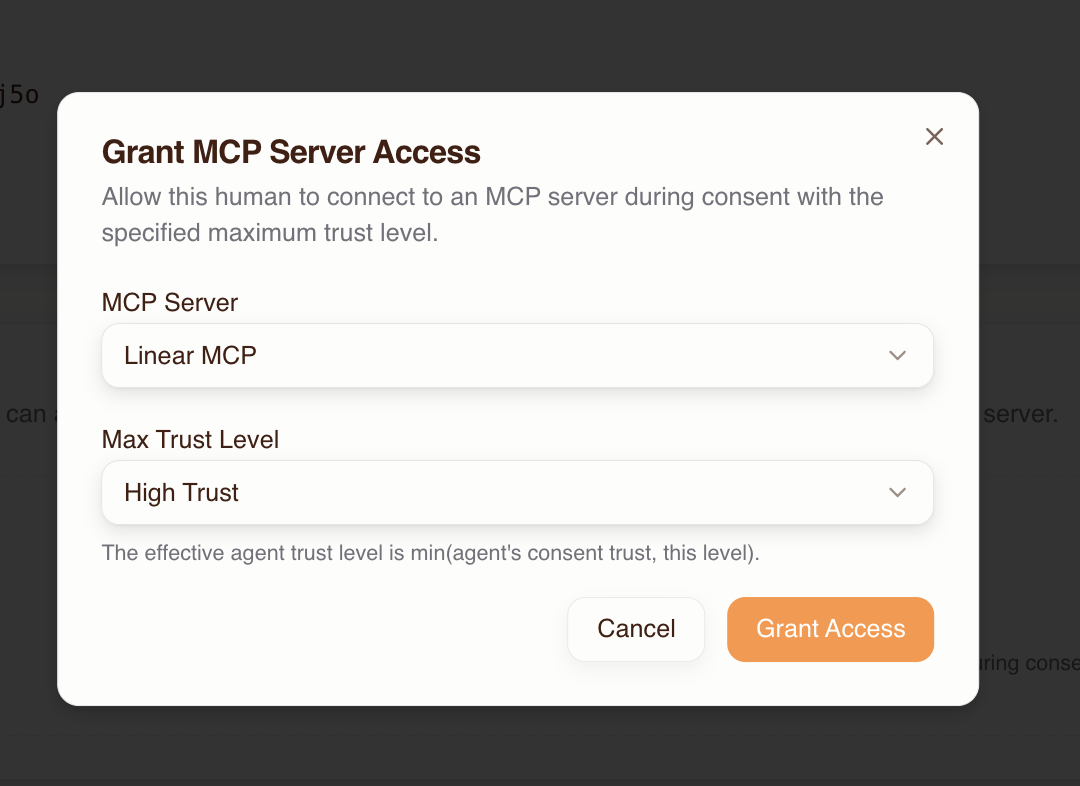
As the admin, open Humans in the dashboard. The Developer appears in the list. Grant the Developer access to the Linear MCP server with a Max Trust Level of High.
-
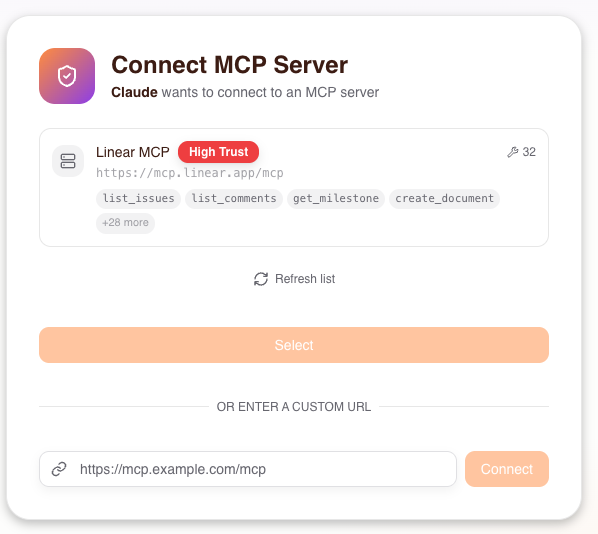
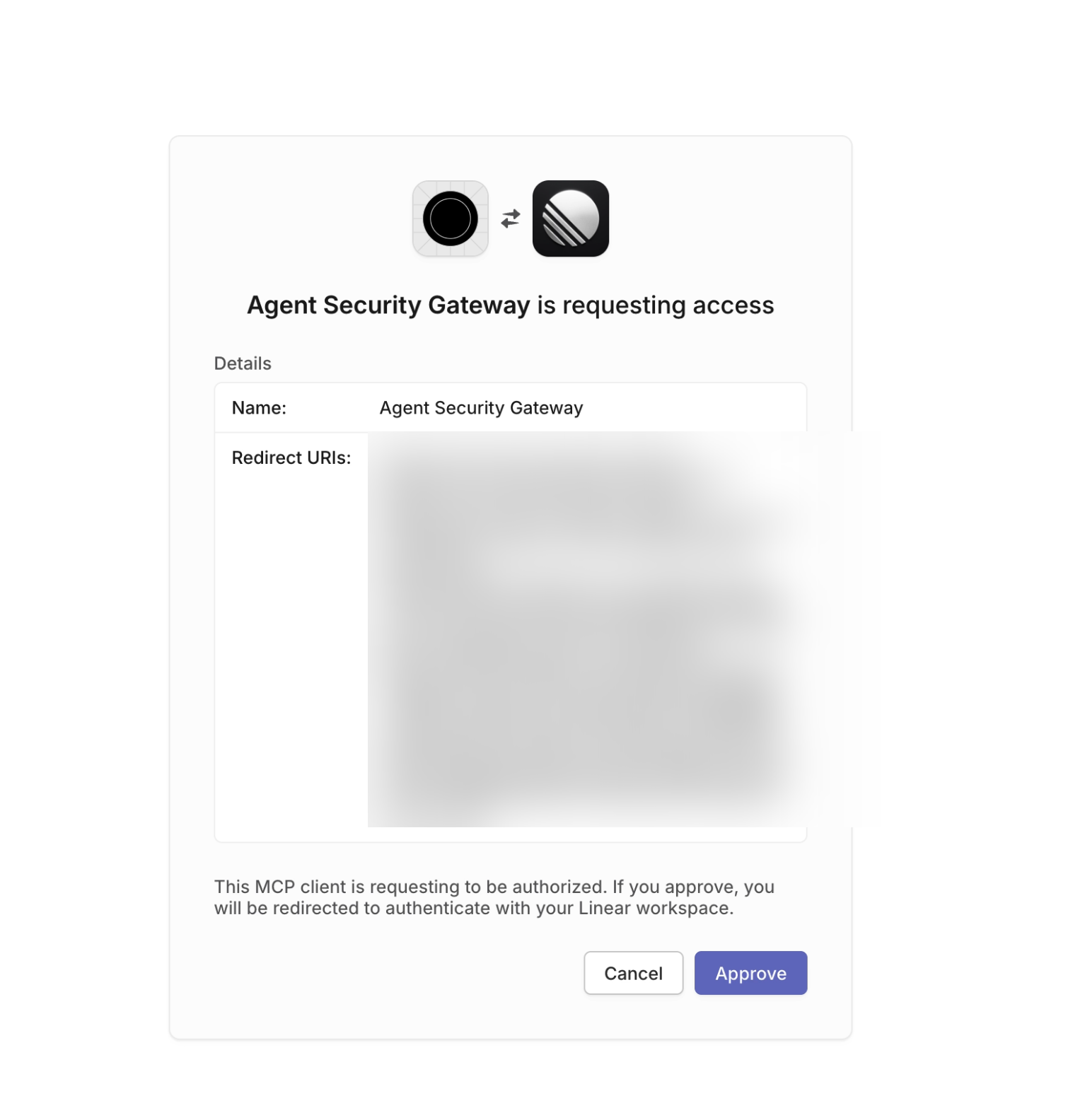
The Developer refreshes the consent page, selects the Linear MCP server, and authorizes with Linear.
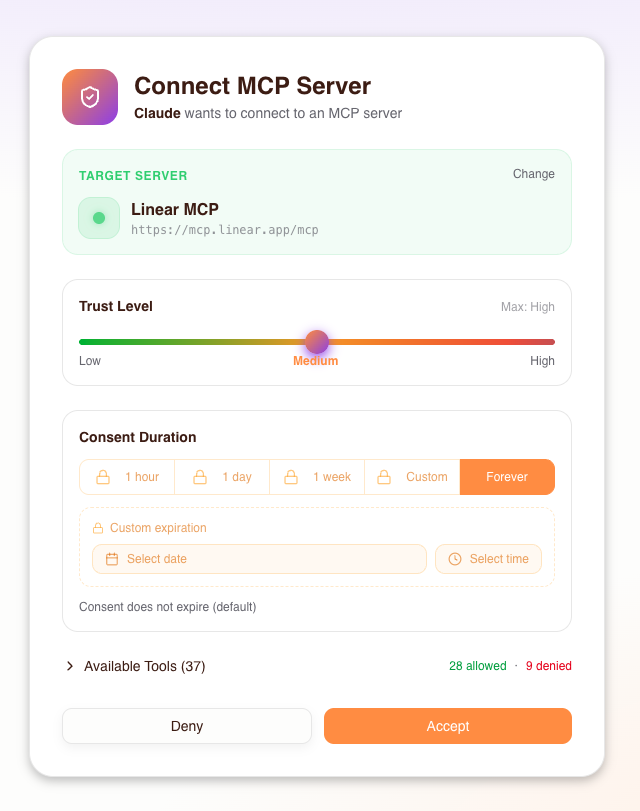
During consent, the Developer can also limit the agent's trust level on the Linear MCP server. See Consent Service.
Connect the Project Manager with Claude Code
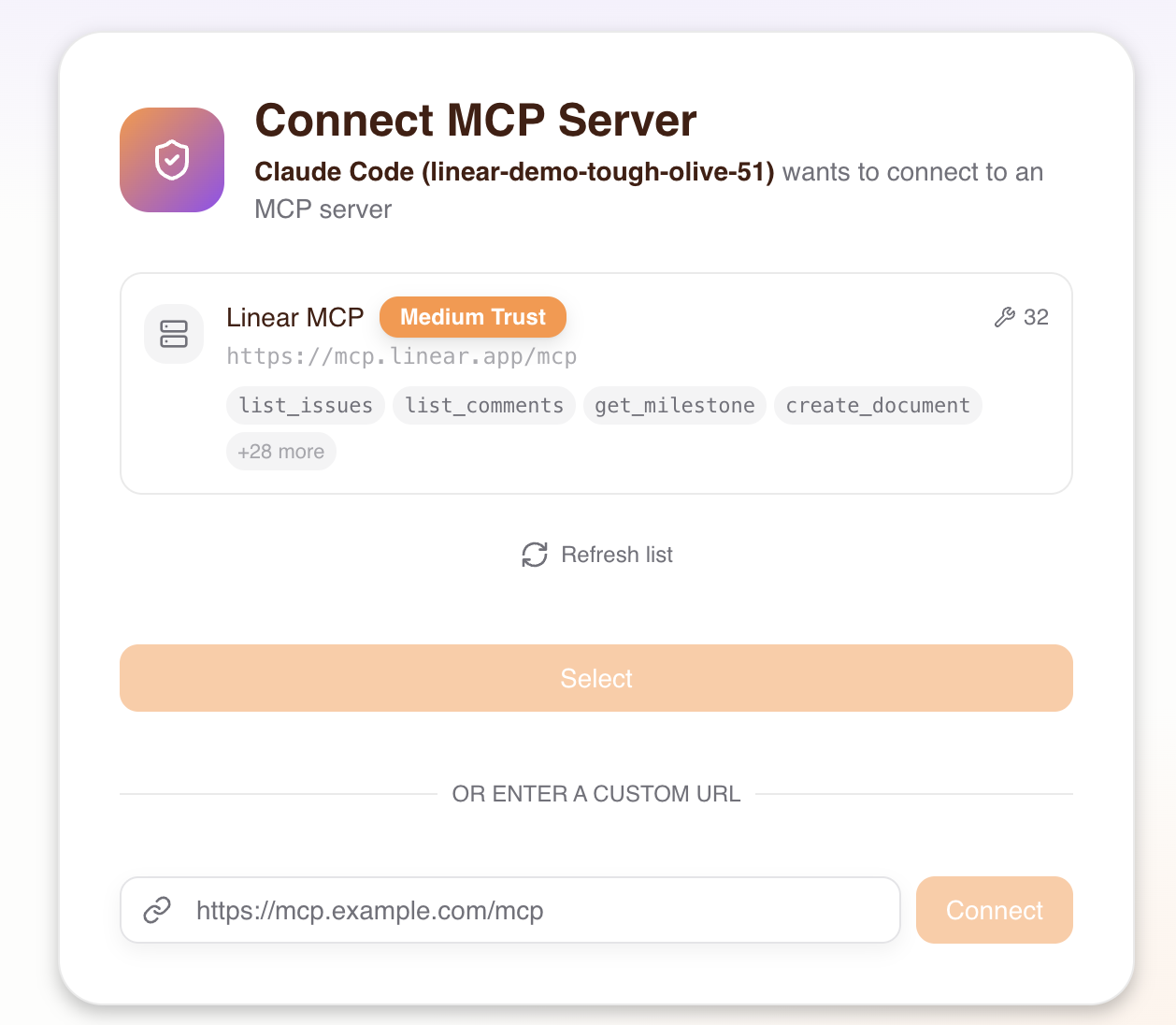
The Project Manager follows the same steps with Claude Code. When you grant access on the Humans page, set the Max Trust Level to Medium instead of High.
After consent, Claude Code shows the Project Manager connected with Medium trust:
3. Test tool calls for each user
Project Manager tries to create an issue
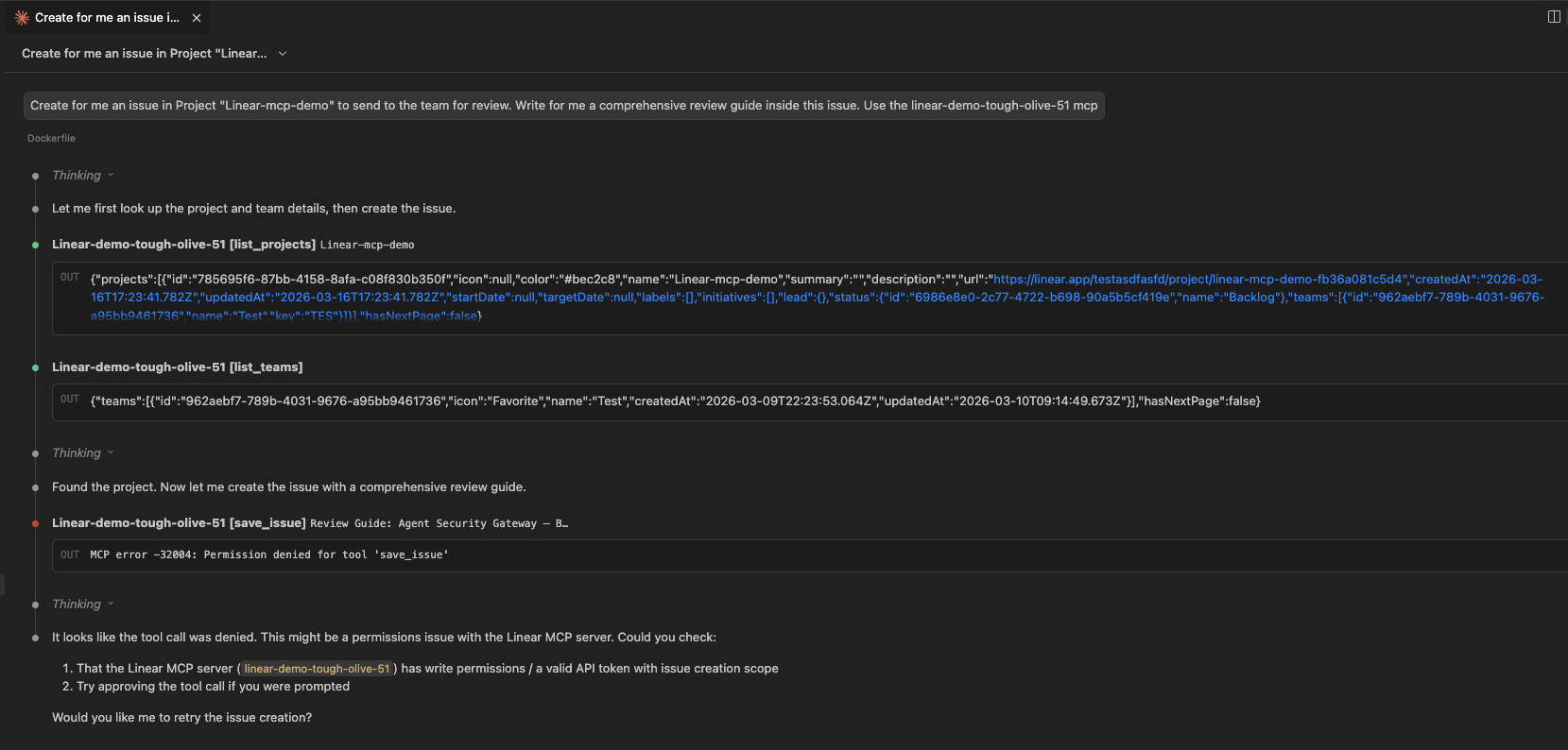
Ask Claude Code to create a Linear issue. The Project Manager's Medium trust is below the High trust save_issue requires, so the gateway returns Permission Denied.
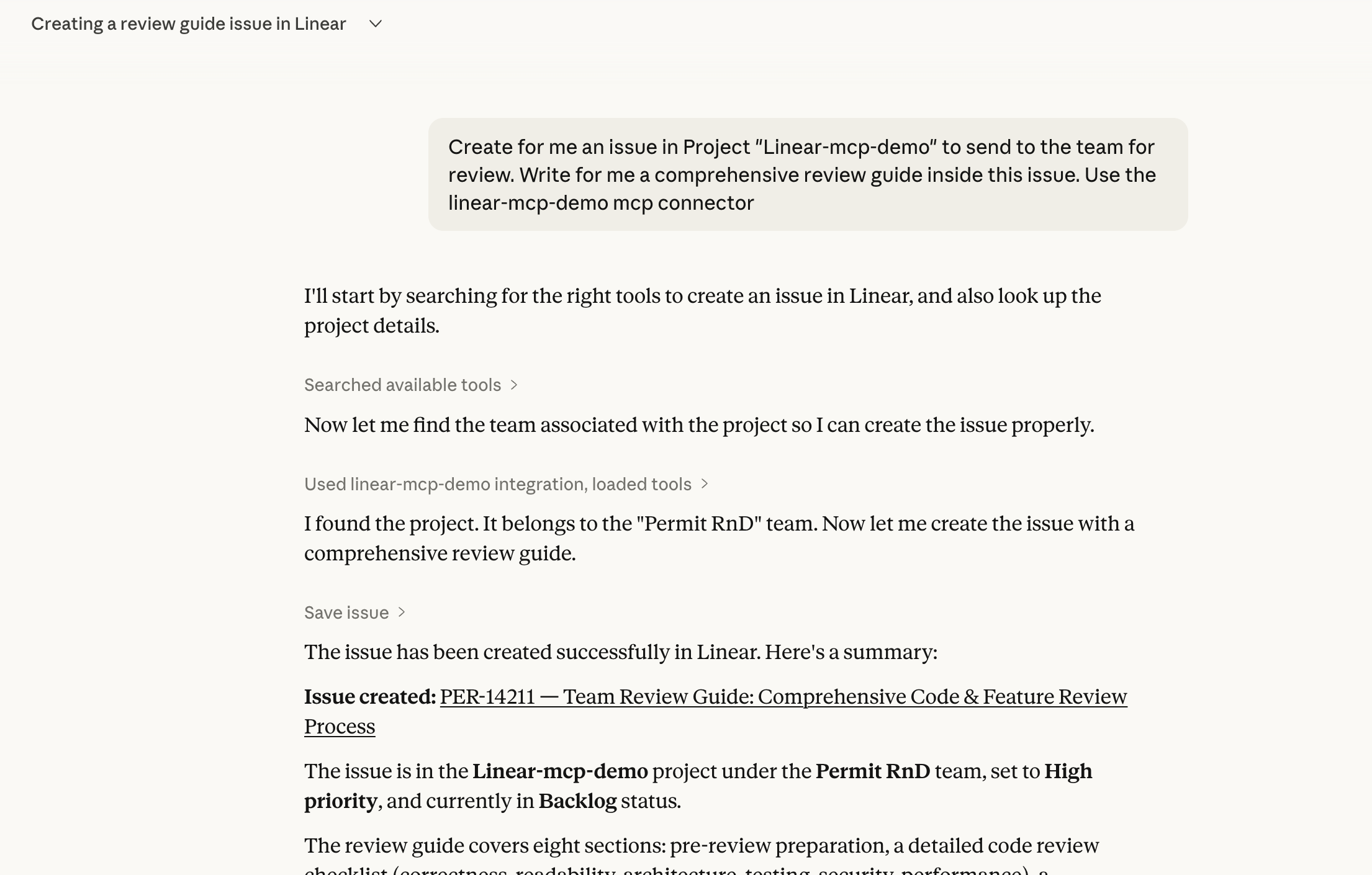
Developer creates an issue
Ask Claude Desktop to create a Linear issue. The Developer has High trust, so the issue is created.
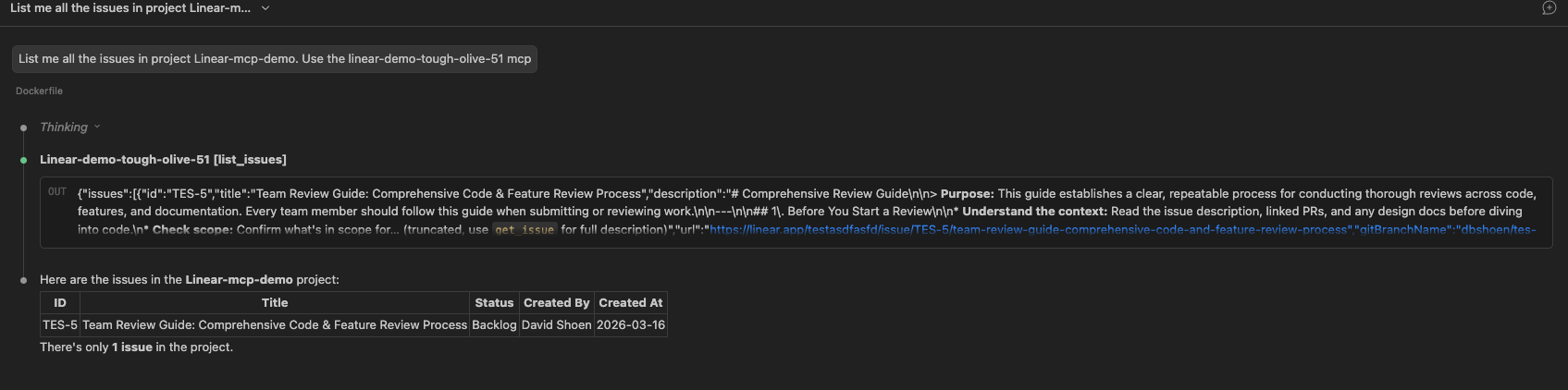
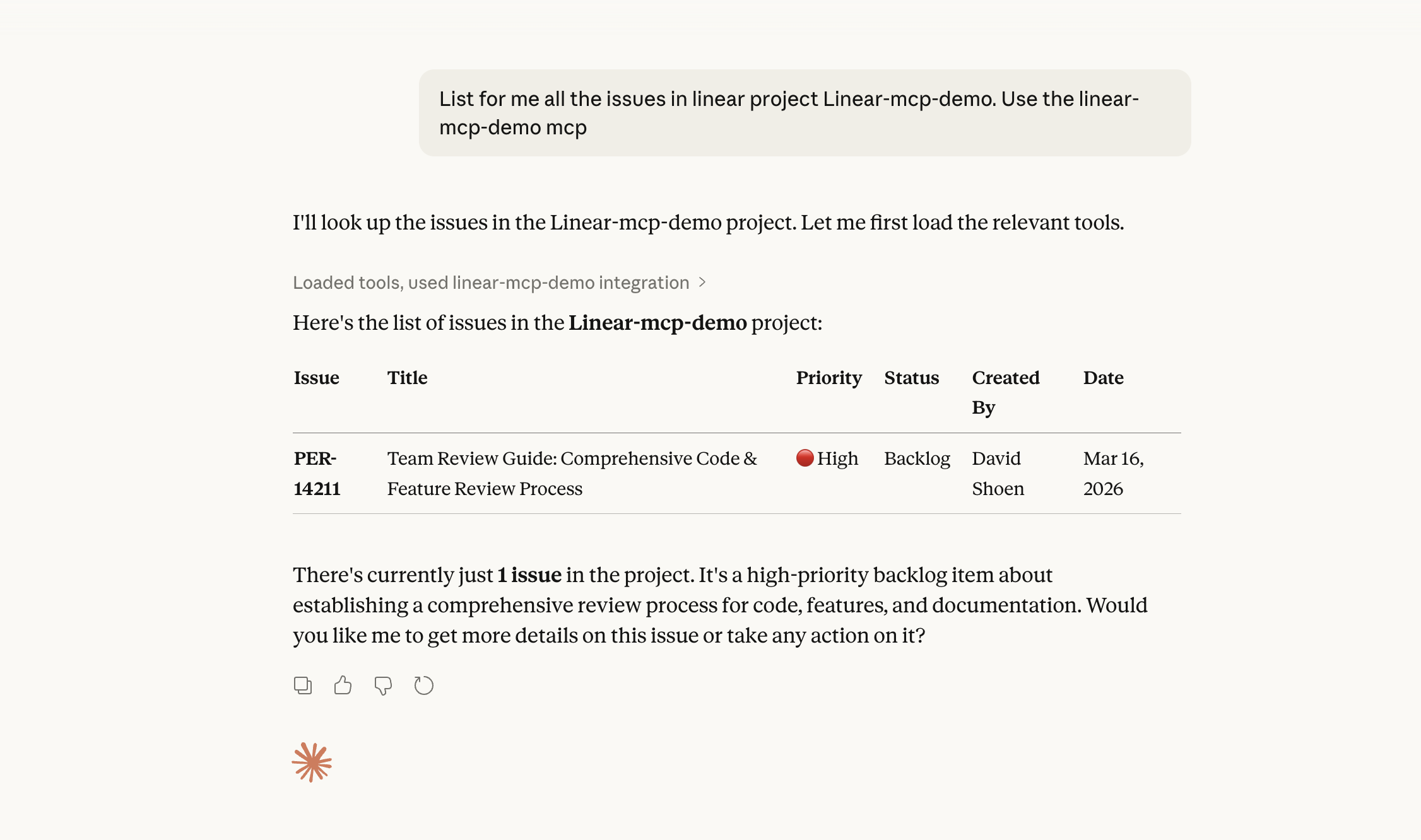
Both users list issues
Ask each client to list Linear issues. Both users meet the Medium trust list_issues requires, so both calls succeed.
Results
| User | Trust level | list_issues (Medium) | save_issue (High) |
|---|---|---|---|
| Developer | High | Allowed | Allowed |
| Project Manager | Medium | Allowed | Denied |
Permit MCP Gateway enforced a different set of Linear tools for each user, with no change to the Linear MCP server.
Next steps
- n8n workflow with the Linear MCP gateway: control an automated workflow's access to the same server.
- Manage humans and agents: change max trust levels and revoke access.
- Human-in-the-loop approvals: require admin approval for
save_issueinstead of denying it.