n8n Workflow with Linear MCP Gateway
Connect an n8n workflow to the Linear Model Context Protocol (MCP) server through Permit MCP Gateway. The workflow creates a Linear issue for each new customer in Attio. You then lower the workflow's trust level in the gateway and watch the gateway block the same call. This tutorial is for admins and workflow builders who run automated agents against MCP servers.
Why route n8n through the gateway
Workflow builders such as n8n can call external MCP servers with no person reviewing each call. Permit MCP Gateway checks every tool call the workflow makes against the trust level granted to the workflow, so you control which tools the workflow can use and can change that access at any time.
Before you begin
- A Permit account.
- A Permit MCP Gateway host with the Linear MCP server imported, and access granted to your user. Follow steps 1 and 2 of the Linear MCP Gateway demo, or see Set up hosts for your organization.
- An n8n instance where you can add the MCP Client Tool node.
- An Attio workspace with an object that tracks customers, if you want to run the full workflow. Only the MCP Client Tool part of the workflow involves the gateway.
This tutorial uses the tool trust levels from the Linear demo: save_issue requires High trust, list_issues requires Medium, and your user's Max Trust Level on the Linear MCP server is High. If you imported Linear with different tool trust levels, substitute the level that covers save_issue wherever this tutorial says High.
The n8n workflow
The example workflow uses Attio (CRM) and Linear (project tracking). For every new sale recorded in an Attio object, the workflow creates a Linear issue.
The workflow has three nodes:
| n8n node | Name in the screenshot | What it does |
|---|---|---|
| Webhook | Attio Item Added | Receives the POST that Attio sends when an item is added to the object. |
| HTTP Request | Fetch Record Details | Reads the new item's data from the Attio API. |
| MCP Client Tool | MCP Client | Calls Permit MCP Gateway to create a Linear issue with the item's data. |
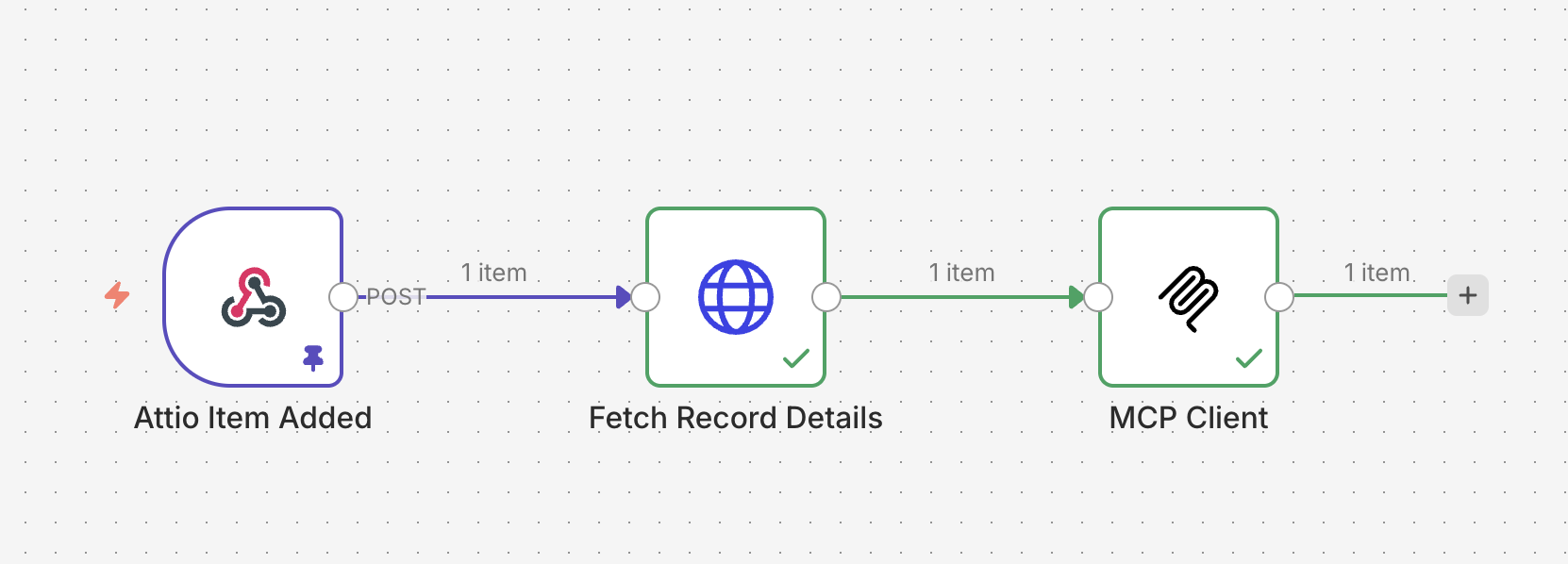
Webhook and HTTP Request are built-in n8n nodes, renamed on the canvas to describe their job, and they don't involve the gateway. The steps below cover the MCP Client Tool node, which n8n names "MCP Client" when you add it.
1. Configure the MCP Client node in n8n
-
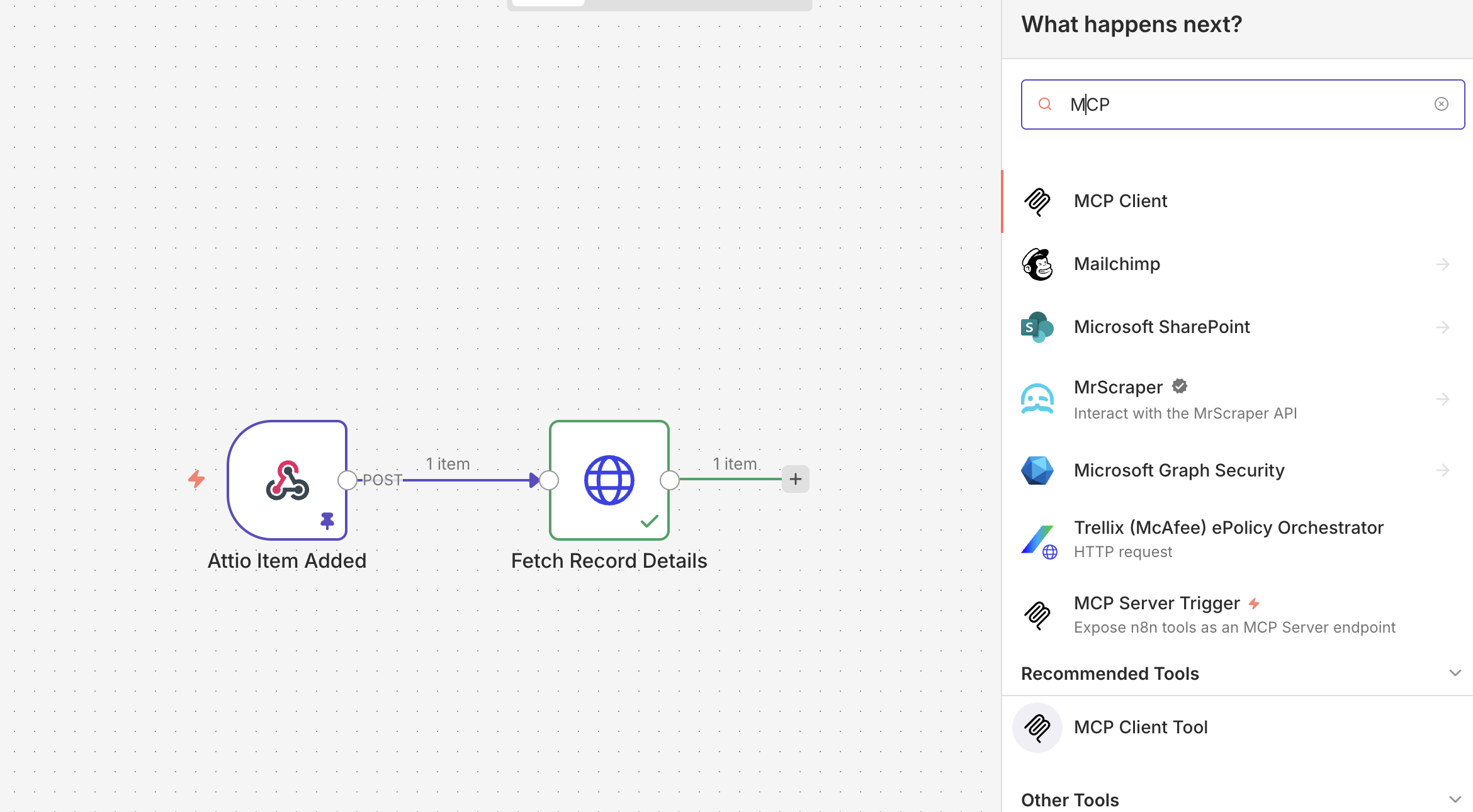
In your n8n workflow, add MCP Client Tool from the node selector on the right.
-
In the node's Parameters tab, leave Server Transport on HTTP Streamable. In MCP Endpoint URL, enter the gateway MCP URL of the host where you imported the Linear MCP server:
https://<your-subdomain>.agent.security/mcp, which the host detail page in app.agent.security shows. For Authentication, select MCP OAuth2, then open Credential for MCP OAuth2 API and select Create new credential.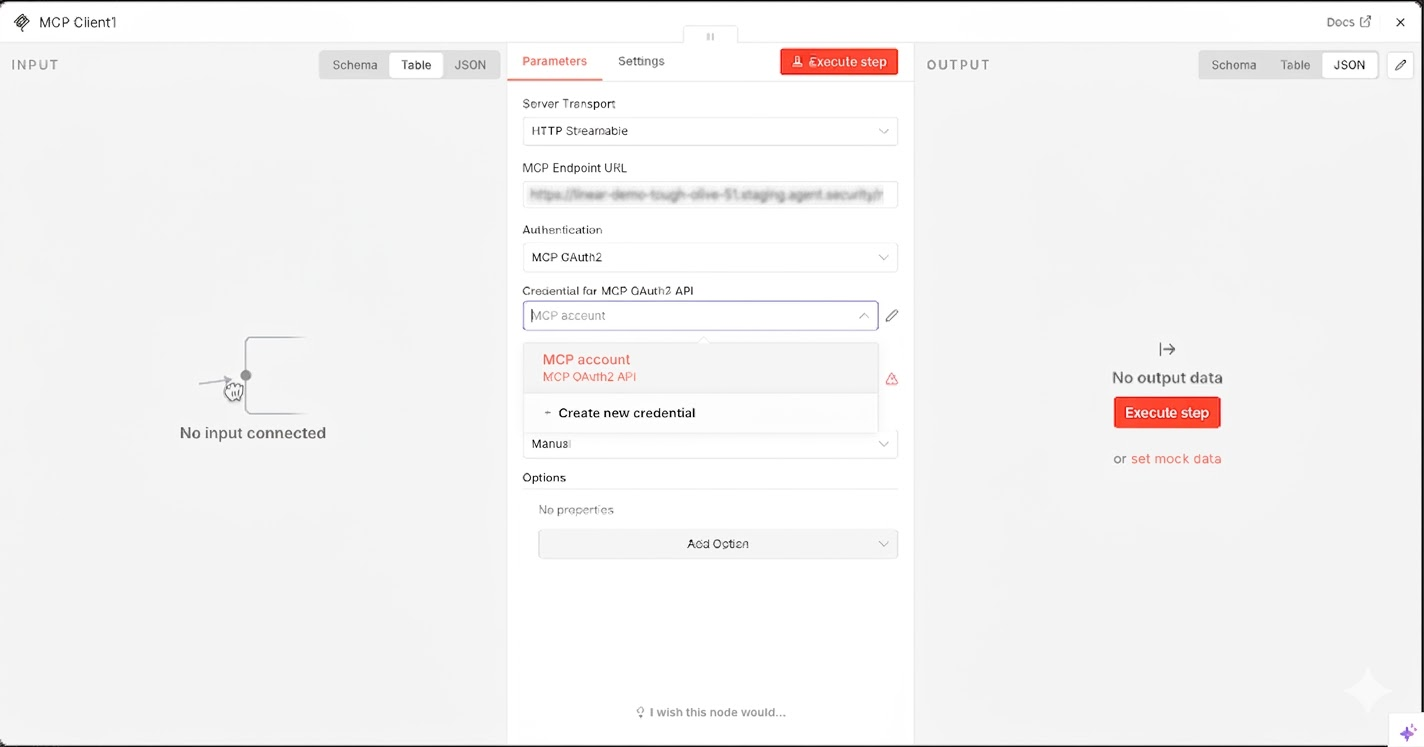
-
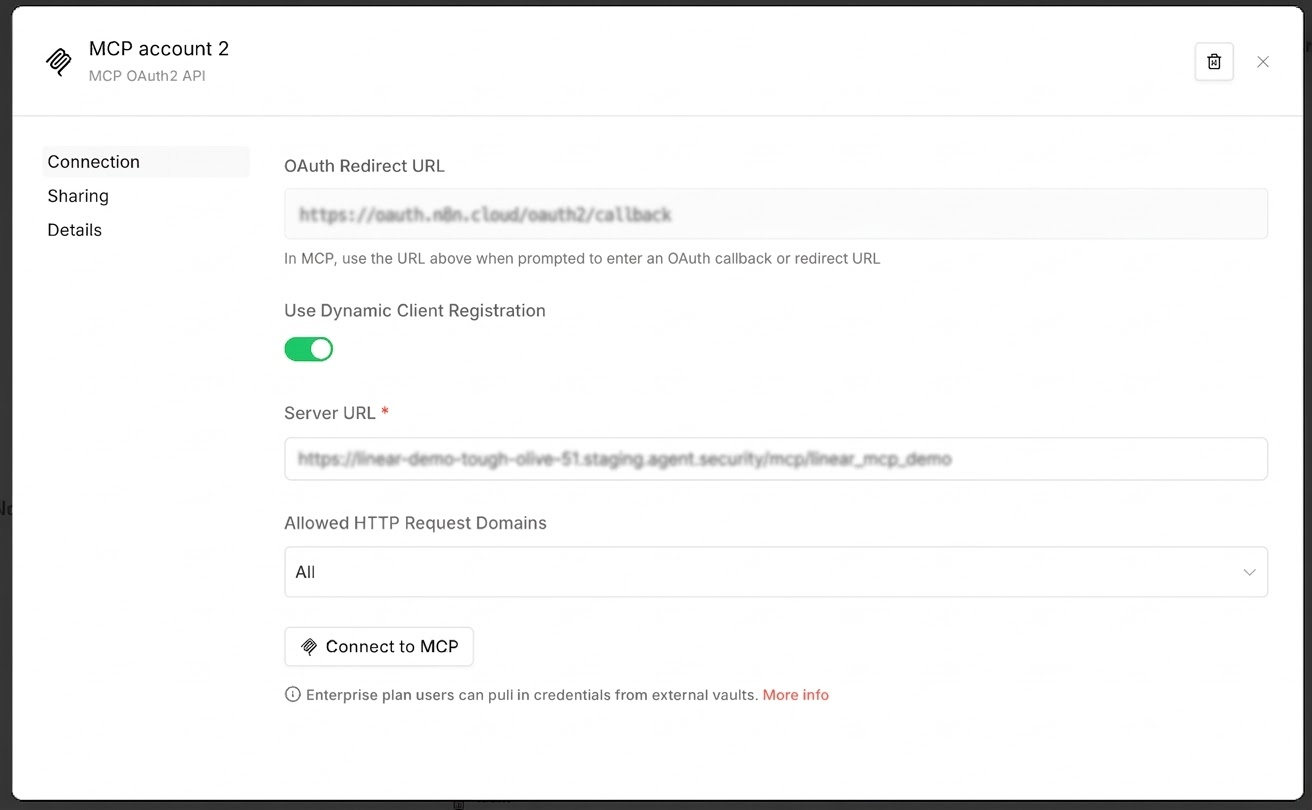
In the credential dialog, leave Use Dynamic Client Registration on, enter the gateway MCP URL in Server URL, and select Connect to MCP. Dynamic client registration lets the gateway register n8n as an OAuth client without you creating one by hand.
-
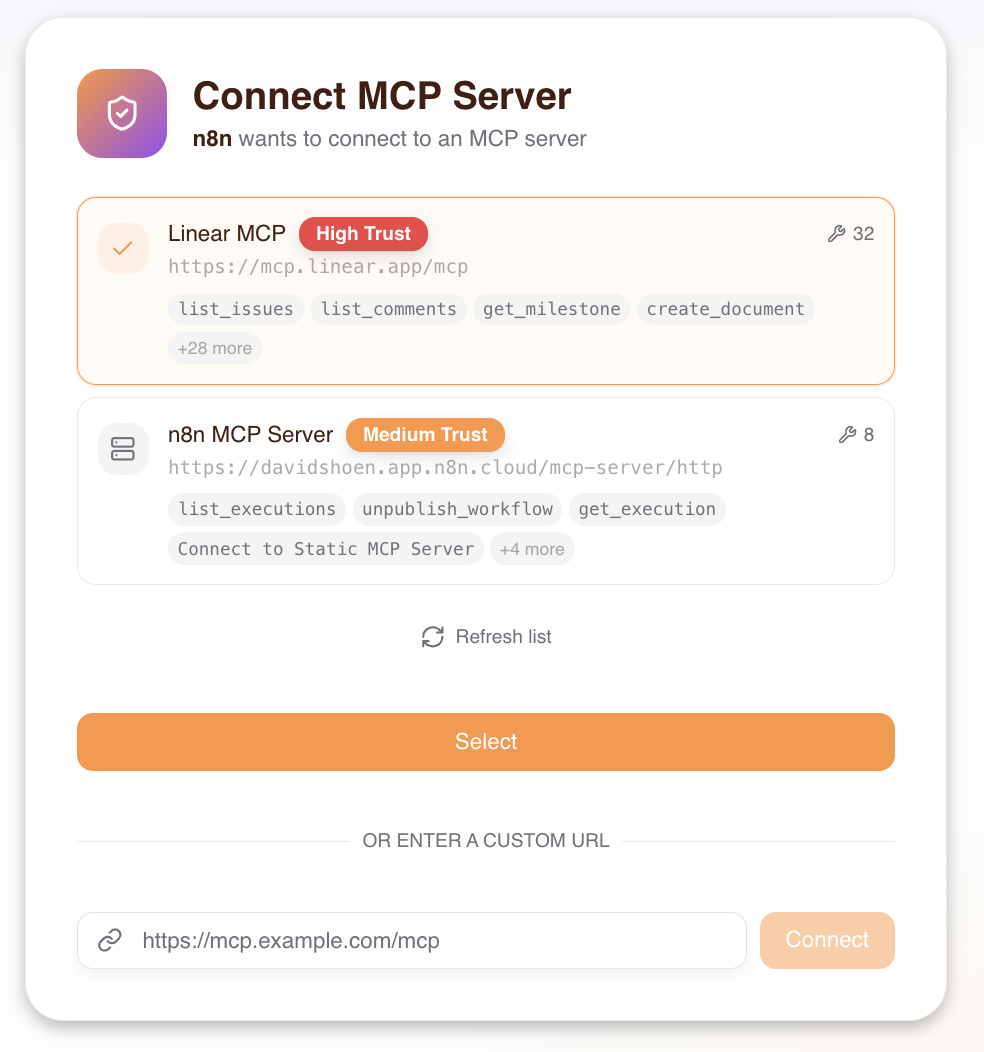
The Consent Service opens. Select the Linear MCP server for this workflow.
-
Sign in and authorize access to Linear. The Connect MCP Server screen then shows the Trust Level slider, your Consent Duration, and every Linear tool with the trust level it requires and whether this consent allows it.
Drag the Trust Level slider to High, because
save_issuerequires High trust in this setup.save_issuemoves from denied to allowed in the tool list. Leave Consent Duration on Forever, which is the default and doesn't expire, then select Accept. The slider stops at your Max Trust Level, shown as Max: High above the slider. For how the consent screen maps trust levels to tools, see Consent Service.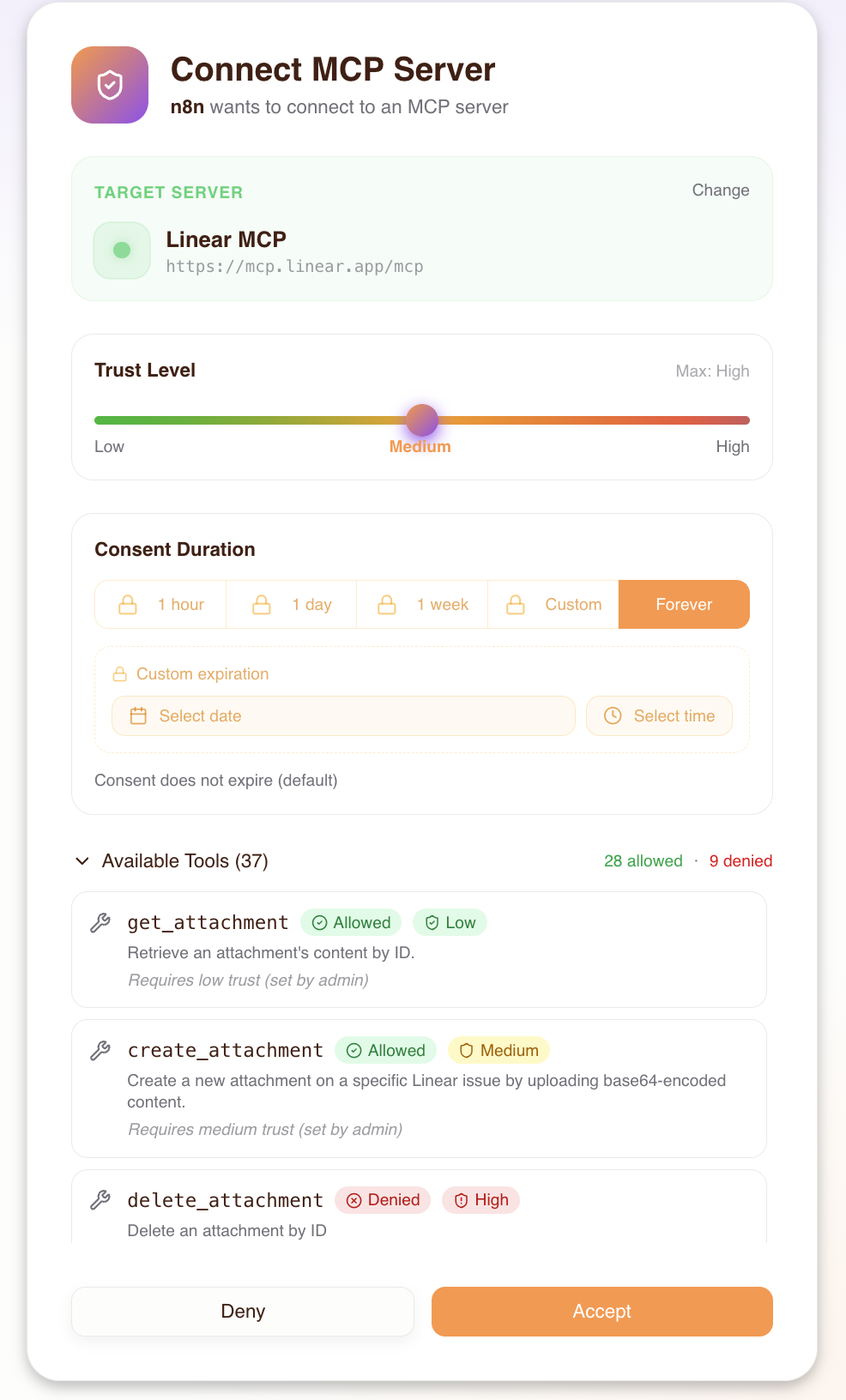
2. Configure the Linear action
-
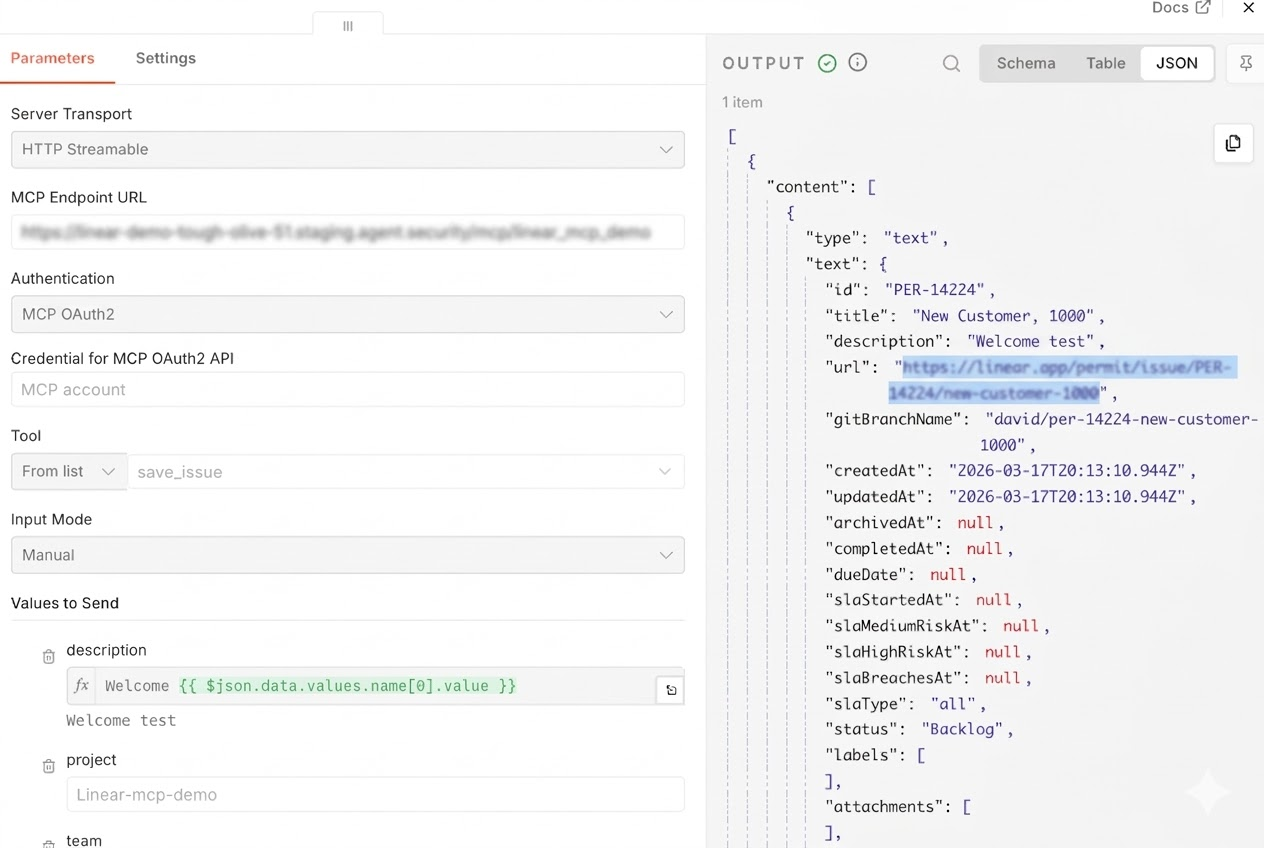
In the MCP Client Tool node, open the Tool field, keep From list, and select
save_issue. The list holds the Linear tools the gateway exposes to this connection.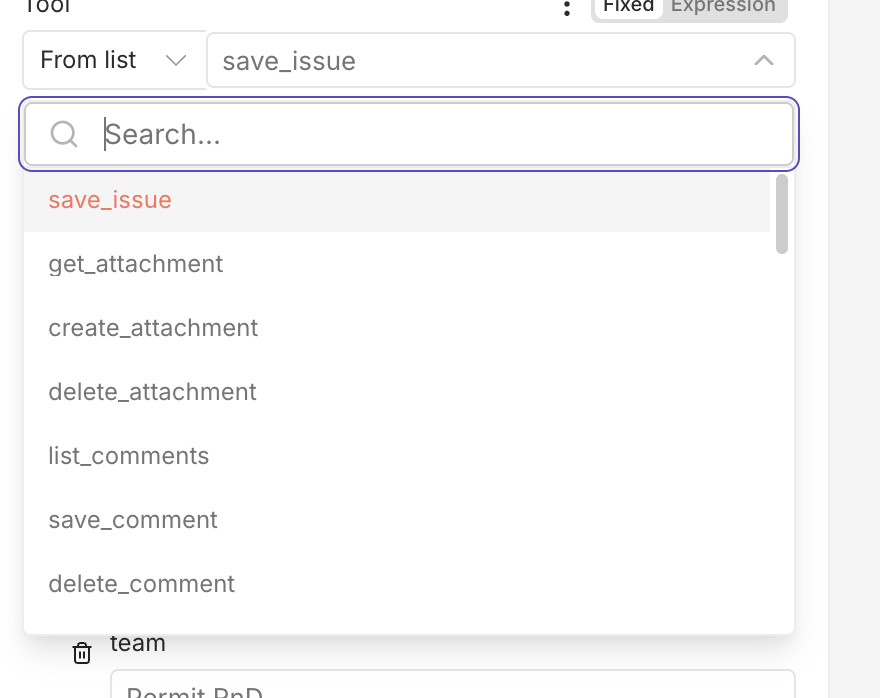
-
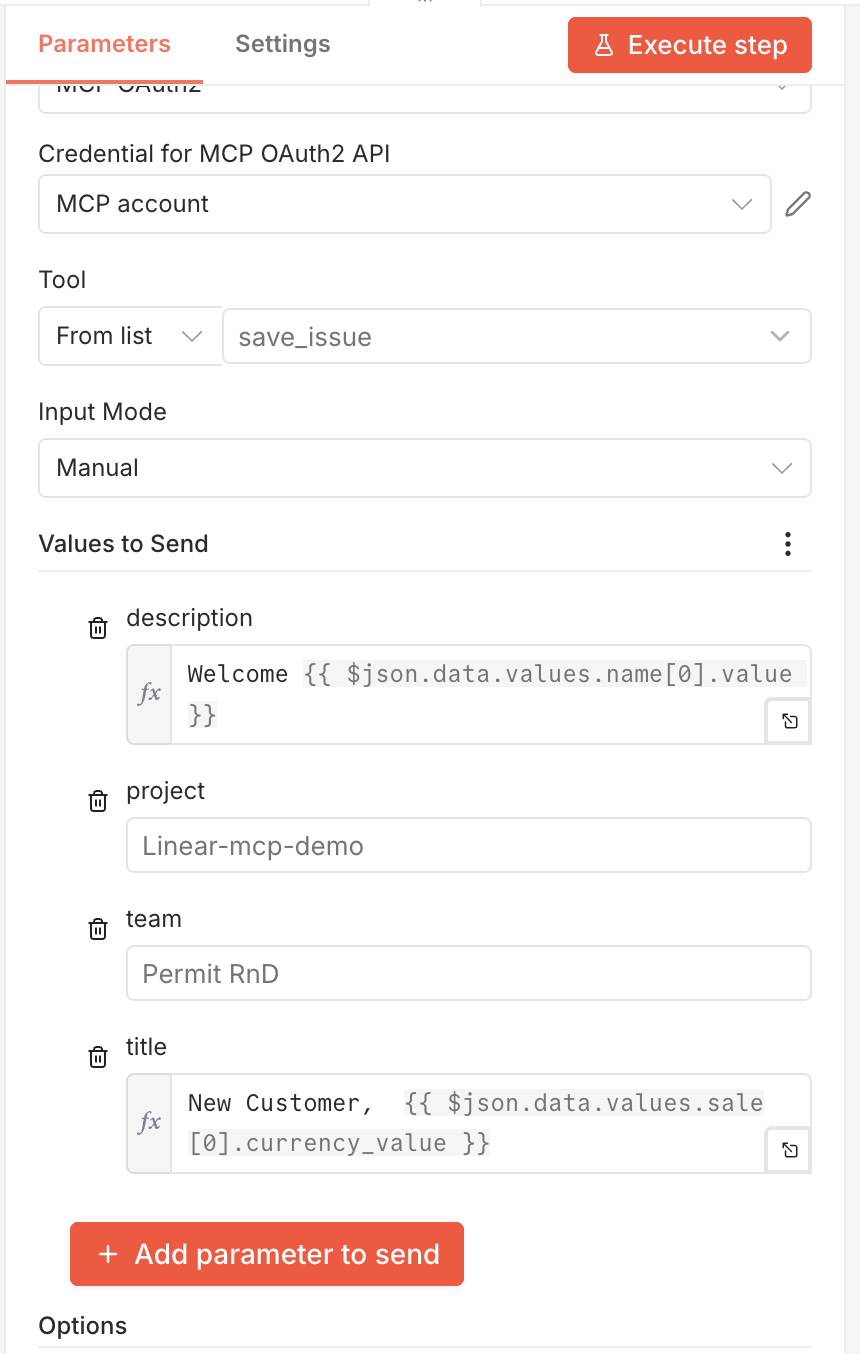
Set the Linear team for the issue, then map the data from Attio. This example uses the customer name and sale amount for the issue title and description.
3. Test the workflow
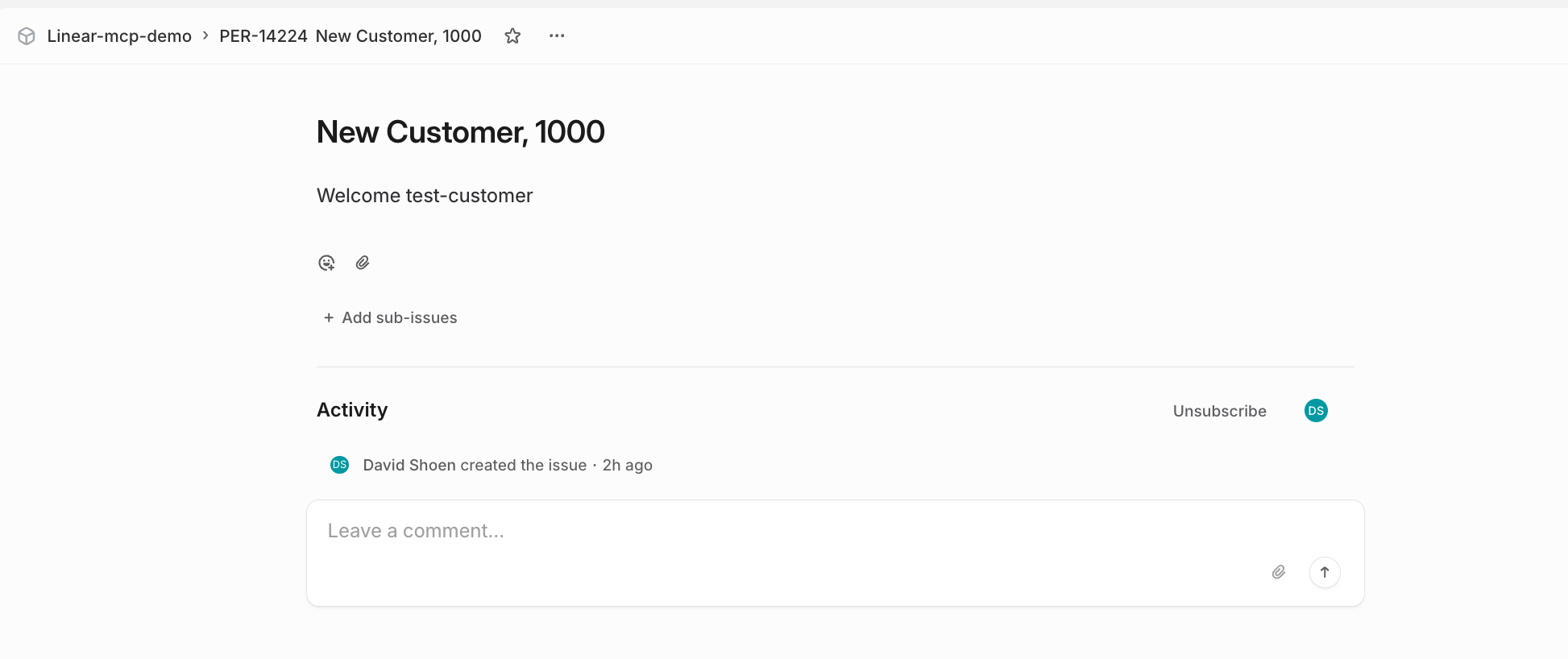
Add an item to the Attio object. With the High trust level you granted in step 1, the gateway allows save_issue, the workflow runs, and Linear gets a new issue.
Expected result: every node in the n8n execution shows a green check, and the new issue appears in the Linear team you selected, with the title and description built from the Attio item.

4. Change the workflow's trust level
To change what the n8n workflow can do on the Linear MCP server, change the agent's trust level in the Permit MCP Gateway admin dashboard:
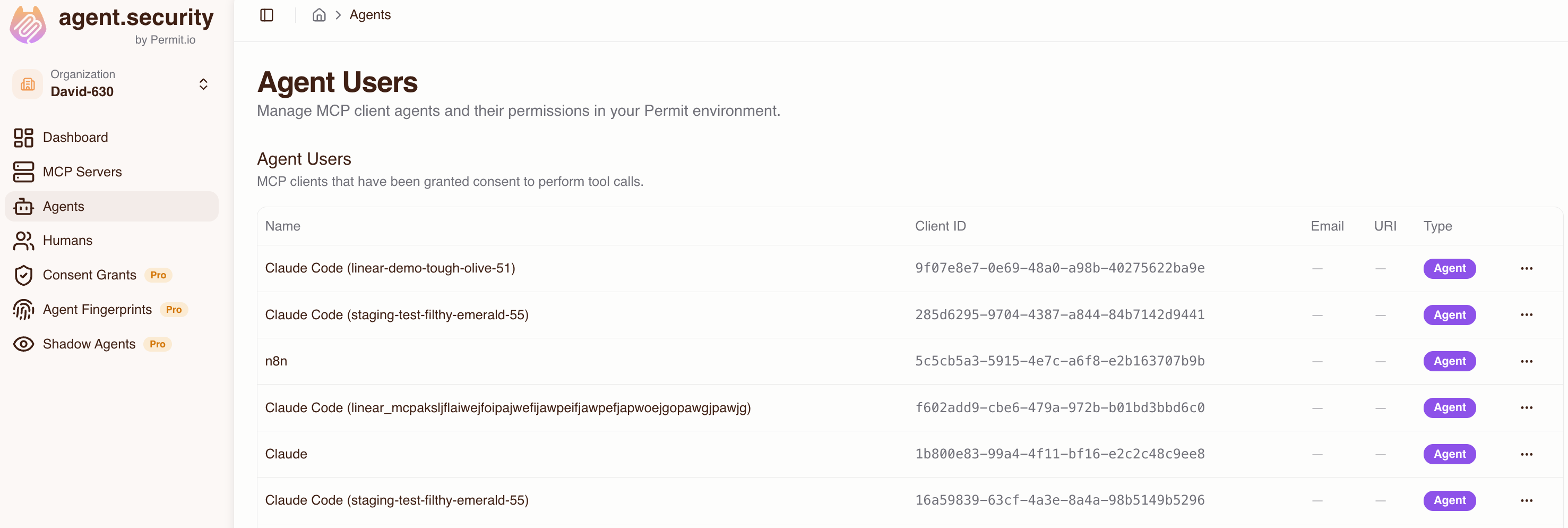
- Open Agents and select the
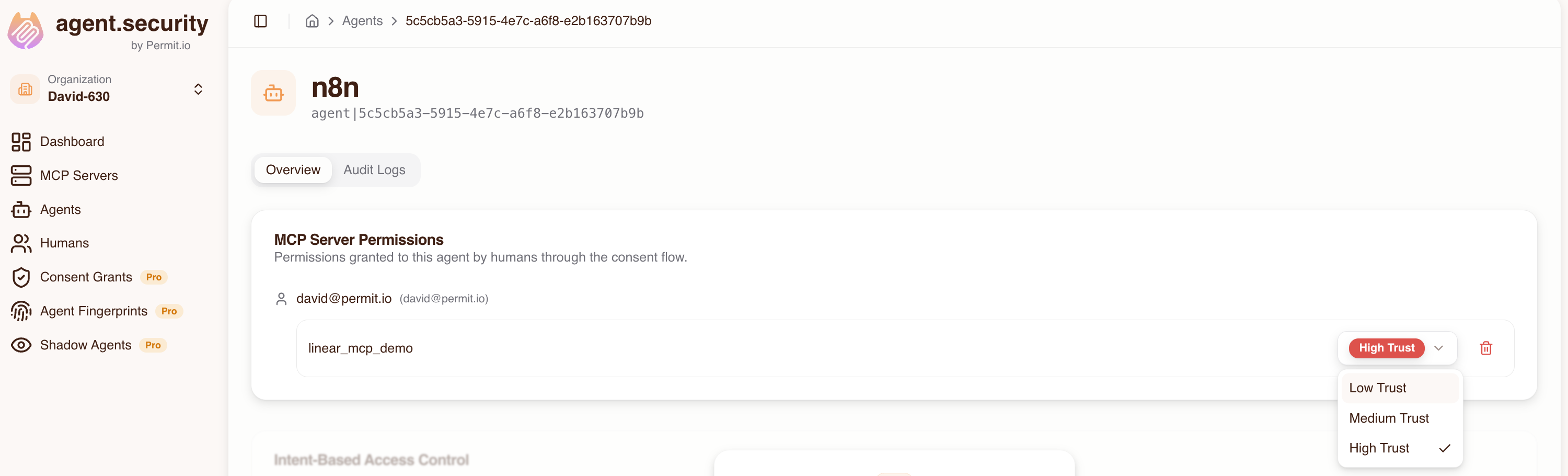
n8nagent. - On the Overview tab, find the Linear MCP server under MCP Server Permissions, next to the email address of the user who ran the consent flow.
- Open the trust dropdown on that row and select Low Trust.
The gateway applies the new trust level to the workflow's next tool call, with no re-consent and no change in n8n. See Modifying agent trust levels.
Add another Attio item. Expected result: the MCP Client Tool node fails with MCP error -32004, the JSON-RPC code the gateway returns for a permission denial, and the message names save_issue. No Linear issue is created, and the denial appears in the agent's Audit Logs tab.
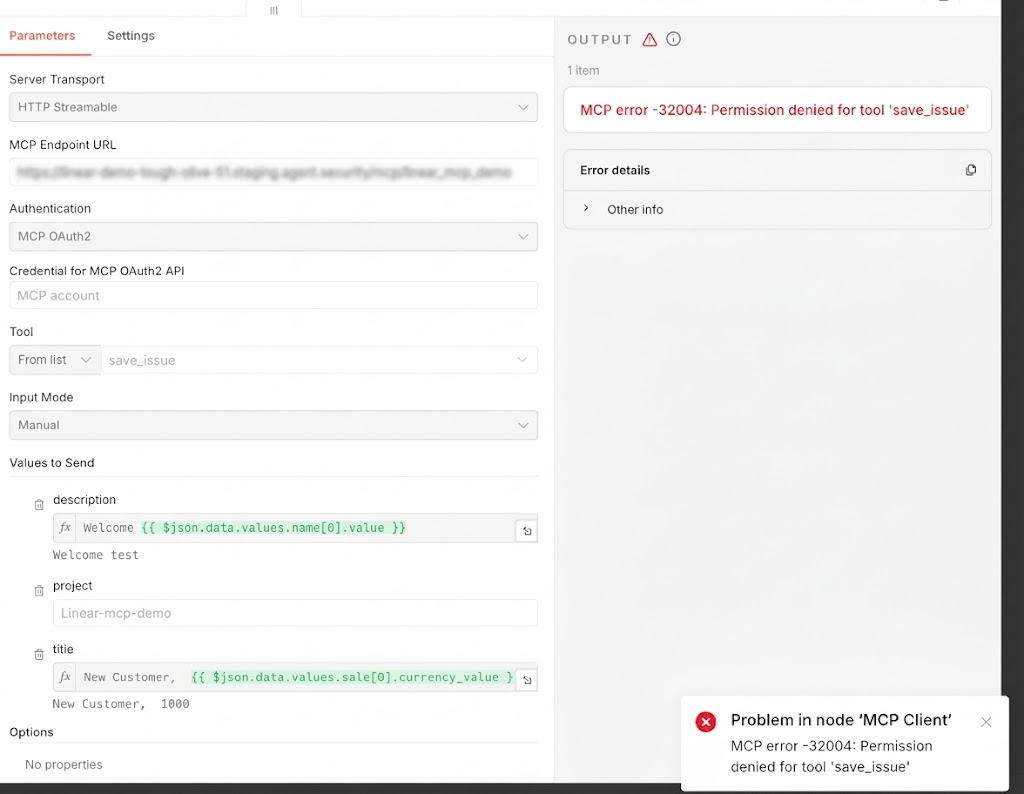
Results
| Trust level | save_issue result |
|---|---|
| High | Allowed: the issue is created |
| Low | Blocked: Permit MCP Gateway denies the call |
You changed what the n8n workflow can do on the Linear MCP server from the gateway, with no change to the Linear MCP server or the n8n workflow.
Next steps
- Human-in-the-loop approvals: require admin approval before the workflow creates an issue.
- Audit logs: review the workflow's allowed and denied calls.
- Manage humans and agents: revoke the workflow's access.