Teleco Demo Application
Learn how the Pink Mobile demo app models fine-grained authorization with Permit.io, from resources and roles to relationships and conditions. This page is for developers who want to see a complete policy model built in code with the Permit Node.js SDK before they design their own.
Pink Mobile is a mobile plan management app built with Next.js. You switch between three personas (Customer, Representative, and Manager) to see what each one can do. The code is in the pink-mobile-demo-app repository.
The following interactive demo shows the app in action:
How the authorization model is organized
The Pink Mobile setup splits authorization into three parts. Each part has its own section on this page:
| Part | What it contains | Where Pink Mobile defines it |
|---|---|---|
| Policy model | Resources, actions, roles, relationships, role derivations, condition sets, and the rules that connect them | setup.js, through the Permit API |
| Authorization data | Users, role assignments, and relationship tuples | setup.js, through the Permit API |
| Enforcement | Permission checks and filtered queries in the app | lib/authorizer.js |
Both the policy model and the authorization data are stored in the Permit control plane, which runs in Permit's cloud. The Permit control plane syncs both to the policy decision point (PDP), the data plane component that runs in your network and answers each check. To learn how the two planes work, see Control & Data planes.
Pink Mobile creates everything with the Permit Node.js SDK. You can create the same policy model in the Permit dashboard.
Configure the policy model
The policy model defines what can be protected and who can do what. The following diagram shows the Pink Mobile entities:
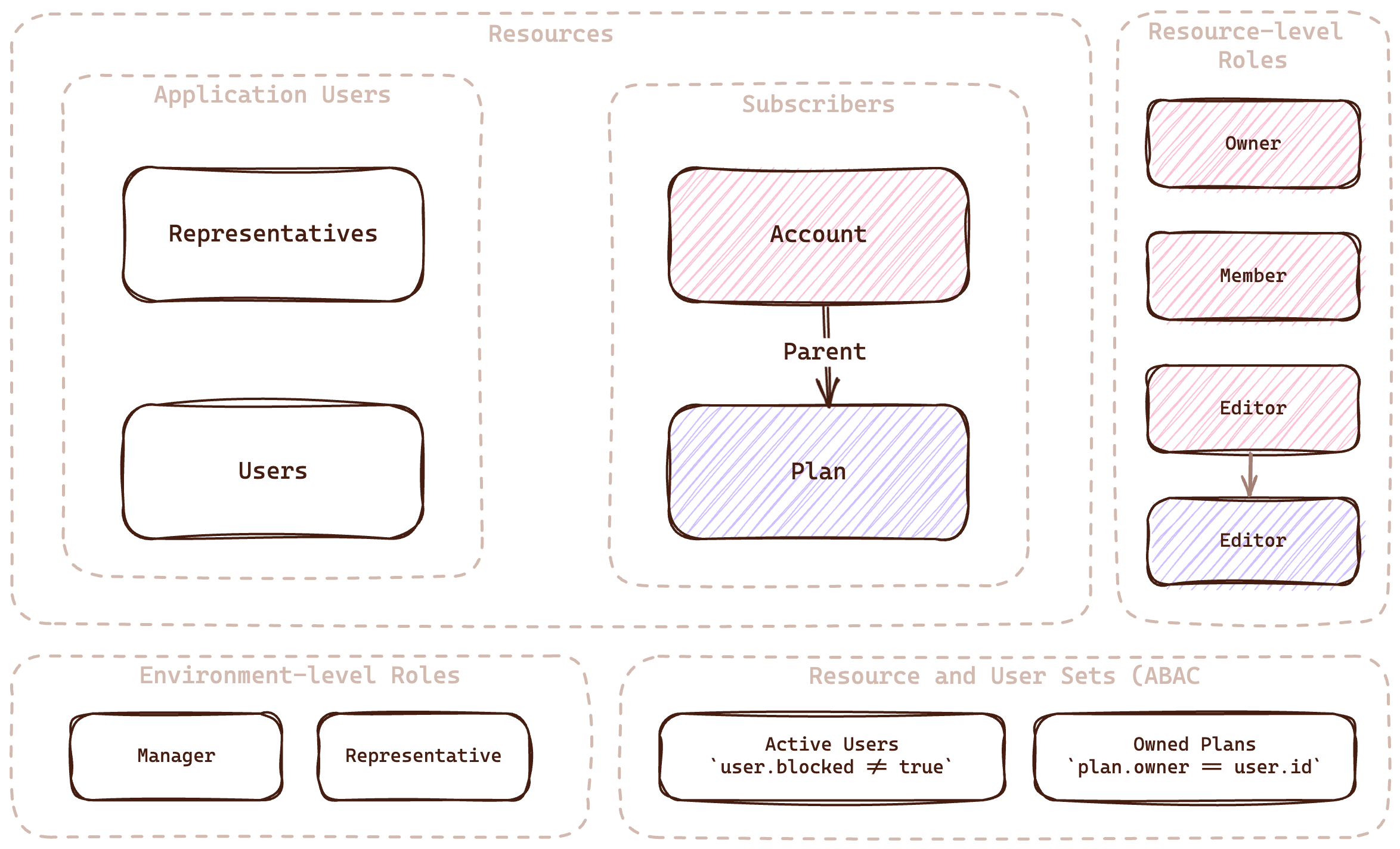
The full configuration is in the setup.js file.
Resources
A resource is a type of object that you protect. Pink Mobile has four resources:
| Resource | What it represents |
|---|---|
| Users | Customers who can have a representative manage their plan |
| Representatives | Agents who manage customers |
| Account | The top-level resource for everything that belongs to a customer, such as personal details |
| Plan | The customer's mobile plan |
The following code from setup.js creates the Representatives resource with its list and assign actions:
await permit.api.resources.create({
    key: "representatives",
    name: "Representatives",
    actions: {
      list: {
        name: "List",
      },
      assign: {
        name: "Assign",
      },
    },
  });
Resource relationships
The Account resource is the parent of the Plan resource. A relationship lets permissions on an account apply to the plan that belongs to it. For example, a user who can edit an account can also edit the account's plan.
The following code declares account as the parent of plan when it creates the Plan resource. The ... lines stand for fields that the excerpt omits:
await permit.api.resources.create({
    key: "plan",
    name: "Plan",
    ...
    relations: {
      parent: "account",
    },
  });
Roles
Roles group permissions on resources. Pink Mobile uses two kinds of roles.
Environment-level roles
An environment-level role grants permissions on every instance of a resource type in the environment.
| Role | Permissions |
|---|---|
| Manager | Assign and list representatives, create and list users, view accounts and plans |
| Representative | List users |
The following code creates the Manager role:
await permit.api.roles.create({
    key: "manager",
    name: "Manager",
    permissions: [
      "representatives:assign",
      "account:view",
      "users:create",
      "representatives:list",
      "plan:view",
      "users:list",
    ],
  });
Resource-level roles
A resource-level role grants permissions only on the resource instances a user is assigned to. This page writes resource-level roles as Resource#Role.
| Role | Permissions |
|---|---|
Account#Owner | view and manage on the account |
Account#Member | view on the account |
Account#Editor | view on the account, and derives Plan#Editor on the account's plan |
Plan#Editor | view and change on the plan |
The following code defines the Plan#Editor role as part of the Plan resource:
await permit.api.resources.create({
    key: "plan",
    name: "Plan",
    ...
    roles: {
      editor: {
        name: "Editor",
        permissions: ["view", "change"],
        ...
      },
    },
    ...
  });
Role derivations
A role derivation grants a role on a related resource. Pink Mobile derives Plan#Editor from Account#Editor: every user with the Account#Editor role on an account gets the Plan#Editor role on the plan whose parent is that account.
The following code adds the derivation to the Plan#Editor role with granted_to:
await permit.api.resources.create({
    key: "plan",
    name: "Plan",
    ...
    roles: {
        editor: {
        name: "Editor",
        permissions: ["view", "change"],
        granted_to: {
            users_with_role: [
            {
                role: "editor",
                on_resource: "account",
                linked_by_relation: "parent",
            },
            ],
        },
        },
    },
    ...
});
Conditions
Condition sets group users or resources by their attributes. You grant permissions to a condition set in the policy, and the PDP includes a user or resource in the set when its attributes match the conditions.
User sets
A user set is a condition set based on user attributes. Pink Mobile creates two user sets:
| User set | Condition | Description |
|---|---|---|
| Blocked Users | user.blocked == true | Users whose account is blocked |
| Active Users | user.blocked == false | Users whose account is active |
The following code creates the Blocked Users user set:
await permit.api.conditionSets.create({
    key: "blocked_users",
    name: "Blocked Users",
    type: "userset",
    conditions: {
      allOf: [{ allOf: [{ "user.blocked": { equals: true } }] }],
    },
});
Resource sets
A resource set is a condition set based on resource attributes. A resource set condition can compare a resource attribute with a user attribute, which lets you check ownership. Pink Mobile creates one resource set:
| Resource set | Condition | Description |
|---|---|---|
| Owned Plans | resource.owner == user.key | Plans whose owner attribute matches the user's key |
The following code creates the Owned Plans resource set:
await permit.api.conditionSets.create({
    key: "owned_plans",
    name: "Owned Plans",
    type: "resourceset",
    resource_id: "plan",
    conditions: {
      allOf: [
        { allOf: [{ "resource.owner": { equals: { ref: "user.key" } } }] },
      ],
    },
});
Policy rules
The policy rules connect roles and condition sets to the permissions they grant. After setup.js runs, the Policy Editor in the Permit dashboard shows this table:
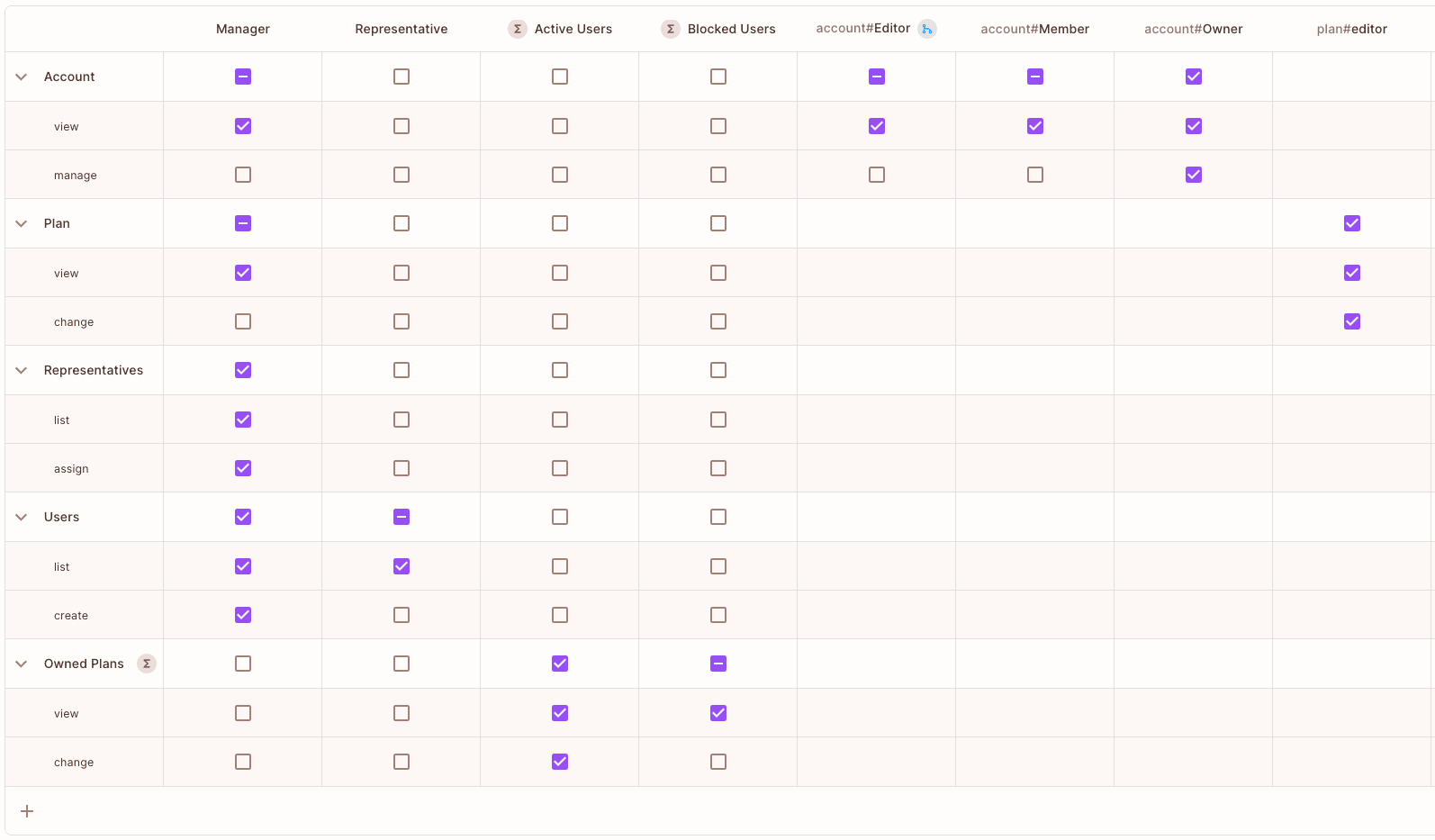
The following code from setup.js grants the Active Users user set the view and change permissions on the Owned Plans resource set:
await permit.api.conditionSetRules.create({
    user_set: "active_users",
    resource_set: "owned_plans",
    permission: "plan:view",
});
await permit.api.conditionSetRules.create({
    user_set: "active_users",
    resource_set: "owned_plans",
    permission: "plan:change",
});
Sync the authorization data
The PDP needs data about the app's users and objects to evaluate the policy model: users with their attributes, role assignments, and relationships between resource instances. Pink Mobile syncs this data in setup.js.
Users
Each user needs a unique key that the app uses in permission checks. In a production app, you sync users when they sign up or sign in through your authentication provider. See Sync users. Pink Mobile creates six users in setup.js instead.
The following code syncs the Sirius Black user:
permit.api.users.sync({
    email: "sirius@pink.mobile",
    key: "sirius@pink.mobile",
    first_name: "Sirius",
    last_name: "Black",
    attributes: {},
});
User roles
A role assignment gives a user an environment-level role or a resource-level role on one instance.
The following code assigns the environment-level representative role to sirius@pink.mobile in the default tenant:
await permit.api.roleAssignments.assign({
    role: "representative",
    user: "sirius@pink.mobile",
    tenant: "default",
});
The following code assigns the resource-level owner role on the account:harry instance, which is Account#Owner, to the harry@potter.io user:
await permit.api.roleAssignments.assign({
    role: "owner",
    resource_instance: `account:harry`,
    user: "harry@potter.io",
    tenant: "default",
});
Relationship tuples
A relationship tuple links two resource instances with a relation. The Plan#Editor role derivation applies only to plans that have a parent relationship tuple with an account.
The following code makes the account:harry instance the parent of the plan:harry instance:
await permit.api.relationshipTuples.create({
    subject: `account:harry`,
    object: `plan:harry`,
    relation: "parent",
    tenant: "default",
})
Enforce decisions in the app
Pink Mobile enforces the policy in lib/authorizer.js in two ways: a permission check before each operation, and filtered queries that return only the data a user may see.
Check permissions with permit.check()
The authorize function in lib/authorizer.js passes the current user, the action, and the resource to permit.check(). The app calls authorize before operations such as changing a plan.
export const authorize = async (user, action, resource) => {
  return permit.check(user, action, resource);
};
permit.check() sends the request to the PDP. The PDP evaluates the policy model with the synced data and returns true when the user may perform the action. See Check permissions.
Filter data by role assignments
To list only the data a user may see, Pink Mobile queries role assignments through the Permit API. For example, the following code lists every assignment of the owner role in the default tenant. The listUsers function in lib/authorizer.js starts from this list:
const owners = await permit.api.roleAssignments.list({
    tenant: "default",
    role: "owner",
  });
For other filtering approaches, see Data filtering.
Run Pink Mobile locally
The Pink Mobile repository README has the steps to run the app. In summary, you:
- Install the dependencies with
npm install. - Add your environment API key and the PDP URL to the
.envfile. See Get your API key. - Run
node setupto create the policy model and data in your Permit environment. - Start a local PDP container. See Run the PDP.
- Run
npm run devand openhttp://localhost:3000.
Verify: In the app, switch between the Customer, Representative, and Manager tabs. Each persona sees only the operations that the policy table allows.
Next steps
- Build ReBAC policies with resource roles, relations, and role derivations.
- Build ABAC policies with user sets and resource sets.
- Healthcare Demo Application for another app that combines RBAC, ABAC, and ReBAC.
- Ask questions in the Permit Slack community.