Audit Logs
Show the users of your application a history of who did what, and when, with the Audit Logs element. This page is for developers who add Permit Elements, the embeddable UI components, to an application.
What the element shows
The Audit Logs element lists events as a table with these columns:
| Column | Content |
|---|---|
| Time | The date and time of the event, and how long ago it happened |
| User | The name and email of the user who acted |
| Resource | The resource the user acted on, such as Document |
| Action | The action the user performed, such as Create or Delete |
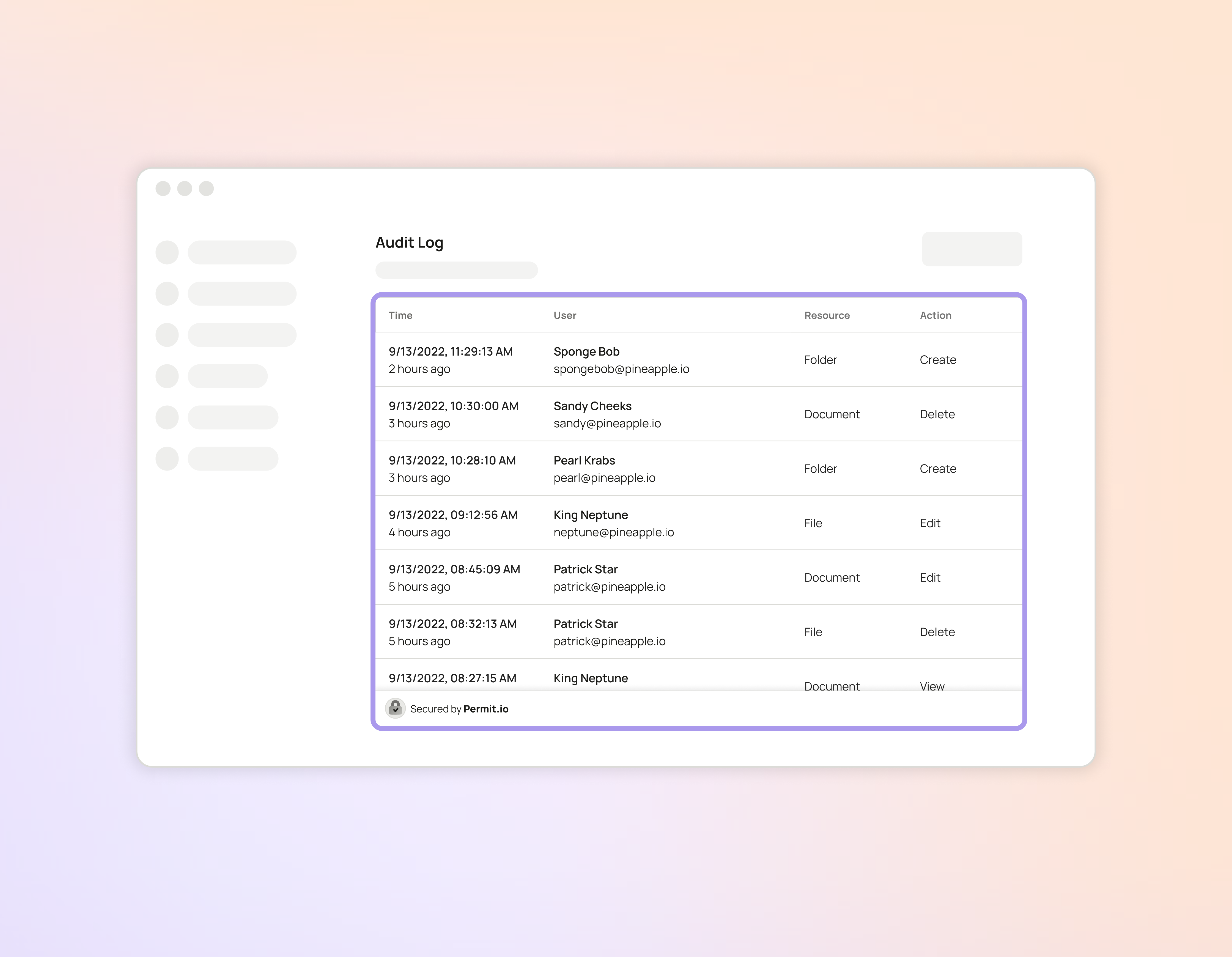
Embed the element
- Create an Audit Logs element in the Elements screen.
- Assign your roles to the element's permission levels. See Permission levels.
- Click Generate Code, and add the iframe snippet to your application.
- Log each user in to Permit Elements before the iframe loads.
For the full steps, including login, see Embed Permit Elements.
Verify the element
Sign in to your application as a user whose role is in a visible permission level, and open the page with the element. The element lists events with their time, user, resource, and action.
Next steps
- Log users in to Permit Elements
- Troubleshoot Permit Elements
- For the audit logs of permission decisions in the Permit dashboard, see Audit log types and filtering.