Permit Elements
Learn what Permit Elements are, which elements exist, and where to start embedding one. This page is for developers and product teams who want to let their own end users manage access inside their application.
What Permit Elements are
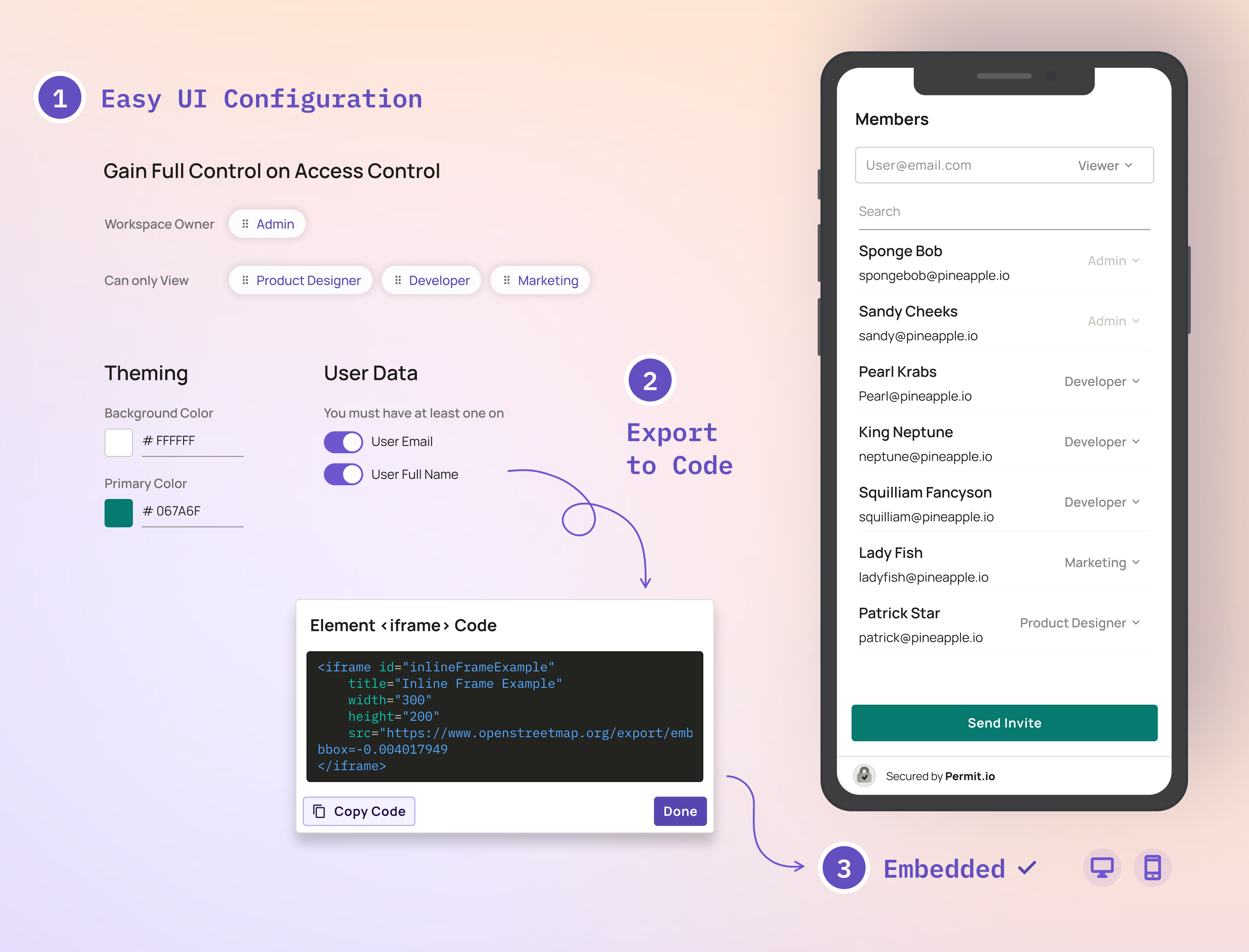
Permit Elements are embeddable UI components for access control: user management, access requests, operation approvals, and audit logs. You add an element to your application as an iframe. The element reads and changes data in your Permit environment, and your policy decides what each end user can see and do in it. The permission levels you assign to your roles set those limits.
Every element supports:
- Sign-in from your own application, through a backend login route or through a user JWT that Permit verifies against the environment's JSON Web Key Set (JWKS). See Log users in to Permit Elements.
- Layouts for desktop and mobile screens.
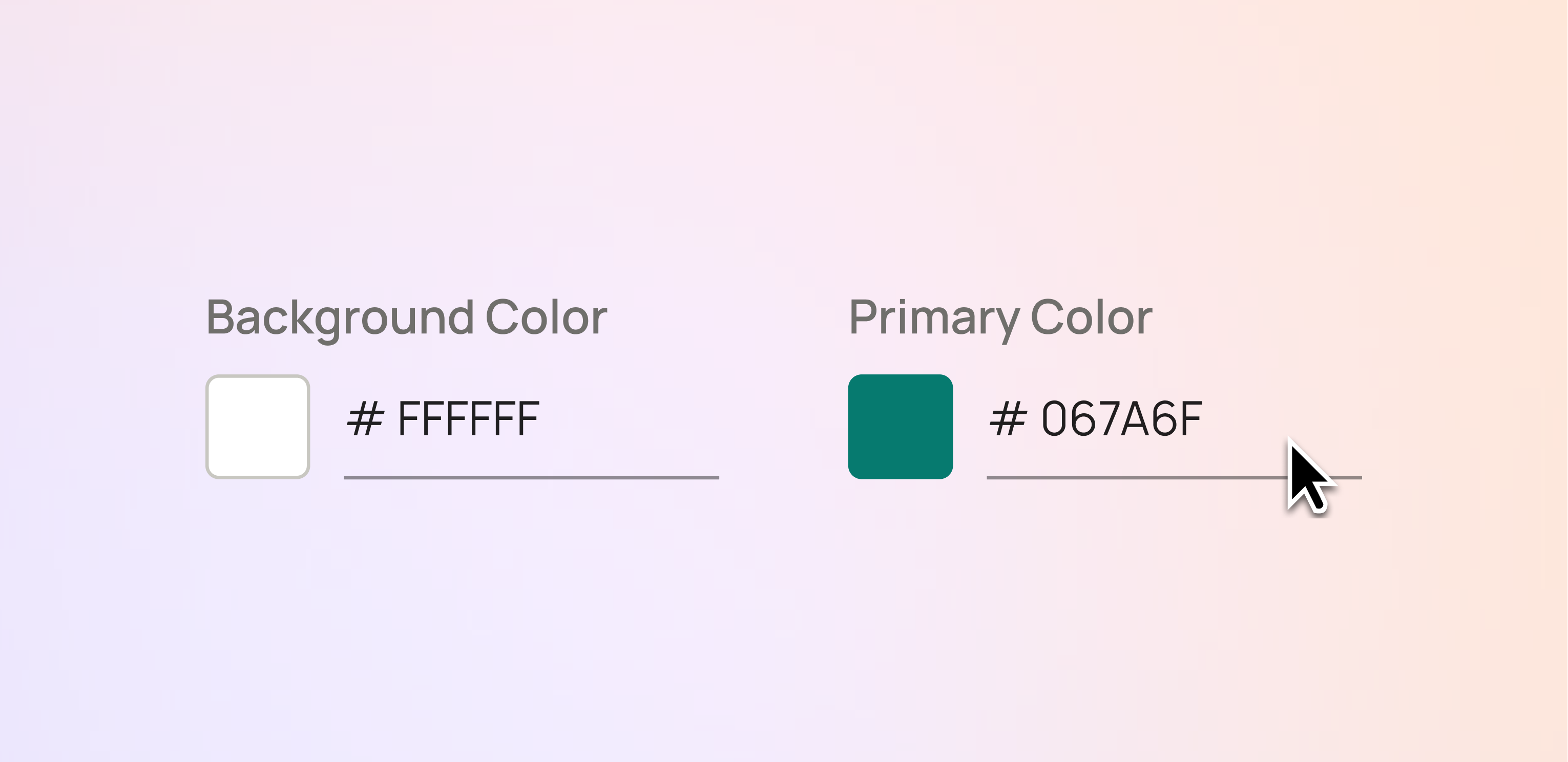
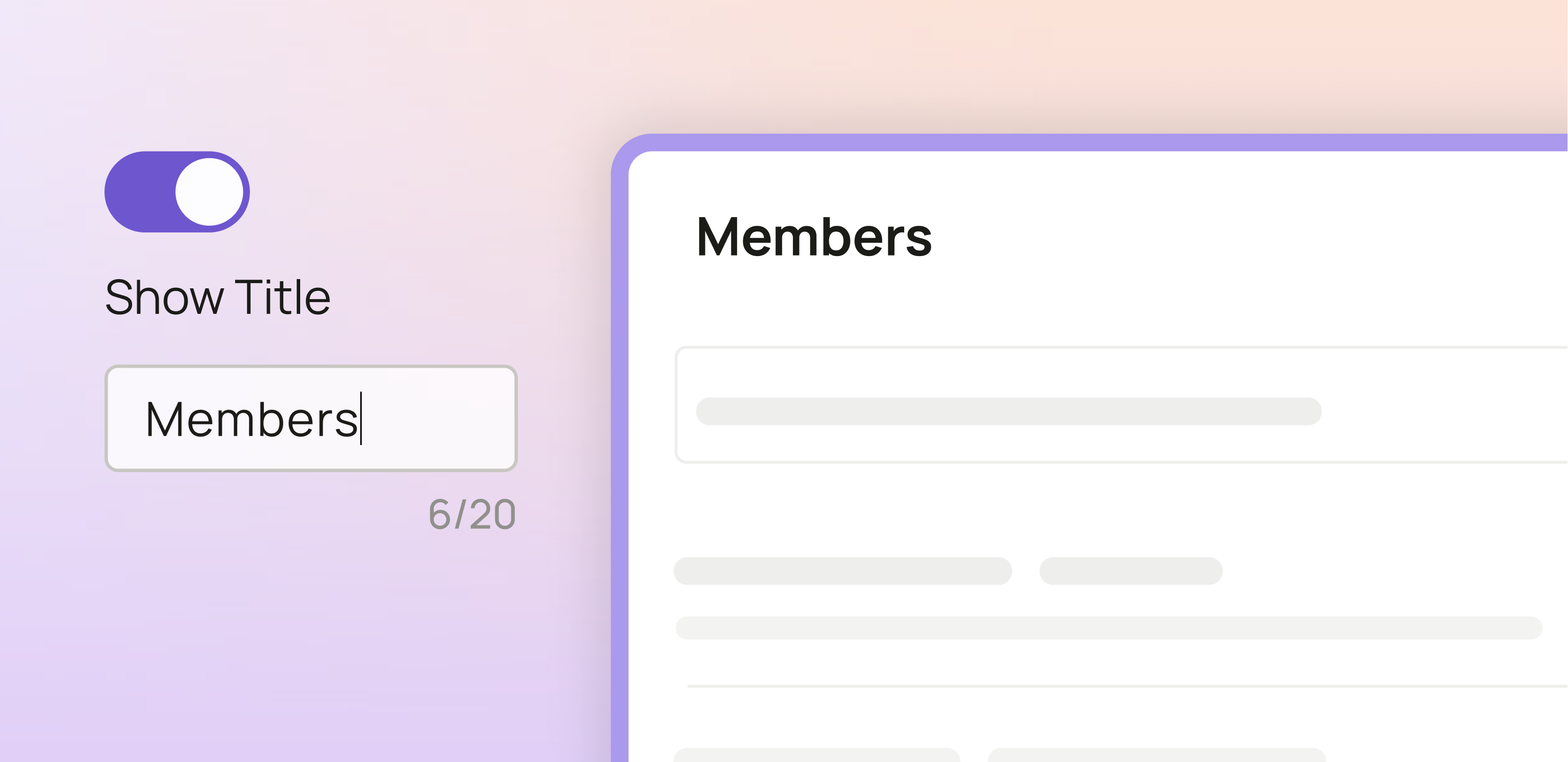
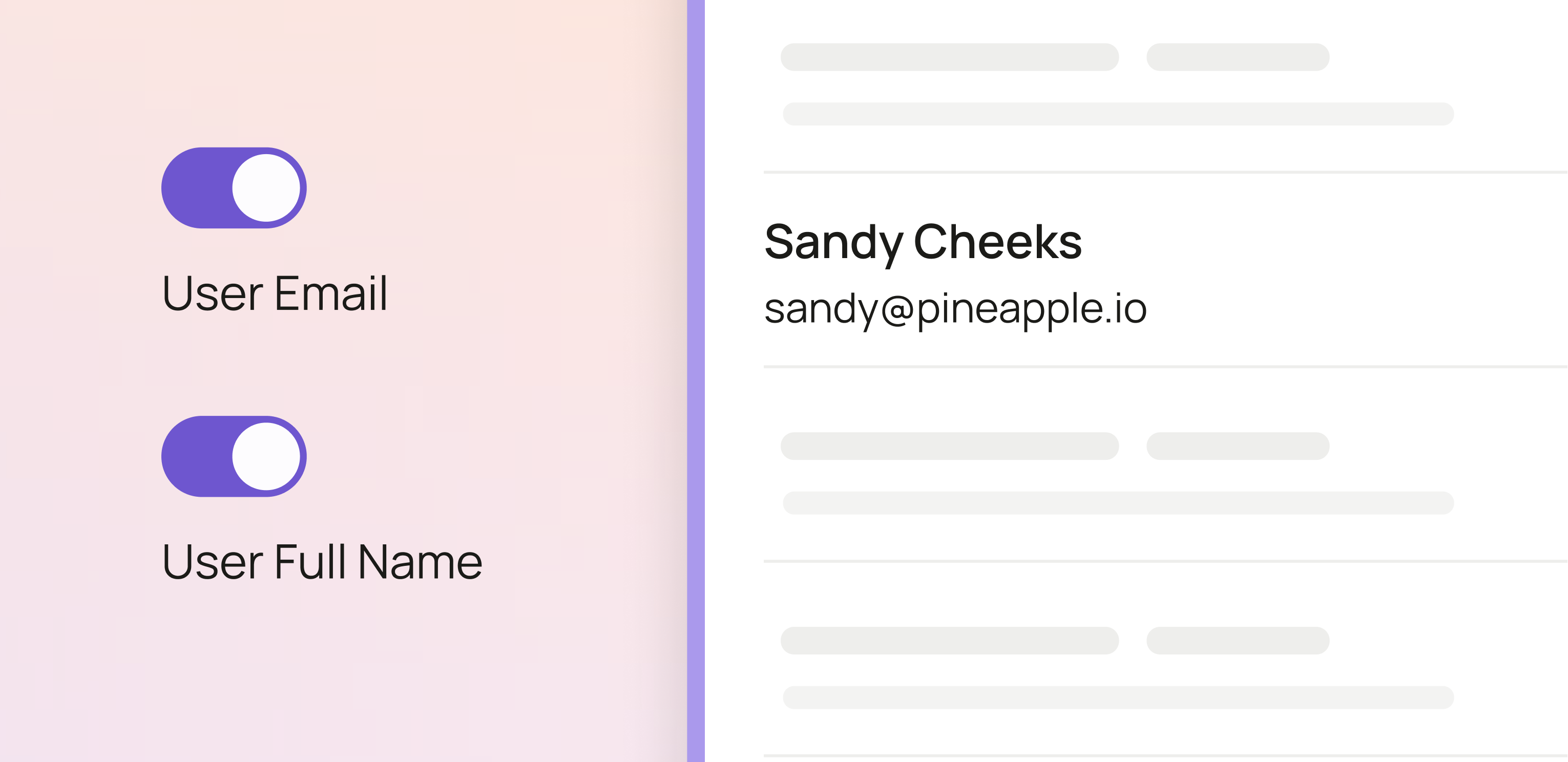
- Custom colors, titles, and displayed fields, so the element matches your application.
- Embedding with an iframe snippet that the Permit dashboard generates.
Available elements
| Element | What end users do with it | Who uses it |
|---|---|---|
| User Management | Invite users, assign roles, and review pending invitations and access requests. | The admins of each tenant in your application. |
| Audit Logs | See which user performed which action on which resource, and when. | Admins and auditors of a tenant. |
| Access Request | Request a role they don't have. A reviewer approves or denies the request in the User Management element. | Any user who needs access they don't have. |
| Operation Approval | Request approval for a single sensitive action, such as a large funds transfer. | Any user who performs an action that needs a reviewer's approval. |
| Approval Management | Approve or deny operation approval requests. | Reviewers who hold the _Reviewer_ role on the request's resource instance. |
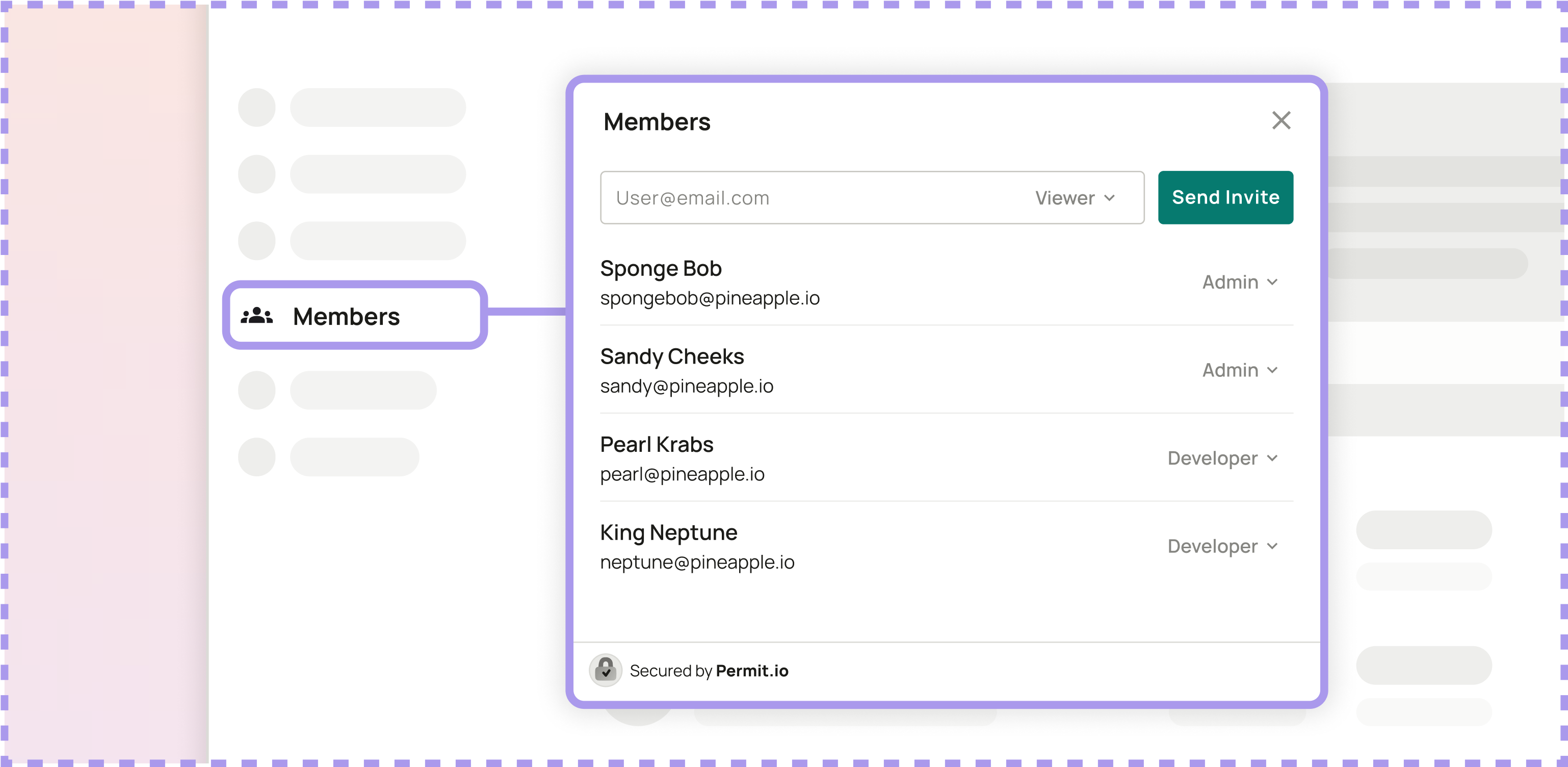 User ManagementRECOMMENDEDInvite users, assign roles, and review pending invitations and access requests
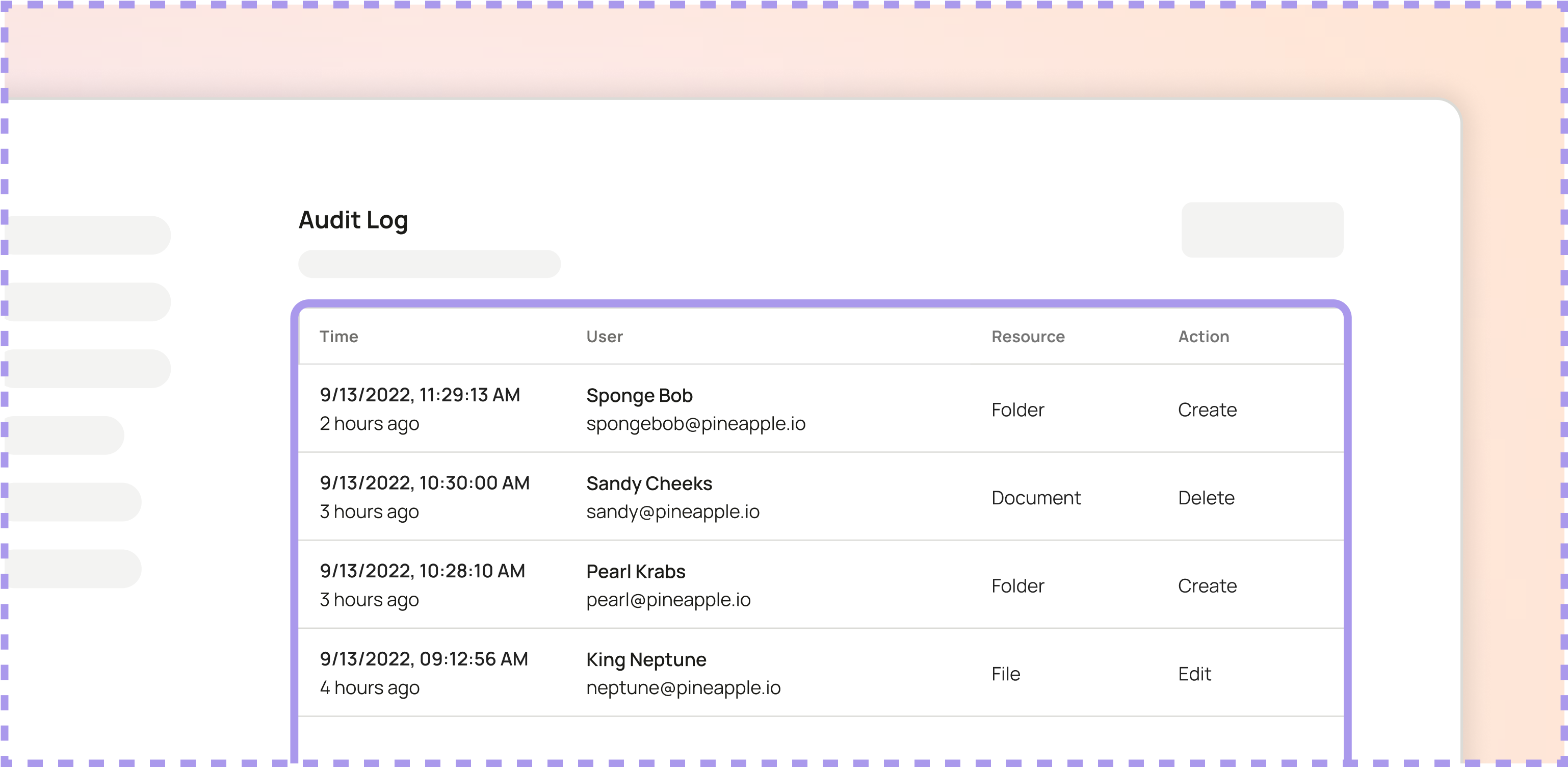 Audit LogsSee which user performed which action on which resource, and when
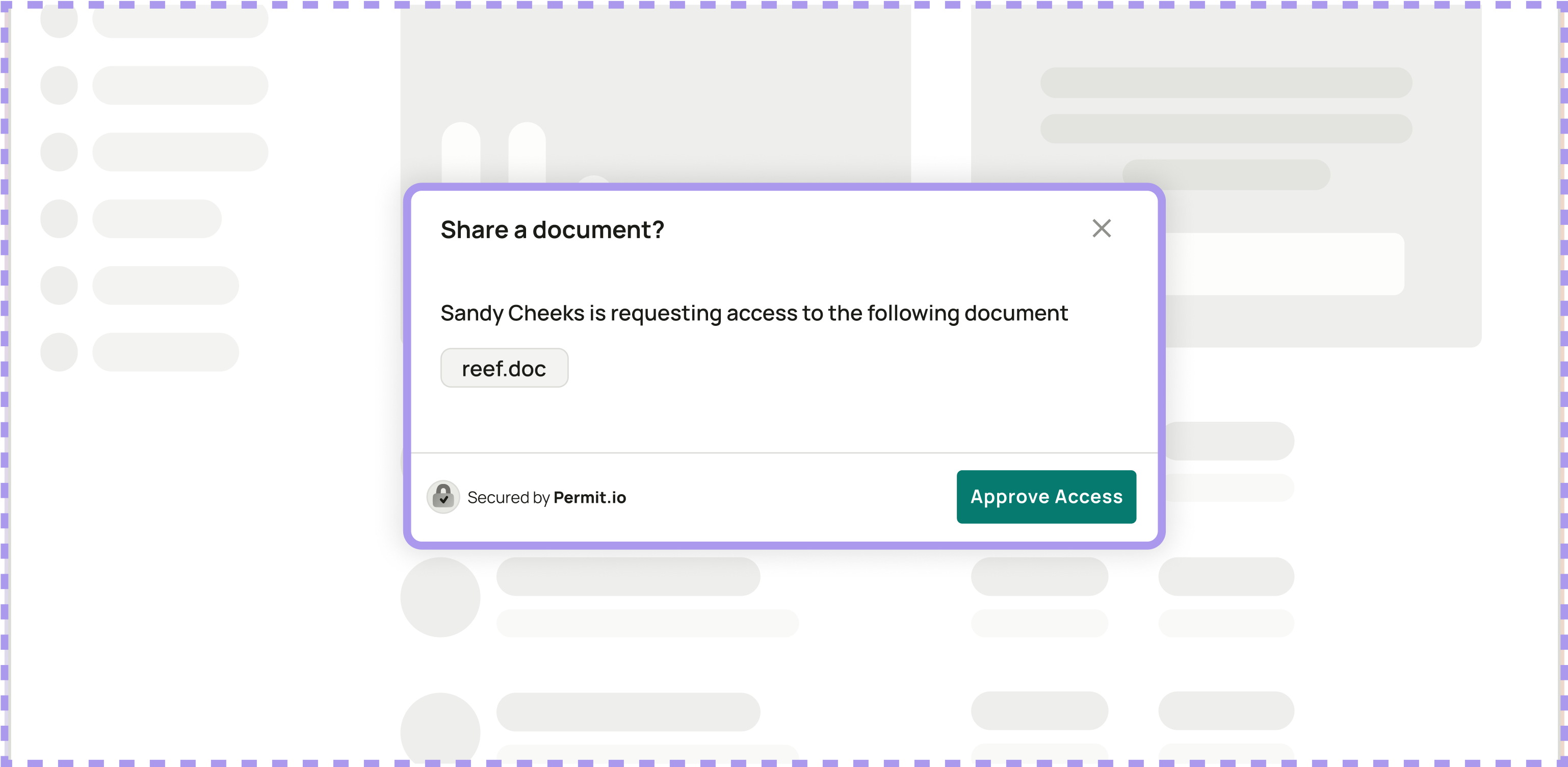 Access RequestRequest a role you don't have, for a reviewer to approve or deny
If no element covers your use case, ask in the Permit Slack community.
Embed your first element
- Create the element in the Permit dashboard and copy its iframe code. See Embed Permit Elements.
- Assign your roles to the element's permission levels. See Permission levels.
- Log each user in to the element from your application before the iframe loads. See Log users in to Permit Elements.
If you don't know which element to start with, start with the User Management element: Embed the User Management element covers all three steps for that one element.
Configure and customize
Next steps
- Embed Permit Elements: create an element and add it to your application.
- Log users in to Permit Elements: choose a login method.
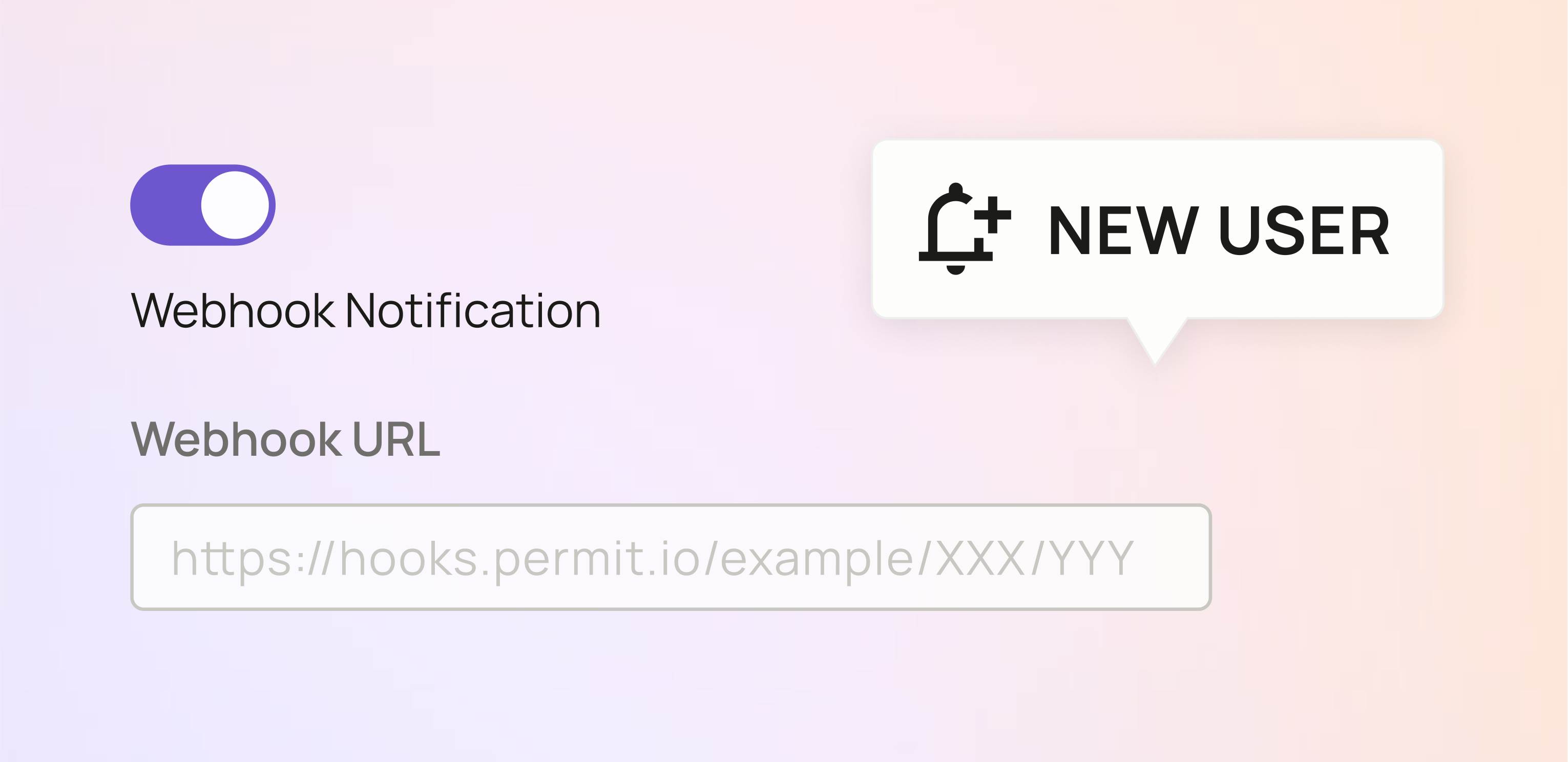
- Configure webhooks: get notified of user and approval events.
- Troubleshoot Permit Elements: fix login and loading errors.