Troubleshoot Permit Elements
Find the cause and fix of common errors when you embed Permit Elements, the embeddable UI components, in your application. This reference is for developers whose element doesn't load or whose login fails. Errors are grouped by the request that fails: the login, the /me request, or the /runtime request.
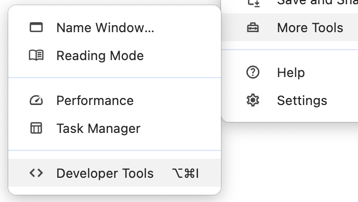
Open your browser's developer tools and select the Network tab. Most element problems show up there as a failed login, /me, or /runtime request.
Check the basics first
- Iframe URL: copy the iframe from the Generate Code button on the element's page. A hand-edited URL with a wrong element key or environment ID fails to load.
- Login code: check that your frontend and backend implement the same login method. See Log users in to Permit Elements.
- Backend reachability: check that the backend login route is running and that your frontend can reach it. The server logs and the Network tab show whether the request arrives.
- API key: check that the backend initializes the Permit SDK with the API key of the environment the element belongs to.
Login errors
Every login method runs permit.elements.login() in your frontend. When the login fails, the element has no session and doesn't load.
No /login_elements request after login

A successful login makes a request to /login_elements. If the Network tab shows no /login_elements request, the login code didn't run or didn't complete. Compare your frontend and backend code with Log users in to Permit Elements.
Error 404 or 422 from the login endpoint
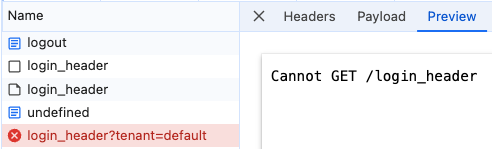
A 404 or 422 response means the login endpoint doesn't exist or received the wrong value. A common cause is a backend route that returns the wrong field of the loginAs result:
- Cookie method: the route must redirect to
ticket.redirect_url. - Bearer and header methods: the route must return
ticket.content.
This Express route shows the wrong and correct responses side by side. Keep only one of the correct lines, for your login method:
app.post("/login_cookie", async (req, res) => {
    // const user_key = get_user_from_jwt();
    console.log(USER, TENANT);
    const ticket = await permit.elements.loginAs({userId: USER, tenantId: TENANT});
    res.status(200).send(ticket.redirect_url); // WRONG: sending ticket.redirect_url instead of ticket.content
    res.status(302).redirect(ticket.content); // WRONG: redirecting to ticket.content instead of sending it
    res.status(200).send(ticket.content); // CORRECT: sending ticket.content
    res.status(302).redirect(ticket.redirect_url); // CORRECT: redirecting to ticket.redirect_url
});
Error ERR_CONNECTION_REFUSED

The frontend can't connect to the backend login route. Start the backend server, and check that the loginUrl host and port match the server.
CORS errors

The backend login route doesn't allow cross-origin requests from your frontend. Configure the backend to allow the frontend's origin and credentials.
This Express middleware allows requests from http://localhost:3001. Replace the origin with the domain your frontend runs on:
app.use(function(req, res, next) {
    res.header("Access-Control-Allow-Origin", "http://localhost:3001"); // update to match the domain you will make the request from
    res.header("Access-Control-Allow-Credentials", "true");
    res.header("Access-Control-Allow-Headers", "Origin, X-Requested-With, Content-Type, Accept, Authorization, X-Permit-User-Key");
    next();
});
Error ERR_EMPTY_RESPONSE

The backend closed the connection without a response, usually because of a server error or a network problem. Check the server logs for the failing request.
Set-Cookie blocked
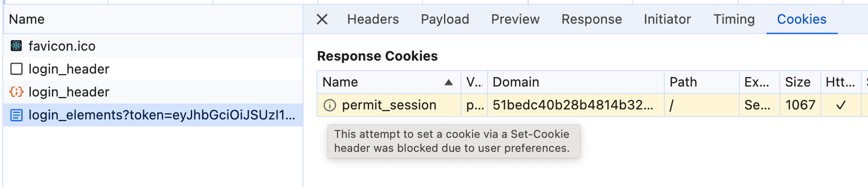
The browser blocked the permit_session cookie from Permit. This happens when the browser blocks third-party cookies, or when the cookie's SameSite attribute is Strict or Lax. Without the cookie, the element has no session.
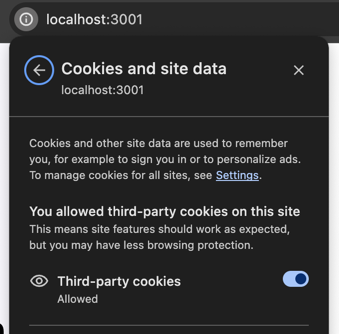
To fix it for all your users, use the private browsing login method, which doesn't depend on the cookie. See Support private browsing. To confirm the cause while you debug, allow third-party cookies in your own browser settings:
Error page embed_error.html

If the login fails inside Permit, the Network tab shows a request to embed_error.html with an error message. The message names the cause, such as USER_NOT_FOUND. For each error and its fix, see Login errors.
Errors from the /me request
After the login, the element iframe loads and requests /me from the Permit API to get the signed-in user's data.
Error 401 Unauthorized

A 401 response to /me has one of these causes:
| Cause | Fix |
|---|---|
| The user is not logged in to the element. | Call permit.elements.login() before the iframe loads. |
| The element session expired. | Log the user out with permit.elements.logout() and log in again. |
The permit_session cookie is missing or invalid. | Check the cookie as described below. |
| The environment ID or key in the iframe URL is wrong. | Copy the iframe again from Generate Code. |
To check the cookie, select the /me request in the Network tab and look for permit_session in the Request Headers:
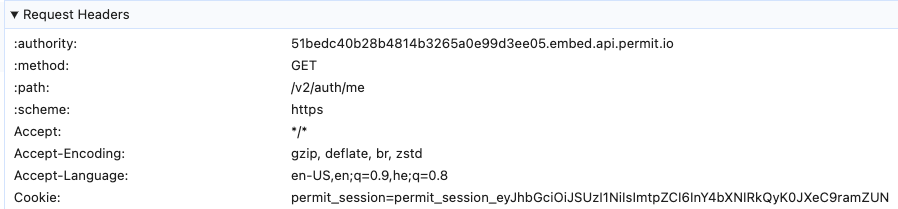
If permit_session is missing, the user is not logged in or the session expired. Log the user out and in again to get a new cookie. If the login looks successful but /me still returns 401, compare your frontend and backend login code with Log users in to Permit Elements.
Errors from the /runtime request
After /me, the element requests /runtime from the Permit API to get the element's configuration.
Error 404 Page Not Found

A 404 response to /runtime means the element key or ID in the iframe URL is wrong. Click Generate Code on the element's page and copy the iframe URL again:
