Email Configuration and Templates
Send invitation emails from Permit Elements through your own SMTP server, with templates you write in HTML and CSS. This page is for admins and developers who configure the User Management element to invite users by email, and then approve those invites from their backend.
How email notifications work
When an element has email notifications turned on, Permit sends emails through the SMTP provider you configure. For example, when a user invites someone in the User Management element, Permit emails the invited person a link that contains an invite code. Your application approves the invite with that code, and Permit then creates the user with the invited role.
Supported email providers
Permit Elements sends email through an SMTP provider.
Prerequisites
- A User Management element created in the Permit dashboard.
- The host, port, and credentials of an SMTP server.
- An environment API key, to approve invites with the Permit SDK. See Get your API key.
Set up email notifications
1. Turn on email notifications
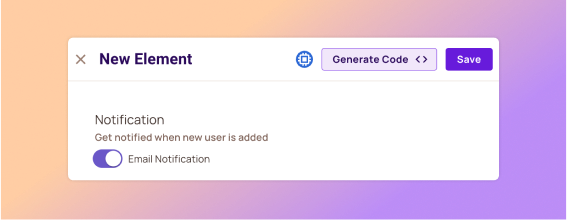
Open the element in the Elements screen, and turn on Email Notification.
2. Enter your SMTP settings
-
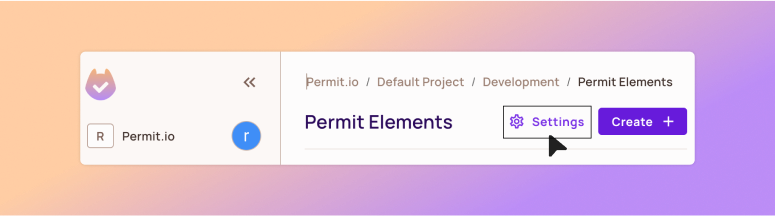
On the Permit Elements screen, click Settings.
-
Fill in the required SMTP fields, and click Save Settings.
-
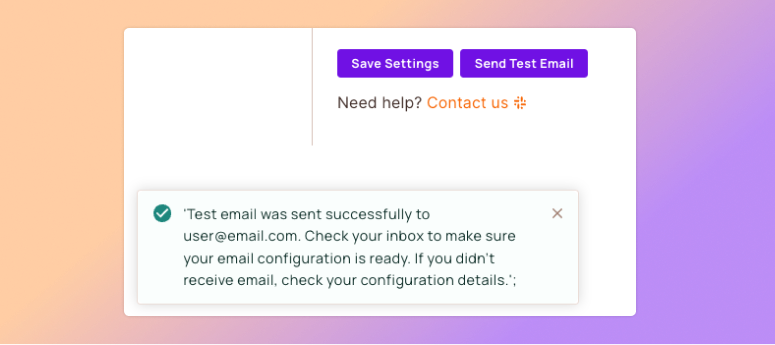
Click Send Test Email. A message confirms that Permit sent the test email. Check the inbox to confirm the email arrived. If it didn't arrive, check the SMTP settings.
3. Customize the email template
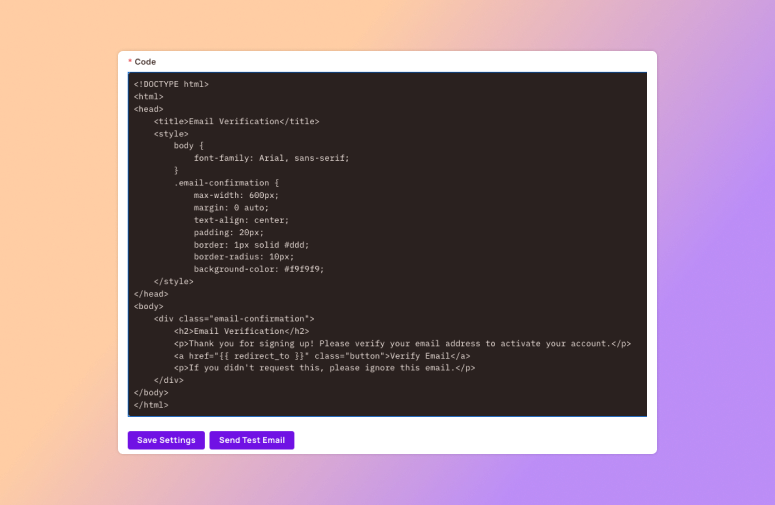
Each template has a Redirect To field and an HTML and CSS Code editor. For the User Management element, the template is the email an invited user receives.
- Set Redirect To to the page in your application that handles invites.
- Edit the email body in the Code editor.
- Click Save Settings.
Permit replaces {{ redirect_to }} in the template with the invite link, built from the Redirect To URL. If you remove the variable, the email has no invite link, and the invited user can't accept the invite.
Invite and approve users
1. Invite a user from the User Management element
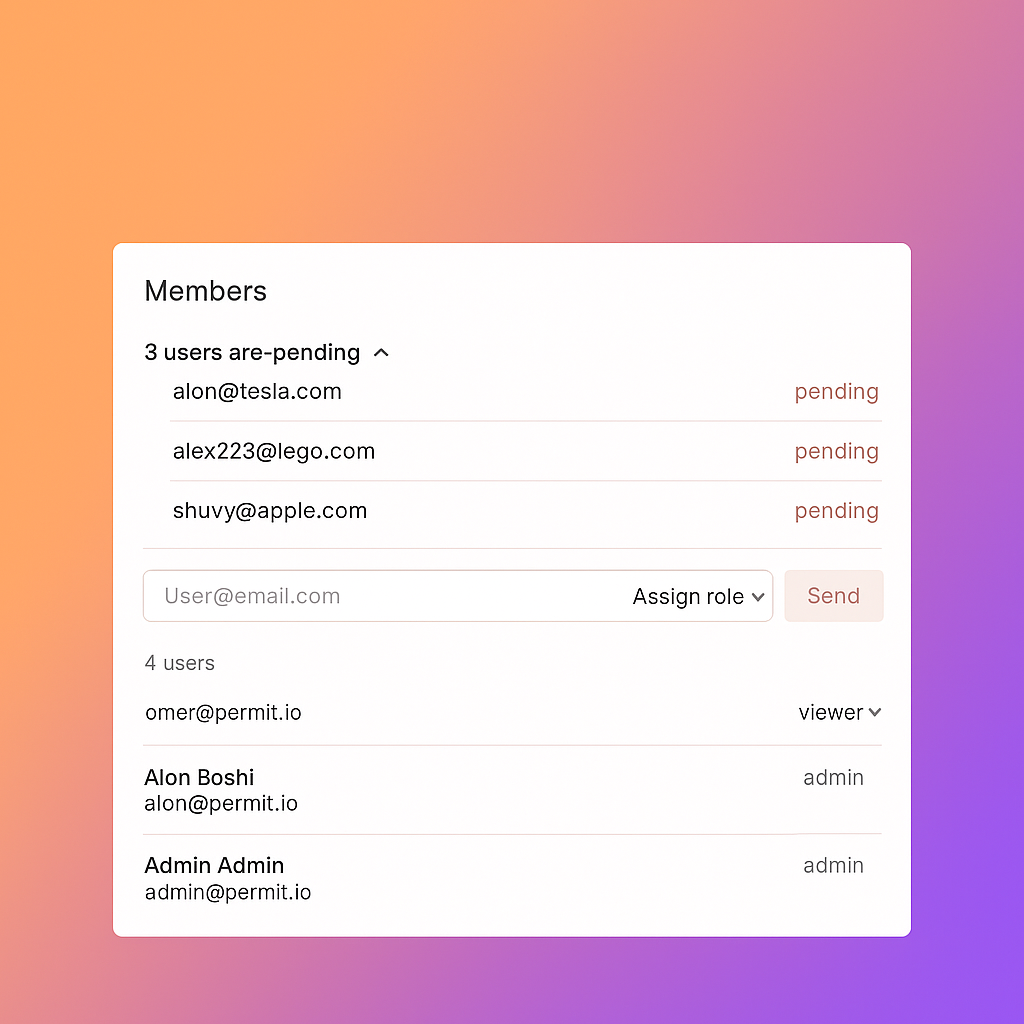
In the embedded User Management element, enter the user's email, select a role, and click Send Invite (you can change the button text in the element settings). The invited user appears in the element as pending.
2. Approve the invite with the SDK
The email links to your Redirect To URL with an invite_code query parameter, for example:
https://example.com/?invite_code=ed32bc43e2194a80a5ef5e0339943b44
In the page that handles the link, confirm the user's identity, and then approve the invite from your backend. The invite code is the user_invite_id. This example uses the Python SDK. Replace <YOUR_API_KEY> with your API key, <INVITE_CODE> with the invite code, and the email and key with the invited user's email and user key:
import asyncio
from permit import Permit, ElementsUserInviteApprove

permit = Permit(token="<YOUR_API_KEY>")

async def approve_invite(invite_code: str, email: str, user_key: str):
    approve_data = ElementsUserInviteApprove(
        email=email,
        key=user_key,
        attributes={},
    )
    return await permit.api.user_invites.approve(
        user_invite_id=invite_code,
        approve_data=approve_data,
    )

asyncio.run(approve_invite("<INVITE_CODE>", "john@example.com", "john@example.com"))
Permit creates the user and assigns the role the user was invited with.
Verify the approval
In the Permit dashboard, open Directory. The invited user appears with the invited role, and the User Management element no longer shows the user as pending.
Related pages
- Configure webhooks: get an
invite_userwebhook that includes theuser_invite_id. - User Management element
- Embed Permit Elements