Preview an Element
Check how an element looks and behaves for each permission level and tenant before you embed it. This page is for admins who configure elements in the Permit dashboard.
Preview an element for a permission level and tenant
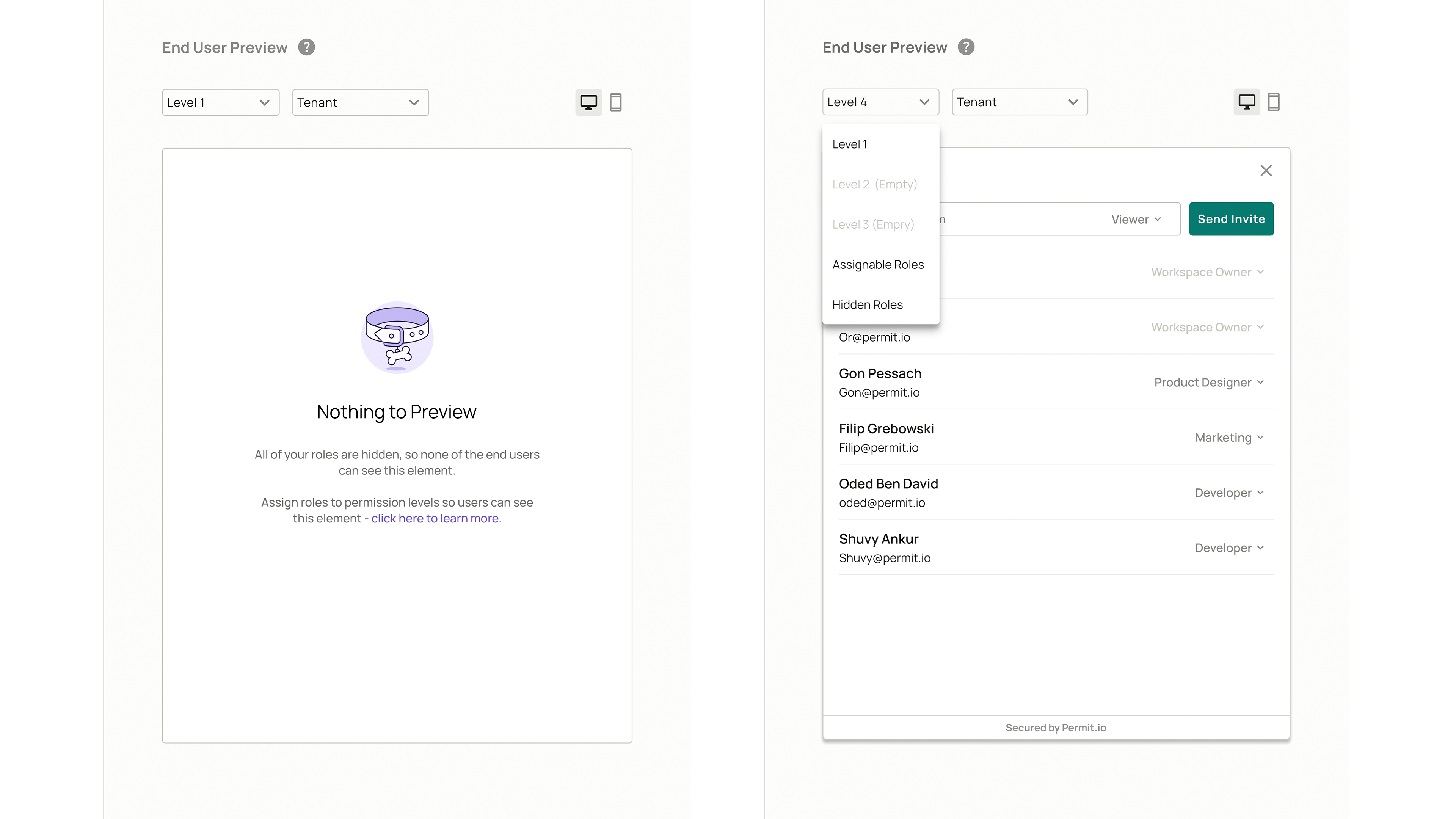
- Open the element in the Elements screen. The End User Preview appears on the right of the configuration form.
- In the level dropdown, select a permission level, such as Level 1 or Assignable Roles. Levels with no roles show as (Empty).
- In the Tenant dropdown, select a tenant.
- Use the desktop and mobile icons to switch the preview's screen size.
The preview shows the element as a user with a role in the selected level sees it in the selected tenant. If all your roles are in Hidden Roles, the preview shows Nothing to Preview, because no end user can see the element. To fix that, assign roles to levels. See Permission levels.
Tenant dropdown
The Tenant dropdown shows a tenant only after the current user has logged in to that tenant.
Related pages
Was this page helpful?
Sign up for developer updates:You can unsubscribe at any time. Read our privacy policy.